How to Check Word Count on Google Docs (Windows, Mac, Mobile)
In this guide, we’ll show you how to check word count on Google Docs using desktop and mobile apps, how to enable real-time word count, and even how to check word count for specific parts of your document.
Quick Answer: To check word count in Google Docs, go to Tools → Word count or press Ctrl + Shift + C (Windows) / Cmd + Shift + C (Mac). A dialog box instantly shows your page count, word count, and character count.
Who this is for: Students, writers, content creators, academics, and professionals who use Google Docs and need to track word count for assignments, articles, or publishing requirements.
How to Check Word Count on Google Docs (Desktop – Windows & Mac)
Using the Tools Menu
The standard way to check word count in Google Docs on desktop:
- Open your document in Google Docs.
- Click on Tools in the top menu.
- Select Word count from the drop-down menu.
What you’ll see:
- Number of words
- Number of characters (with and without spaces)
- Page count
Alternatively, you can use the shortcut “Ctrl + Shift + C” (Windows) or Command + Shift + C (Mac) to quickly enable the word count feature in Google Docs.
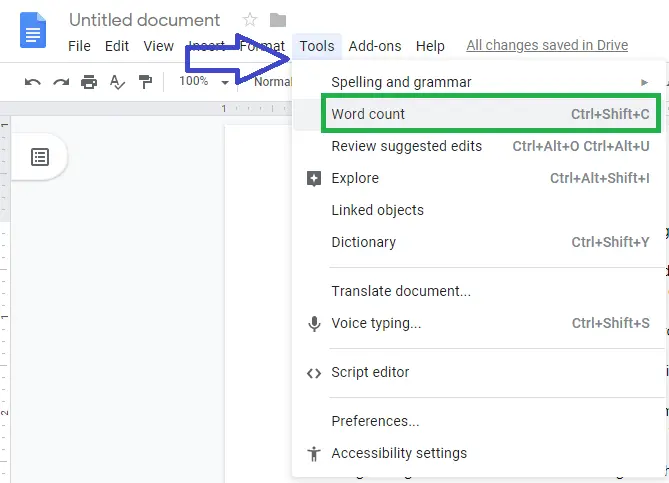
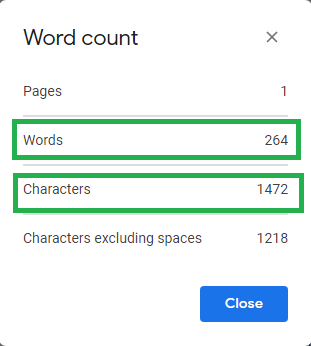
This word count feature is helpful to measure the length of a document by counting the number of words, characters in Google Docs, and the length of the article may differ but is often between 300 and 1500 words.
Use the Keyboard Shortcut (Fastest Method)
The quickest way to open the word count dialog without using the mouse:
| Operating System | Shortcut |
|---|---|
| Windows | Ctrl + Shift + C |
| Mac | Cmd + Shift + C |
| Chromebook | Ctrl + Shift + C |
This shortcut works from anywhere inside the document editor and opens the same dialog as the Tools menu.
Enable Live Word Count (Real-Time Display)
Google Docs can show a persistent, real-time word count in the bottom-left corner of the editor as you type — no need to open the dialog repeatedly.
How to enable live word count:
- Go to Tools → Word count.
- Check the box “Display word count while typing.”
- Click OK.
Note: Press “Ctrl + Shift + C” (Windows) or Command + Shift + C (Mac). This will enable the live word count feature.
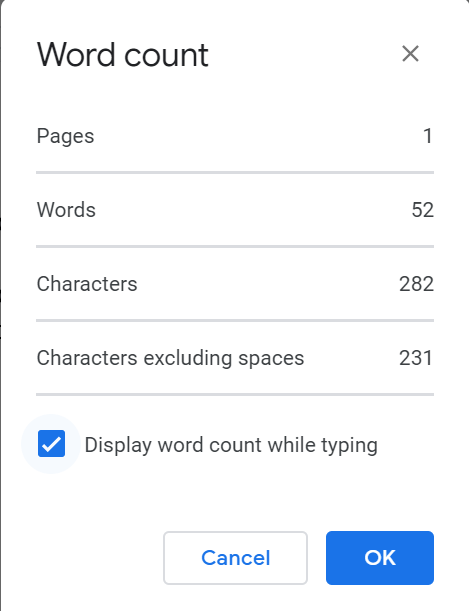
The current word count will be displayed in the bottom left corner of your document, updating in real-time as you type.
- Useful for live editing
- Saves time compared to reopening the menu
- Keeps you within target limits for articles or assignments
Check Word Count for Selected Text
To check the word count of a specific paragraph, section, or passage — rather than the entire document:
- Click and drag to highlight the text you want to count
- Press
Ctrl + Shift + C(Windows) orCmd + Shift + C(Mac)
The word count dialog will display statistics for both the selected text and the full document, making it easy to measure any section independently.
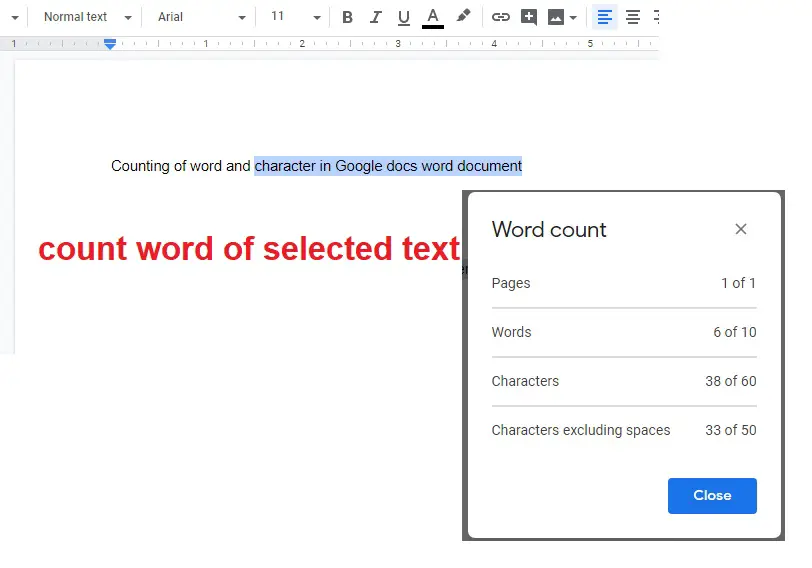
You don’t require any word counter tool in Google Docs for counting.
Check Word Count on Mobile
The Google Docs mobile app also lets you check word count, though the option is hidden in the menu.
Steps (Android & iOS):
- Open the Google Docs app.
- Open your document.
- Tap the three dots menu in the top right.
- Select Word count from the list.
You’ll see the total word count, character count, and page count — but note that mobile doesn’t have real-time word count display like desktop.
How Hyphenated Words Are Counted
Hyphenated words such as “well-known” or “state-of-the-art” are counted as one word in Google Docs. This differs from some platforms (like Microsoft Word in certain settings) where hyphens may split the count.
Google Docs Word Count vs. Microsoft Word: Key Differences
While both tools offer similar word count features, Google Docs is better for collaboration and live editing, whereas Microsoft Word offers more advanced statistics like average sentence length and readability scores.
If you frequently switch between Word and Google Docs, note that counts may differ slightly because they handle special characters and spaces differently.
Is Google Docs word count accurate?
Yes, Google Docs word count is correct and accurate, but when counting words in Google Docs you must note that it will only count pages, words, and characters. It will not include a text box, footnotes, and end notes.
How to see how many words on Google Docs while typing?
Enable real-time word count under Tools → Word count → “Display while typing.”
Is there a shortcut to check word count in Google Docs?
Yes, press Ctrl + Shift + C on Windows or Command + Shift + C on Mac
Does Google Docs word count include footnotes?
No. By default, Google Docs does not include footnotes or endnotes in the word count. If you are writing an academic paper where footnotes contribute to your word limit, you will need to count them manually or add them to your total.
Summary: How to Check Word Count in Google Docs
To check word count in Google Docs:
- Menu: Tools → Word count
- Shortcut: Ctrl + Shift + C (Windows) / Cmd + Shift + C (Mac)
- Live count: Enable via Tools → Word count → “Display word count while typing”
- Selected text: Highlight text, then use the shortcut
- Mobile: Three-dot menu → Word count
The word count tool in Google Docs is free, built-in, and works across desktop and mobile. For most writing tasks — articles, essays, reports, or blog posts — it provides an accurate and reliable count with no additional tools required.