How to Create an Application Form in Google Docs (+ Google Forms)
Need to collect information from job applicants, students, or volunteers? Learning how to create an application form in Google Docs is a valuable skill — and the good news is it’s completely free.
In this guide, we’ll cover two methods: how to build a form directly inside Google Docs (great for printable or downloadable forms) and how to use Google Forms (best for collecting responses online automatically). By the end, you’ll know exactly which method suits your needs.
Google Docs vs Google Forms: Which Should You Use?
Before diving in, it helps to understand the difference between the two tools:
| Uses | Google Docs | Google Forms |
|---|---|---|
| Best for | Printable or downloadable forms | Online forms that collect responses automatically |
| Responses saved to | Applicants email it back | Google Sheets automatically |
| Customization | Full layout control | Limited design options |
| Sharing | Download as PDF or share link | Share link or embed on website |
| Cost | Free | Free |
If you need applicants to fill out and return a form offline, use Google Docs. If you want responses collected automatically online, use Google Forms. Many people use both together.
Method 1: How to Create an Application Form in Google Docs
This method creates a professional, structured document that applicants can download, fill in, and send back — perfect for job applications, membership forms, or scholarship applications.
Step 1: Open a New Google Doc
Go to docs.google.com and sign in to your Google account. Click the + Blank button to open a new document. You can also search the template gallery for a pre-made application form to save time.
Step 2: Add a Title and Introduction
At the top of your document, type a clear title such as “Job Application Form” or “Volunteer Application Form”. Below that, add a short introduction explaining the purpose of the form, any instructions, and a submission deadline if relevant.
Step 3: Use Headings to Organize Sections
Structure your form using Heading 2 for main sections and Heading 3 for subsections. Clear sections make the form easier to fill out. Common sections include:
- Personal Information — Full Name, Email, Phone Number, Address
- Position Details — Role applied for, start date, availability
- Work Experience — Previous employers, responsibilities, dates
- Education — Qualifications, institutions, graduation years
- References — Name, relationship, contact details
- Additional Comments — Anything else the applicant wants to add
Step 4: Insert a Table for Structured Fields
Instead of just leaving blank lines, use a table to create neat, fillable fields. Go to Insert → Table and choose a 2-column layout — one column for the label (e.g. “Full Name:”) and one for the answer space.
Step 5: Add Checkboxes for Multiple Choice Questions
For yes/no questions or multiple-choice options, you can add checkboxes in Google Docs via Insert → Special characters or by using the checklist option in the toolbar. This is useful for questions like availability days or preferred contact method.
Step 6: Review and Share the Form
Scroll through the document and proofread everything. Once satisfied, share it by clicking the blue Share button in the top right. You can:
- Share a link so applicants can make a copy and fill it in
- Download it as a PDF (File → Download → PDF) for a clean, uneditable format
- Email it directly from Google Docs
Tip: When sharing, set permissions to “Anyone with the link can view” — applicants can then go to File → Make a copy to get their own editable version.
Method 2: How to Create an Application Form in Google Forms
If you want responses collected automatically — without applicants needing to email anything back — Google Forms is the better choice. Here’s how to create an application form in Google Forms step by step.
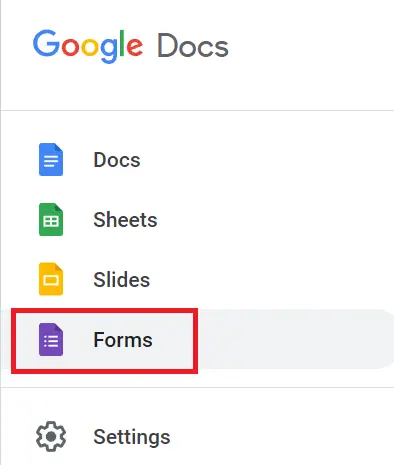
Step 1: Open Google Forms and Choose a Starting Point
Go to forms.google.com and click Blank to start from scratch, or click Template Gallery in the top right to browse pre-made application form templates — including job application and event registration forms.
Step 2: Add Your Title and Questions
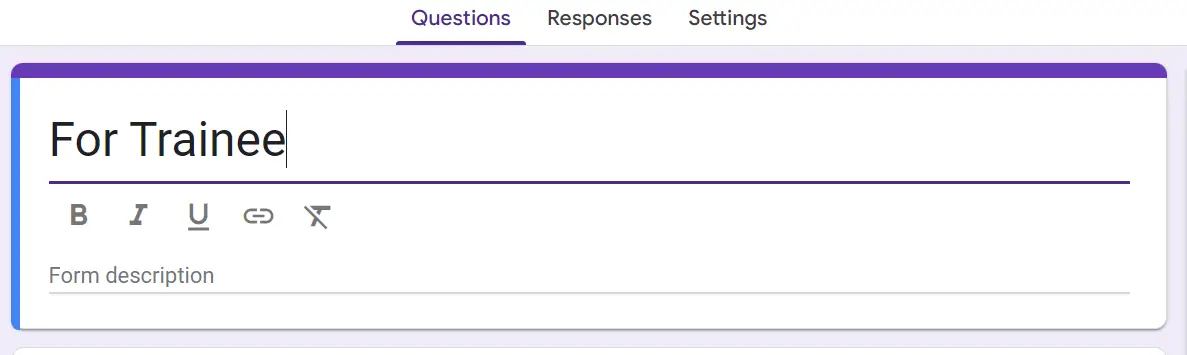
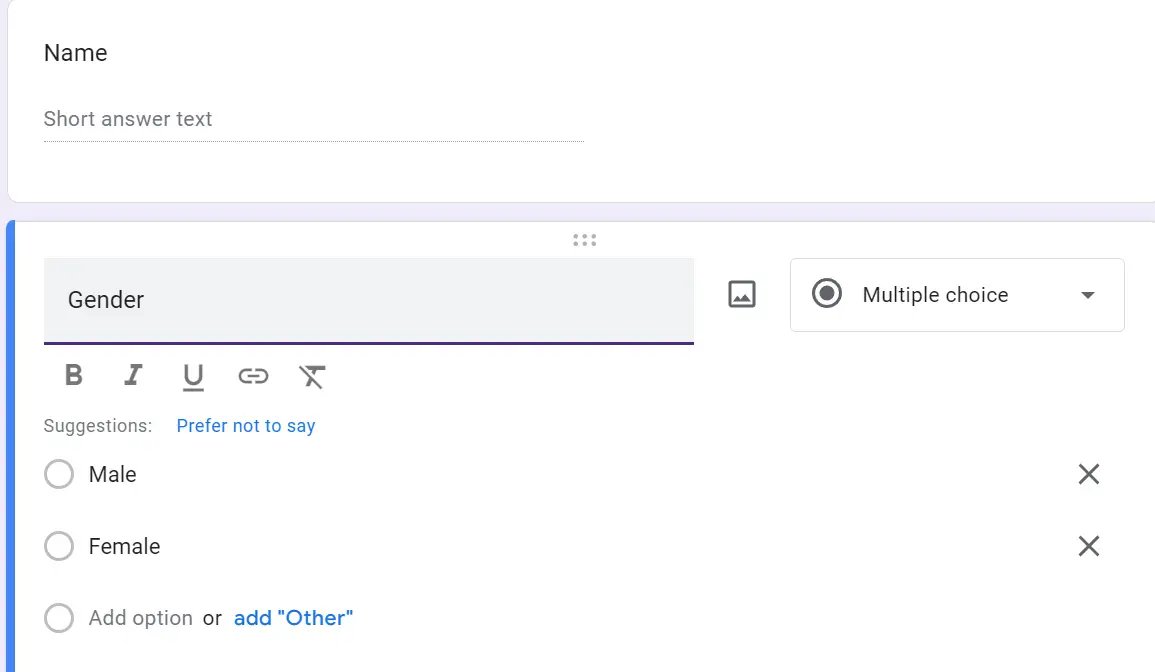
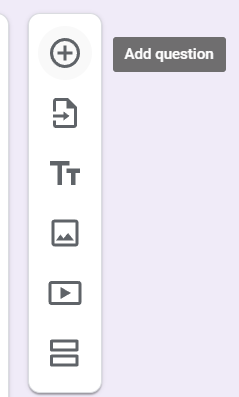
Click the title field at the top and name your form (e.g. “Job Application Form”). Then click the + button on the right side panel to add questions. For each question, you can choose the question type from the dropdown:
- Short answer — for name, email, phone number
- Paragraph — for work experience or cover letter text
- Multiple choice — for yes/no or selecting a position
- Checkboxes — for selecting multiple options
- File upload — for CVs, portfolios, or supporting documents
- Date — for availability or start dates
Step 3: Customize the Form Design
Click the palette icon at the top right to open the customization panel. Here you can change the color theme, font style, and add a header image (such as your company or school logo). A branded form looks more professional and builds trust with applicants.
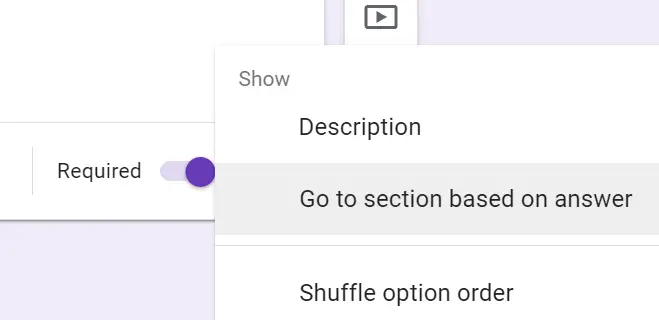
Step 4: Adjust Settings
Click the Settings tab at the top to configure important options:
- Collect email addresses — automatically records respondents’ emails
- Limit to one response — prevents duplicate submissions
- Confirmation message — show a thank-you message after submission
- Make questions required — toggle the “Required” switch on individual questions
Step 5: Preview and Share Your Form
Click the eye icon at the top right to preview how your form looks to applicants. Once satisfied, click the Send button to share it via email, copy the link, or embed it on your website.

Tip: Connect your form to Google Sheets to automatically organize all responses in a spreadsheet. Go to the Responses tab and click Link to Sheets.
When Do You Need an Application Form?
Application forms are one of the most widely used document types in the world. You may need to create an application form in Google Docs or Google Forms for situations like:
- Hiring and recruitment — streamlining the job application process
- Collecting volunteers for a non-profit or event
- University or school admissions and scholarship applications
- Club or membership sign-ups
- Event registrations and sponsorship requests
- Blood, organ, or tissue donation sign-ups at hospitals
Pro Tips for a Professional Application Form
- Keep it concise — only ask for information you actually need. Long forms reduce completion rates.
- Use clear section headings — separate Personal Information, Experience, and References into distinct sections.
- Add a submission deadline — include it in the introduction so applicants don’t miss it.
- Make key questions required — so no critical fields are left blank.
- Include a file upload field — especially for job applications requiring a CV or portfolio.
- Test before sharing — fill out the form yourself to catch any errors or confusing instructions.
- Add your branding — include your logo and organization name at the top for a professional look.
- Send a confirmation — use Google Forms’ confirmation message or set up an automated reply so applicants know their form was received.
How to Use a Google Docs Application Form Template
If you don’t want to build your form from scratch, both Google Docs and Google Forms offer free templates. Here’s how to find them:
- Google Docs: Go to docs.google.com → click Template Gallery → search “application form”
- Google Forms: Go to forms.google.com → click Template Gallery → look under the “Work” or “Education” category
Templates give you a solid structure to start from — just replace the placeholder text with your own questions and branding.
How do I save responses from a Google Docs application form?
If you created your form in Google Docs, applicants need to download it, fill it in, and email it back to you. If you used Google Forms instead, all responses are saved automatically and can be linked to Google Sheets for easy tracking and filtering.
Is there a Google Docs application form template?
Yes. Open Google Docs and click Template Gallery at the top right of the homepage. You can search for ‘application form’ to find relevant templates. Google Forms also has built-in application and job application templates under the Work category.
How do I make my Google Docs application form look professional?
Use consistent fonts and heading styles throughout. Add your organization’s logo at the top, use tables for structured fields, and separate sections with clear headings like ‘Personal Information’ and ‘Work Experience.’ Download as PDF before sharing for a clean, uneditable version.
Can I create a fillable form in Google Docs?
Google Docs doesn’t have native fillable form fields like a PDF editor does. However, you can simulate fillable fields using tables with empty cells, underscores for blank lines, or checkboxes via Insert > Special characters. For truly interactive fillable forms, Google Forms is the better option.
How do I create a form in Google Docs on mobile?
Open the Google Docs app on your phone, create a new document, and follow the same steps — add a title, sections, and fields using the formatting tools. For a better mobile experience when collecting responses, use the Google Forms app instead, which is designed for creating and sharing forms on mobile.
What is the difference between Google Docs and Google Forms for application forms?
Google Docs is best for creating printable or downloadable forms that applicants fill in and return manually. Google Forms is better for online forms where responses are collected automatically in a spreadsheet. Use Google Docs when you need full design control; use Google Forms when you need easy response management.
Now you know how to create an application form in Google Docs and Google Forms — whichever method fits your needs. For printable forms, stick with Google Docs. For collecting responses automatically online, Google Forms is the smarter choice. Either way, both tools are free and easy to get started with.
How To Hyperlink in Google Docs
How To Address Multiple People in an Email