Degree symbol (°, ℃, ℉): copy paste, alt code, keyboard shortcut
The degree symbol (°), also called the degree sign, is a small but important symbol used to represent temperature, angles, and geographic coordinates. You commonly see it with Celsius (°C) and Fahrenheit (°F), in math problems, weather reports, maps, and scientific documents.
Even though the symbol looks simple, many users search for how to type, copy, or correctly use the degree symbol on different devices and applications. This guide explains everything in one place.
Degree Symbol Copy Paste
If you don’t want to use a keyboard shortcut, degree symbol copy and paste is the fastest option.
| Symbol | Name | Copy |
|---|---|---|
| ° | Degree Symbol | |
| °C | Degrees Celsius Symbol | |
| °F | Degrees Fahrenheit Symbol |
You can copy these symbols and paste them anywhere—documents, spreadsheets, emails, or search boxes.
What Is the Degree Symbol Used For?
The degree symbol is commonly used in:
- Temperature: 25°C, 77°F
- Angles: 90°, 180°
- Coordinates: 28°36′N, 77°12′E
Although the same symbol (°) is used, its meaning depends on the context.
Degree Symbol on Keyboard (Windows & Mac)
Many users wonder if the degree symbol is on the keyboard because it’s not printed on most keys. Instead, it’s typed using shortcuts or codes.
- Turn Num Lock ON
- Hold the Alt key
- Type 0176 on the numeric keypad
- Release Alt → °
Alt Codes for Temperature Symbols
- Degree sign (°):
Alt + 0176 - Celsius symbol (℃):
Alt + 8451 - Fahrenheit symbol (℉):
Alt + 8457
Degree Symbol on Mac
Method 1: Keyboard shortcut (Recommended)
The easiest way to type the degree sign on MacOS is by using a keyboard shortcut.
- Place your cursor where you want the degree symbol to appear.
- Now simply press the “Option key + Shift key + 8” on your keyboard, and the degree (°) will appear wherever your cursor is located.
This symbol of degree shortcut works in most applications that support text entry, including text editors, web browsers, and other software.
Note: You need to use the number 8 key on the top row of your keyboard, not the number 8 key on the numeric keypad (if your keyboard has one).
Alternatively, you can use below keys, but they have a different purpose
- Option + K ˚ – ring above a diacritic
- Option + 0: º – masculine ordinal indicator
Method 2: Character Viewer
If you can’t remember the keyboard shortcut or need to access other symbols, you can use the Character Viewer.
- To open the Character Viewer, click on the “Edit menu” in any application that supports text entry (such as TextEdit or Pages)
- Select the “Emoji & Symbols” option,
- Search for “degree” in the search bar. The degree sign will appear, and you can click on it to insert it into your text.
You can also press “Control + Command + Space” to open Emoji Keyboard.
Method 3: Keyboard viewer
If your keyboard doesn’t have a numeric keypad, you can use the keyboard viewer to type the degree symbol on Mac.
- Click on the keyboard viewer icon in the menu bar,
- Select the “Show Keyboard Viewer” option, and press the Option key to reveal the symbol (°)on the virtual keyboard.
- Click on the degree symbol to insert it into your text.
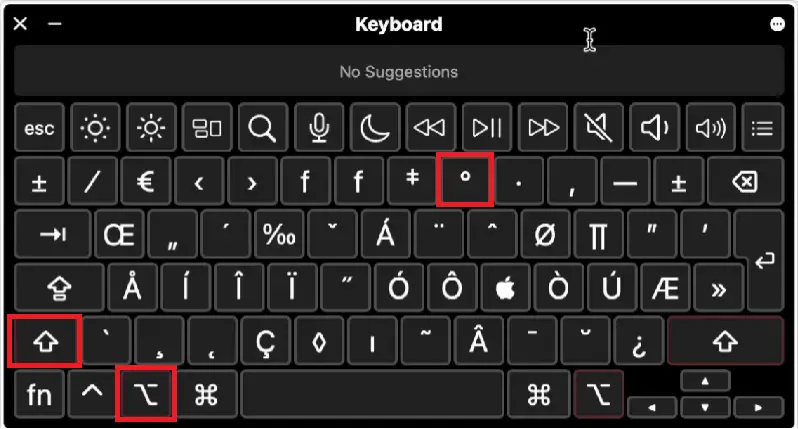
Method 4: AutoCorrect:
If you frequently type Mac degree symbol, you can set up AutoCorrect to automatically replace a specific text string with the degree symbol. To do this
- Open System Settings > Keyboard
- Go to the Text tab
- Add a shortcut such as typing “deg”
- Set it to automatically replace with the degree symbol (°)
How to Type Fahrenheit and Celsius Symbols on Mac
Through Character viewer, you can type (°F) degree Fahrenheit symbol on Mac, follow the below steps-
- Press “Control + Command + Space” on your keyboard.
- Type “Fahrenheit” or “degree” in the search box
- Select °F or °C to insert it.
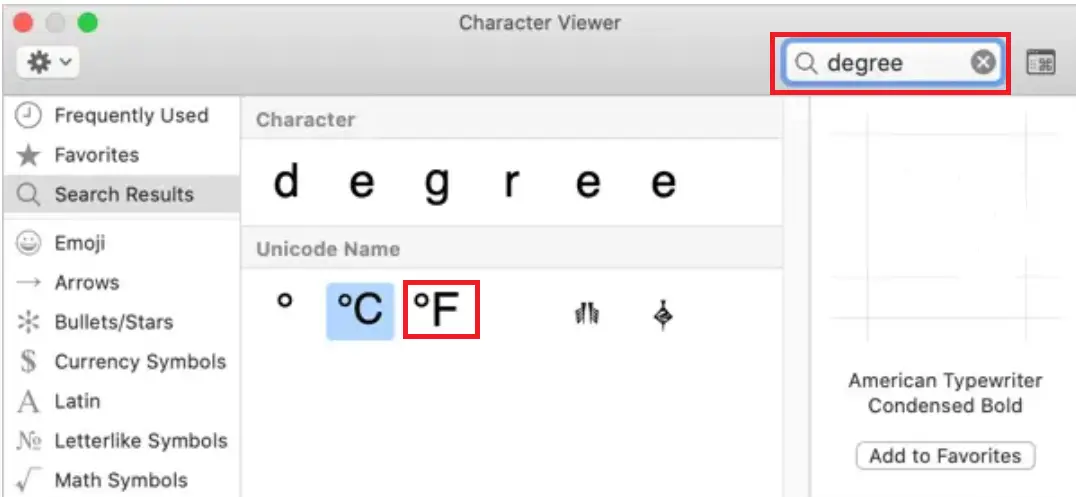
You can use the same method to insert Celsius symbols.
How to Add Degree Symbol in Google Docs
Using Special Characters
Open a document in Google Docs on your browser and put the cursor where you want to put the symbol of degree.
Go to “Insert” > “Special Characters”, type or draw the degree symbol, and select it from the list.
Access the Menu bar and click on “Insert” options then navigate and click on “Special Characters” option.
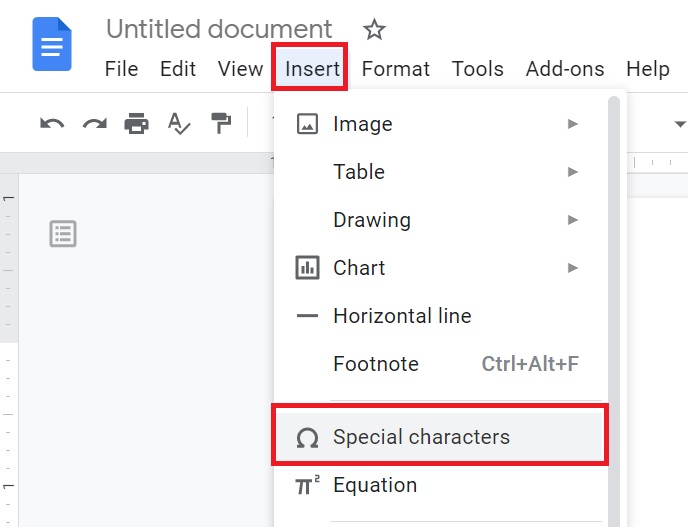
A new special characters box will appear in front of the document.
Now you have to type degree from the keyboard in the search box OR draw the degree symbol in the drawing panel as shown below image.
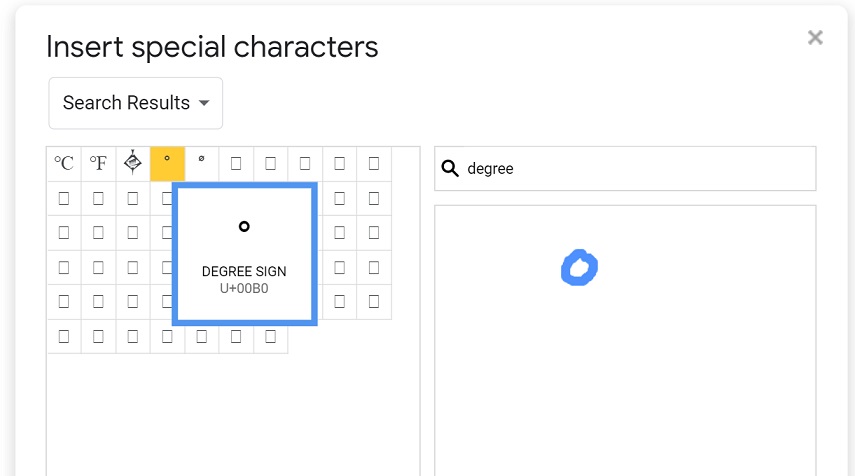
Now select the Celsius symbol (℃), Fahrenheit symbol (℉), or simply degree sign (°) from the list, your degree icon will get added to Google Docs. You can also use this as an angle measurement symbol in Google Docs.
Keyboard Shortcut (Windows)
With the help of a keyboard, a degree sign can be inserted into a Google document. Use the Alt code from the keyboard, the degree shortcut will be Alt + 0176 from the numeric keypad.
You can also use Unicode of Character, for Degree sign (°) i.e., U+00B0, for Degree Celsius or Centigrade (℃) U+2103, for Degree Fahrenheit (℉) U+2109.
Using Character Map
To insert a degree symbol, the Character Map is very helpful. It is a list of different special symbols and characters. Windows users search Character Map in the search box in Windows desktop to open it.
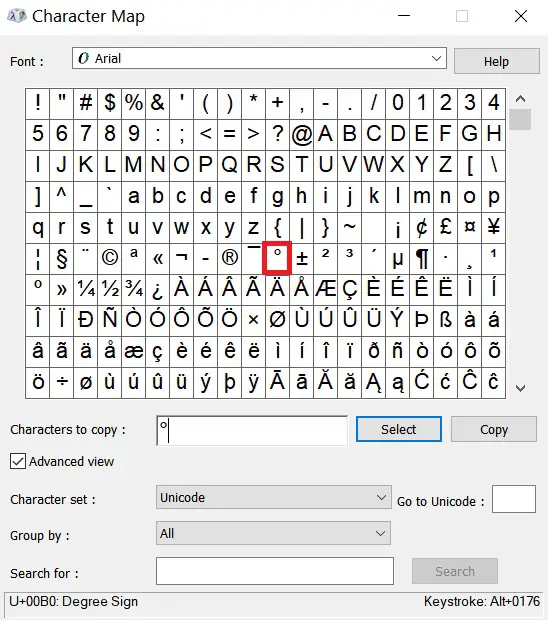
All you need to do is copy and paste the degree symbol on Google Docs.
Alt code, Unicode, and Shortcuts are the best methods that you can use to insert degree signs in the document which not only saves your time but is also faster.
Degree Symbol in Google Sheets
To insert the symbol of degree in Google Sheets, you can use Alt code shortcut by pressing Alt + 0176 or use the CHAR function with “=char(176)” to add the symbol. Once inserted, you can copy and paste it to other cells.
Use Alt Code Shortcut
Put the cursor into the cell in which you want to insert the symbol and double-click from the mouse to enable cell editing mode.
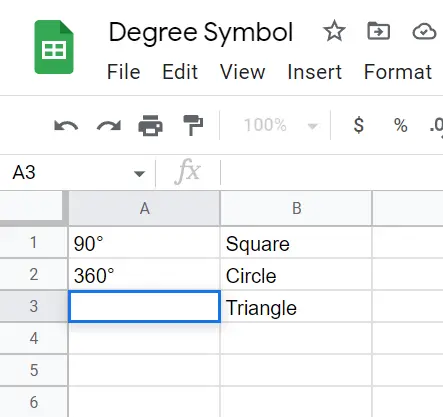
Now press Alt + 0176 from the numeric keyboard, and the symbol will appear in the Google Sheet cell.
Use Character Function to insert symbol
CHAR function can also be used for adding degree symbol in Google Sheets. The function will be
=char(176)
For example to write 180° of a triangle in the cell, Type
=180&char(176)
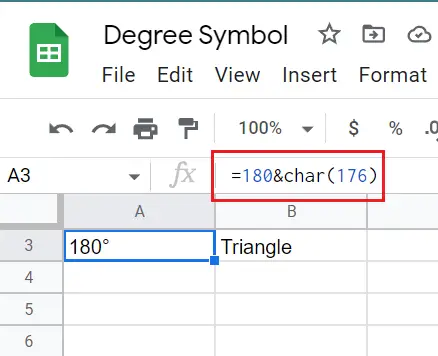
Once the degree symbol got inserted you can copy and paste the symbol on the other cells also.
How to Type Degree Sign on Mobile
Android
- Open keyboard
- Tap
?123→=\< - Press and hold the 0 key
- Select the degree symbol (°)
iPhone / iPad
Typing the degree symbol on iOS devices is simple:
- Open the keyboard
- Tap ?123
- Tap =_
- Press and hold the 0 key
- Select the degree sign (°)
This works in Messages, Notes, Mail, Google Docs, Excel, and most other apps.
Temperature Symbol vs Degree Symbol
- Degree symbol (°) → Used for angles and coordinates
- Temperature symbols → °C and °F specifically for temperature
Example:
- Angle: 90°
- Temperature: 25°C
Final Thoughts
The degrees symbol (°) is easy to use once you know the right shortcuts. Whether you’re typing temperatures, angles, or coordinates, you can quickly insert the symbol using your keyboard, Alt code, or copy-paste method on Windows, Mac, Google Docs, and Google Sheets.