How to Rotate Text in Google Docs (Vertical, Sideways)
Google Docs is a powerful tool for creating documents online. Students, teachers, and professionals often use it, and sometimes they need to change page orientation or rotate text in Google Docs for design and formatting purposes. This could mean flipping text from horizontal to vertical, or turning it sideways to create unique layouts.
For example, resumes often use vertical text in the margins to make headings stand out. In this guide, you’ll learn exactly how to rotate text in Google Docs, make it vertical, turn it sideways, change its direction, and switch it back to horizontal — all with simple, beginner-friendly steps.
How to Rotate Text in Google Docs
Google Docs doesn’t have a one-click rotate button sitting in the toolbar. To rotate text in Google Docs — sideways, vertical, or to any custom angle — you’ll use the drawing tool to create a small rotatable text box. Follow the steps below:
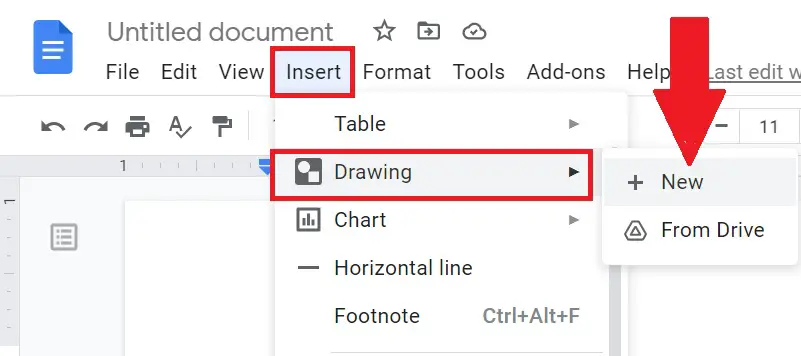
In the Menu bar, click on Insert → Drawing, then click + New to open the drawing window.
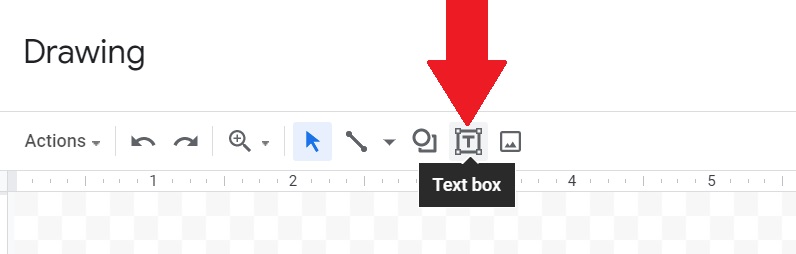
Click the Text box icon in the drawing toolbar, then draw a box on the canvas and type the text you want to rotate.
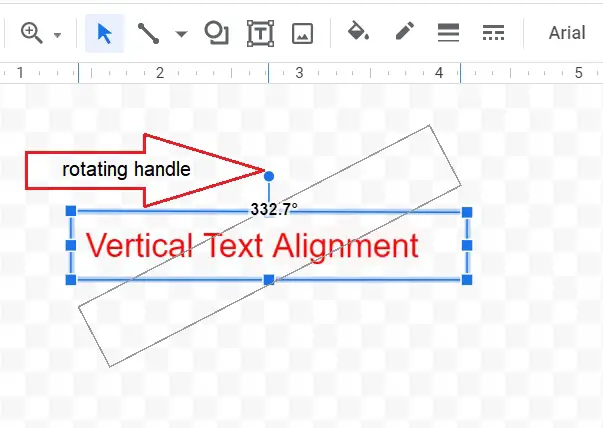
Click the text box once to select it. You’ll see a small blue circle above the box — that’s the rotation handle. Click and drag it left or right to rotate the text to any angle, or hold it at 90° or 270° to make the text fully vertical.
When you’re happy with the angle, click Save and Close to insert the rotated text into your document. You can double-click the drawing any time afterward to reopen it and adjust the text or angle.
Rotating to an Exact Angle (90°, 180°, 270°)
Dragging the handle by hand works, but if you want a precisely vertical or upside-down result without eyeballing it, use the preset rotation options instead:
- Create your text box as described above.
- With the text box selected, click Actions in the drawing toolbar.
- Choose Rotate, then pick Rotate clockwise 90° or Rotate counterclockwise 90° for clean vertical text.
- Click Save and Close.
This is the fastest way to rotate text in Google Docs consistently, without manually dragging the handle.
How to Make Vertical Text in Google Docs
If you specifically want text to read top-to-bottom — for example, a vertical heading in a margin — you have two options.
Option 1: Rotate a Text Box 90°
Use the drawing tool method above and rotate the box a full 90° or 270°. This turns your whole line of text sideways so it reads vertically — best for headings, labels, or short phrases.
Option 2: Stack Characters in a Narrow Table Column
If you want each letter stacked upright (rather than the whole line rotated sideways), a narrow single-column table works well:
- Count the characters (including spaces) in the text you want to display vertically.
- Go to Insert > Table and insert a table that’s 1 column wide with one row per character.
- Type one character into each row.
- Drag the right edge of the table inward until the column is only as wide as a single character — the text will stack vertically down the column.
- To hide the table lines, click inside the table, go to Format > Table > Table properties, and set the border width to 0.
Once your rotated or vertical text box is inserted, you can also fine-tune exactly where it sits on the page — covered next.
How to Change Text Direction in Google Docs
“Text direction” can mean two slightly different things in Google Docs, so here’s both.
1. Rotating the Angle of Your Text
If you want text turned sideways, vertical, or angled, that’s the rotation covered above — create a text box with the Drawing tool and use the blue handle or Actions > Rotate to set the direction.
2. Switching Paragraph Direction (Left-to-Right / Right-to-Left)
Google Docs also has a native, built-in text direction setting — separate from rotation — for languages that read right-to-left. To use it:
- Click into the paragraph you want to change.
- Go to Format > Text direction in the menu bar.
- Choose Left-to-right or Right-to-left.
This flips which side of the page your paragraph starts from — it doesn’t rotate or angle the text visually, so it’s not a substitute for the Drawing-tool method if what you actually want is sideways or vertical text.
How to Position Rotated Text on the Page
After you’ve rotated your text, you’ll usually want to move it to an exact spot — like a margin or the side of a table — rather than leave it inline with the surrounding paragraph. Click on the drawing, then click the Wrap text option that appears.
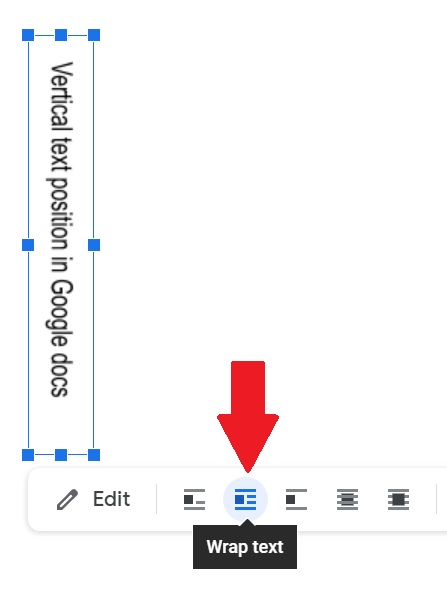
This opens the Image options panel on the right side of the document, with three sections: Size & Rotation, Text Wrapping, and Position. Click Fix position on page under Position.
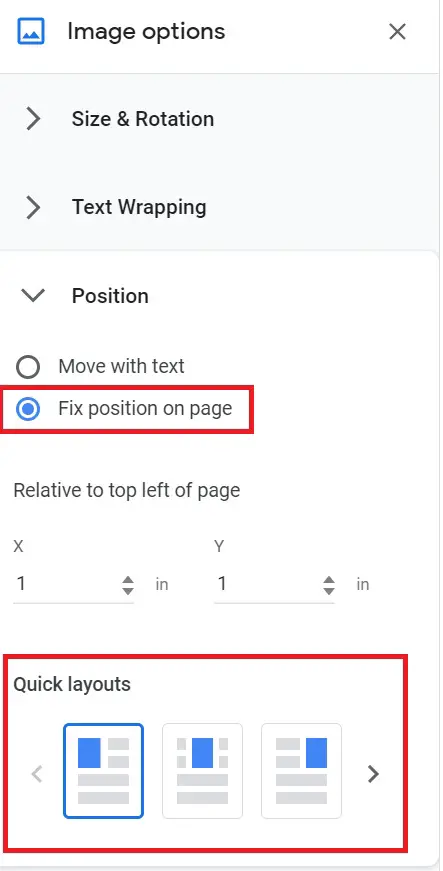
Then choose a quick-layout position — top left, top center, top right, center left, center, center right, bottom left, bottom center, or bottom right — to snap your rotated text to that spot on the page. Center-left, for example, places vertical text centered along the left margin, which is a common look for side headings.
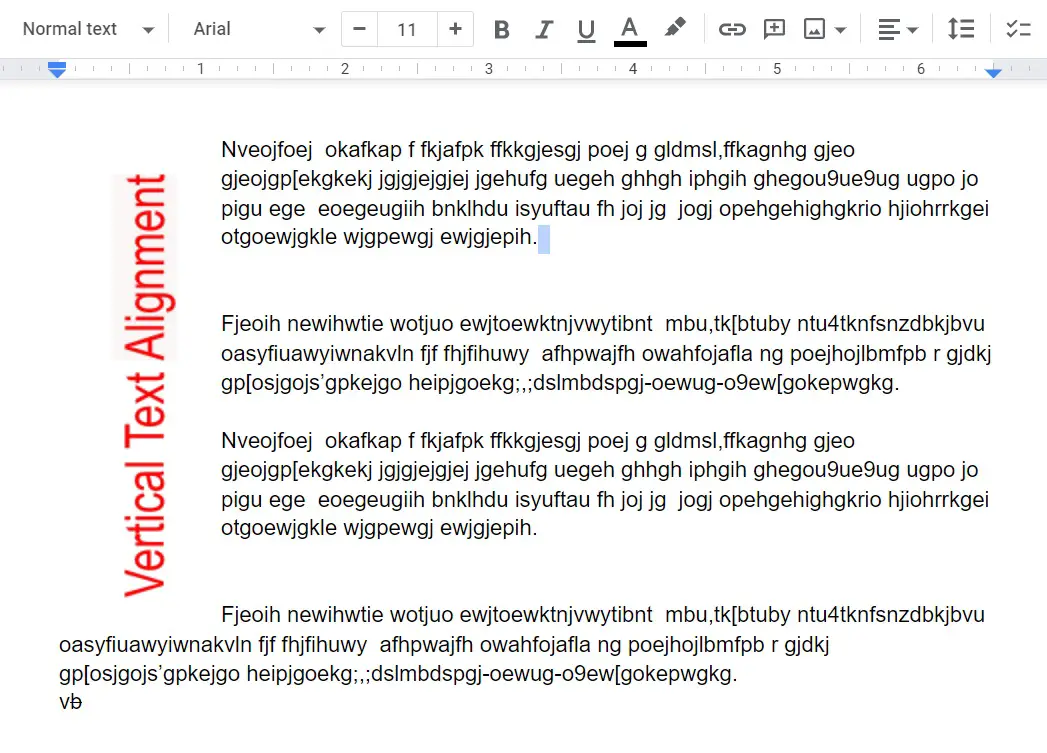
Note: this step repositions the text box on the page — it doesn’t change the text’s angle. If the rotation itself still isn’t right, go back and rotate the text in Google Docs again using the blue handle or Actions > Rotate as described above.
How to Make Text Horizontal Again in Google Docs
If you rotated or turned text sideways and now want to write horizontally again, you have two easy options depending on how you created it:
- If it’s a rotated drawing/text box: double-click it to reopen the Drawing tool, then drag the blue handle back to the top (0°), or use Actions > Rotate and rotate it back the same number of degrees you originally turned it.
- If it’s regular typed text: normal paragraph text in Google Docs is horizontal by default — it only appears vertical or sideways if it’s inside a rotated drawing or a narrowed table column. Delete the rotated element and retype the text as a normal paragraph to get it horizontal again.
How to Rotate Text in a Table in Google Docs
This is a popular question — many people want rotated headers inside tables. Unfortunately, there’s no built-in setting to rotate text in Google Docs table cells directly the way Word offers. But there’s a workaround.
Workaround for Table Text Rotation
- Go to Insert > Drawing > + New.
- Create a text box with your header text.
- Rotate the box (90° or 270°).
- Save and insert it into your Doc.
- Drag the rotated text box into the table cell.
This places the rotated text visually inside the table, even though it’s technically an image sitting on top of the cell.
How to Flip or Mirror Text in Google Docs
Want upside-down or mirrored text for design purposes? Here’s how:
- Go to Insert > Drawing > + New.
- Add a text box and type your text.
- Select the text box.
- Click Actions > Rotate > Flip horizontally (mirror text) or Flip vertically (upside down).
- Save and insert into your document.
Quick Reference Table
| Task | Tool/Steps | Result |
|---|---|---|
| Rotate text in Google Docs to any angle | Insert → Drawing → Text Box → drag rotation handle | Text at a custom angle |
| Rotate to exactly 90°/270° | Drawing → Actions → Rotate → Rotate clockwise/counterclockwise | Clean vertical text |
| Stack letters vertically | 1-column table, narrowed to one character wide | Letter-by-letter vertical label |
| Switch paragraph direction (LTR/RTL) | Format → Text direction → Left-to-right/Right-to-left | Paragraph starts from the opposite side |
| Position rotated text on page | Wrap text → Image options → Fix position → Quick layout | Text snapped to a margin/corner |
| Make rotated text horizontal again | Reopen drawing → rotate handle back to 0°, or retype as plain text | Normal horizontal text |
| Rotate text in a table | Insert rotated text box, drag into the cell | Vertical header inside a table |
| Flip/Mirror text | Drawing → Actions → Rotate → Flip horizontally/vertically | Mirrored or upside-down text |
Can you rotate text in Google Docs without a text box?
No. Google Docs doesn’t have built-in text rotation for regular paragraph text — the Drawing tool (Insert > Drawing > New) is required to rotate text in Google Docs, flip it, or mirror it.
Can I flip text upside down in Google Docs?
Yes. Create a text box with the Drawing tool, select it, then choose Actions > Rotate > Flip vertically.
How do I rotate text inside a table cell in Google Docs?
Google Docs has no native option for this. Create a rotated text box with the Drawing tool, then drag it into the table cell so it sits visually inside.
How do I change text direction in Google Docs?
For angled or vertical text, rotate a Drawing-tool text box using the handle or Actions > Rotate. For paragraph reading direction, use Format > Text direction > Left-to-right or Right-to-left — that’s a separate, native setting.
How do I make rotated text horizontal again in Google Docs?
Reopen the rotated drawing and turn the handle back to 0°, use Actions > Rotate to undo the rotation, or simply delete the rotated text box and retype the text as a normal paragraph, which is horizontal by default.
Is rotating text the same in Google Slides?
No. Google Slides has a native rotation handle built directly into text boxes and shapes, so the steps are different from Google Docs.
Does text rotation work on mobile?
Not fully. The Drawing tool used to create and rotate text boxes is only available on desktop, though you can view and reposition already-rotated text on mobile.
Even though Google Docs doesn’t offer one-click text rotation, with the Drawing tool you can rotate, flip, mirror, and reposition text to build almost any layout you need — including vertical headers, sideways labels, and rotated table text.