Type Degree Symbol (°) using Keyboard Shortcut , Alt Code
The degree symbol (°) is used to show degrees in temperatures, angles, geographic coordinates, and other measurements. For example, you may see it in 25°C, 90°, or 28°36′N.
Because the degree sign is not printed on standard keyboards, finding the right shortcut can be frustrating. This guide explains how to type, insert the degree symbol on keyboard using easy shortcuts for Google Docs, Excel, Word, iPhone, Android, and more.
Quick Answer: Degree Symbol Keyboard Shortcuts
If you are in a rush, use this quick reference table to find the degree symbol shortcut for your specific device or application.
| Device | Shortcut |
|---|---|
| Windows | Alt + 0176 |
| Mac | Option + Shift + 8 |
| Chromebook | Copy and paste °, or use the available character/input tools |
| Linux | Ctrl + Shift + U → 00B0 → Enter |
| iPhone / iPad | Hold 0 key |
| Android | Hold 0 key |
| Google Docs | Insert → Special Characters |
| Word | Alt + 0176 |
You can copy these symbols and paste them anywhere—documents, spreadsheets, emails, or search boxes.
How to Type the Degree Symbol on Windows
The most reliable way to make a degree symbol on a Windows keyboard is by using an Alt code. This method works across almost all applications, including browsers, Notepad, Word, and Excel.
Using the Desktop Alt Code Shortcut
- Turn Num Lock ON (this requires a standard keyboard with a dedicated numeric keypad).
- Press and hold the
Altkey. - Type
0176on the numeric keypad. - Release the
Altkey, and the ° symbol will appear.
Common Alt Code Variations
- Degree sign (°):
Alt + 0176 - Celsius symbol (℃):
Alt + 8451 - Fahrenheit symbol (℉):
Alt + 8457
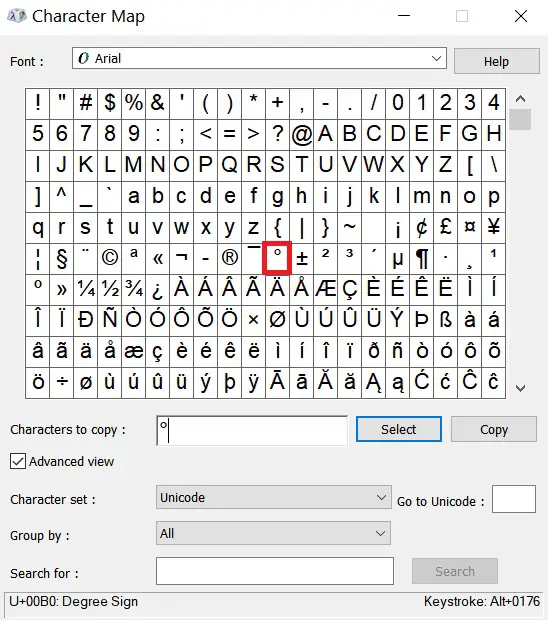
Note: If you are using a compact laptop without a numeric keypad, search for Character Map in your Windows search bar, locate the degree sign, and click copy.
How to Type the Degree Symbol on a Mac Keyboard
macOS offers a few different ways to type the Mac degree symbol shortcut depending on your workflow.
The Standard Mac Shortcut
- Place your cursor exactly where you want the symbol to go.
- Press
Option+Shift+8simultaneously. - The degree symbol (
°) will appear instantly.
Note: Ensure you use the number 8 key on the top row of your keyboard, not on an external numeric keypad.
Alternative Mac Key Combos (With Caveats)
Be careful not to confuse the standard degree symbol with these similar-looking characters:
- Option + K ˚ – Inserts a “ring above” diacritic mark.
- Option + 0: º – Inserts a masculine ordinal indicator used in Spanish/Portuguese formatting.
Using the Mac Character Viewer (Emoji Menu)
If you forget the shortcut, you can still insert the degree symbol on keyboard using Character Viewer.
- To open the Character Viewer, click on the “Edit menu” in any application that supports text entry (such as TextEdit or Pages)
- Select the “Emoji & Symbols” option,
- Search for “degree” in the search bar. The degree sign will appear, and you can click on it to insert it into your text.
You can also press “Control + Command + Space” to open Emoji Keyboard.
Use Keyboard viewer
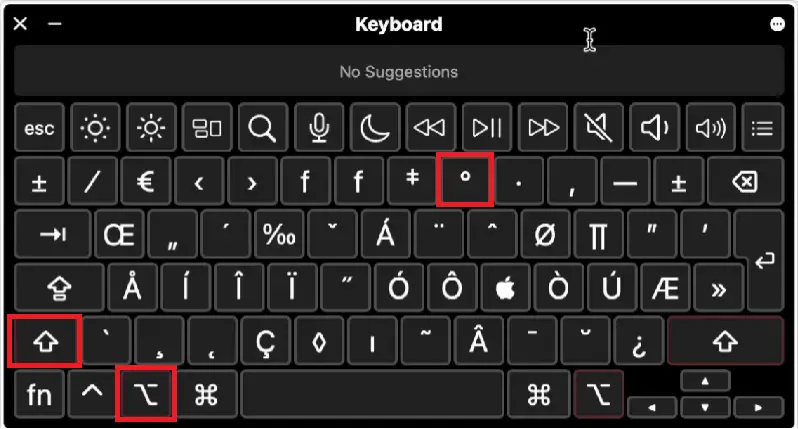
If your keyboard doesn’t have a numeric keypad, you can use the keyboard viewer to type the degree symbol on Mac.
- Click on the keyboard viewer icon in the menu bar,
- Select the “Show Keyboard Viewer” option, and press the Option key to reveal the symbol (°)on the virtual keyboard.
- Click on the degree symbol to insert it into your text.
How to Type Fahrenheit and Celsius Symbols on Mac
Through Character viewer, you can type (°F) degree Fahrenheit symbol on Mac, follow the below steps-
- Press “Control + Command + Space” on your keyboard.
- Type “Fahrenheit” or “degree” in the search box
- Select °F or °C to insert it.
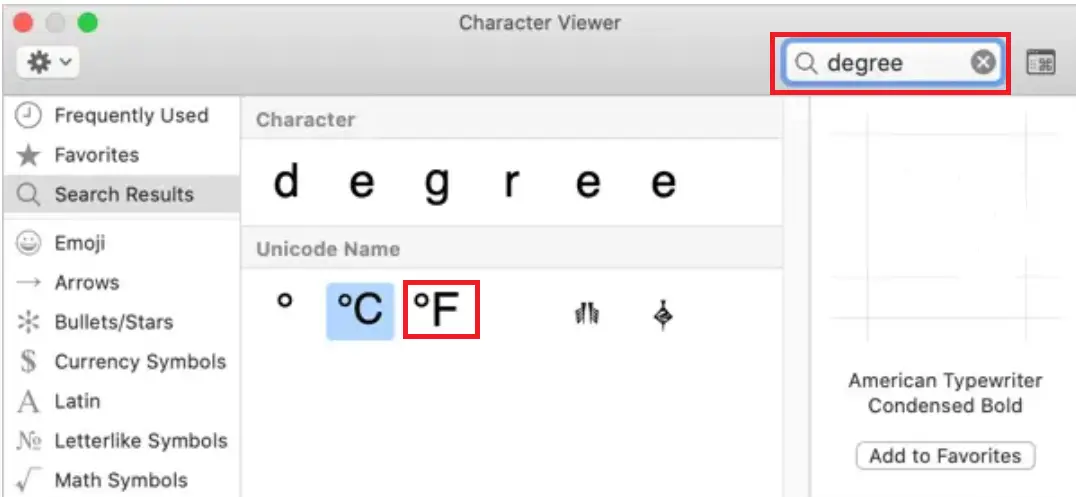
You can use the same method to insert Celsius symbols.
How to Add Degree Symbol in Google Docs
Many users search for degree symbol on keyboard when working in Google Docs because the Alt shortcut may not always work in browsers.
Using Special Characters
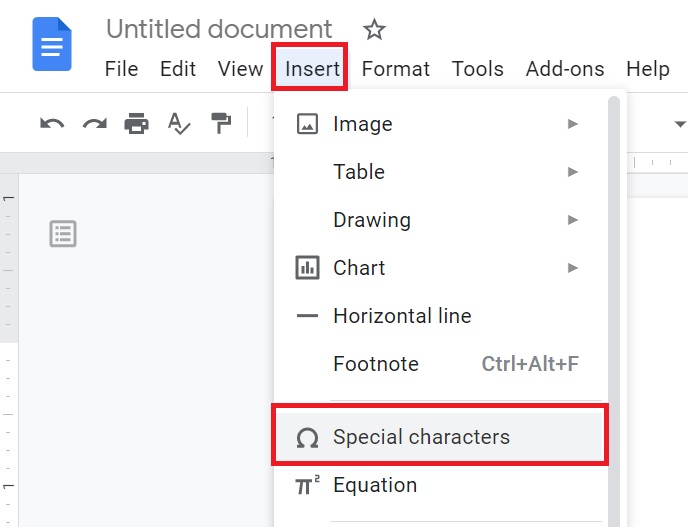
- Open a document in Google Docs on your browser
- Access the Menu bar and click on “Insert” options then navigate and click on “Special Characters” option.
- A new special characters box will appear in front of the document.
- Now you have to type degree from the keyboard in the search box OR draw the degree symbol in the drawing panel as shown below image.
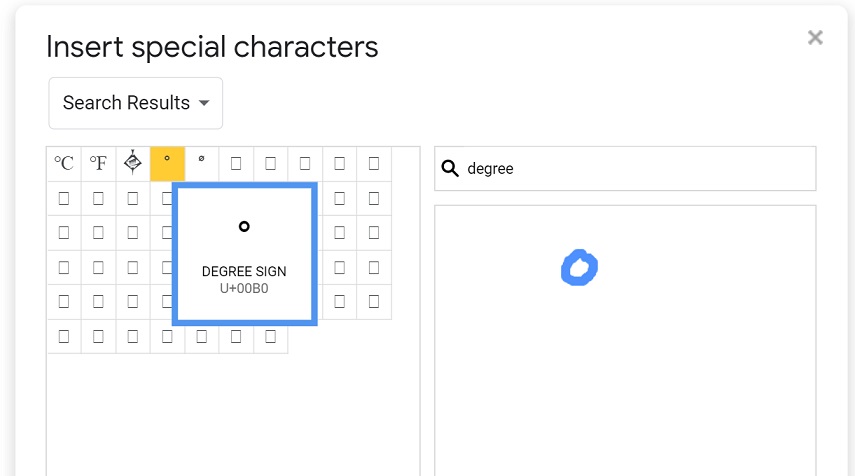
Now select the Celsius symbol (℃), Fahrenheit symbol (℉), or simply degree sign (°) from the list, your degree icon will get added to Google Docs.
Using Keyboard Shortcut in Google Docs
With the help of a keyboard, a degree sign can be inserted into a Google document. Use the Alt code from the keyboard, the degree shortcut will be Alt + 0176 from the numeric keypad.
You can also use Unicode of Character, for Degree sign (°) i.e., U+00B0, for Degree Celsius or Centigrade (℃) U+2103, for Degree Fahrenheit (℉) U+2109.
How to Insert the Degree Symbol in Google Sheets
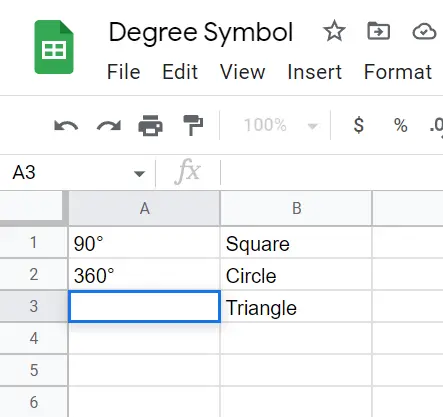
To insert the symbol of degree in Google Sheets, you can use Alt code shortcut by pressing Alt + 0176 or use the CHAR function with “=char(176)” to add the symbol. Once inserted, you can copy and paste it to other cells.
Edit Mode + Alt Code
- Double-click the specific cell to enter Cell Editing Mode.
- Press
Alt+0176on your Windows keyboard (or use the Mac shortcut).
Use Character Function to insert symbol
You can use the native spreadsheet formula system to pull the character code automatically.
- To generate just the symbol:
=CHAR(176) - To combine text and numbers (e.g., writing 180°):
=180&CHAR(176)
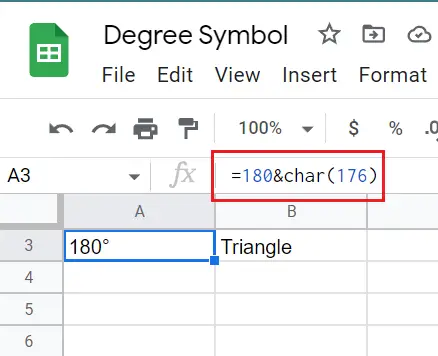
Once the degree symbol got inserted you can copy and paste the symbol on the other cells also.
How to Type the Degree Sign on Mobile Devices
Both iOS and Android have hidden character menus built directly into their stock keyboards.
For iPhone & iPad Users
- Open your keyboard and tap the
123button. - Tap the
#+=button to view secondary symbols. - Press and hold the
0(Zero) key. - A small pop-up menu will appear. Slide your finger up to select the ° sign.
For Android Users
- Open your keyboard and press the
?123key. - Tap the
=\<key to view advanced characters. - Press and hold the
0(Zero) key. - Drag your finger over to select the degree symbol from the pop-up menu.
How to Type the Degree Symbol in Google Maps or Google Earth
Google Maps can be searched using geographic coordinates. When coordinates are written in degrees, minutes, and seconds, the degree symbol can be included in the search.
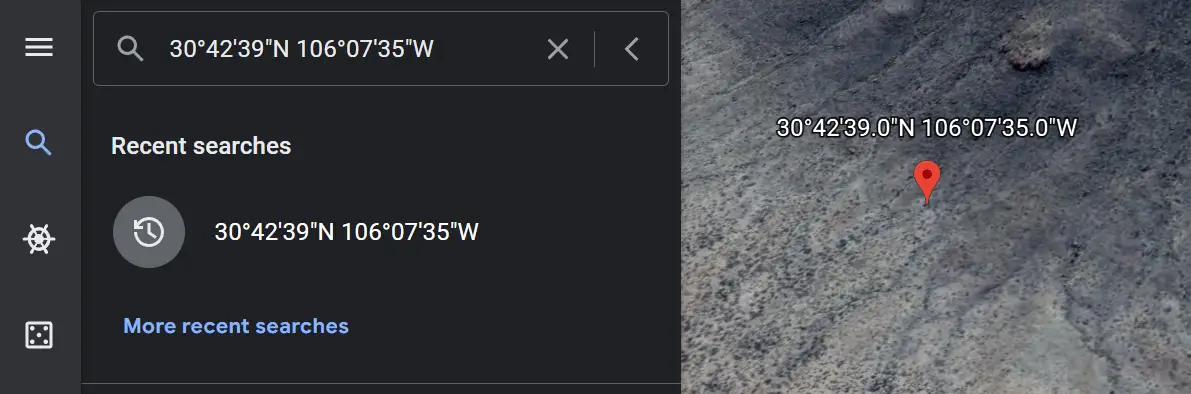
For example: 28°36’N, 77°12’E
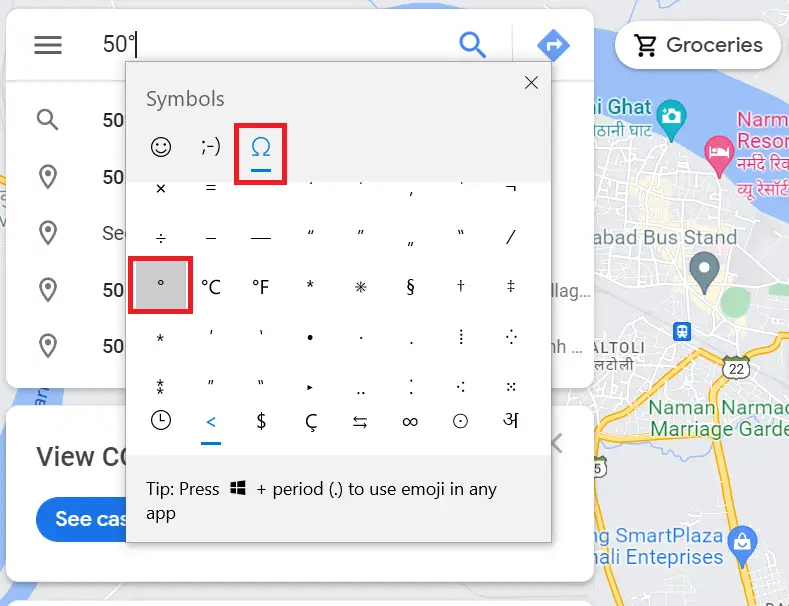
You can type the degree symbol in Google Maps or Google Earth using the same keyboard methods used elsewhere in Windows, Mac, or mobile devices.
- Click the Google Maps search box.
- Place the cursor where you want the degree symbol.
- Press Windows key + . (period).
- Select Symbols.
- Find and click °.
- Continue entering the coordinates.
Temperature Symbol vs. Degree Symbol: What’s the Difference?
While they look nearly identical, it is important to recognize when to use a standalone degree icon versus integrated weather formatting units.
- Degree Symbol (°): Best used strictly for geometry angles (e.g., a 90° angle) or latitudinal coordinates.
- Temperature Symbols (°C / °F): These are composite characters designed explicitly for scientific formatting to keep numbers unified with their metrics (e.g., 77°F).
Final Thoughts
The degree symbol on keyboard (°) is easy to use once you know the right shortcuts. Whether you’re typing temperatures, angles, or coordinates, you can quickly insert the symbol using your keyboard, Alt code, or copy-paste method on Windows, Mac, Google Docs, and Google Sheets.
Working with other keyboard symbols regularly? See how to type the plus-minus sign (±), the angstrom symbol (Å), or the bullet point symbol on any device.