How to Type Bullet Point (•) on Keyboard Windows, Mac, Excel
A bullet point is the small filled circle symbol • placed before items in a list. It’s one of the most commonly used symbols in writing — yet it doesn’t appear on most standard physical keyboard layouts.
This guide covers every major method to type or insert a bullet point symbol on Windows, Mac, iPhone, Android, Chromebook, Linux, Microsoft Word, Excel, Google Docs, HTML, Markdown, and LaTeX — plus a copy-paste symbol table and troubleshooting tips.
What Is a Bullet Point?
A bullet point is a typographical symbol — most commonly the filled black circle • — placed before items in a list to visually separate and organize them. In Unicode, the standard bullet character is encoded as U+2022 and named simply “BULLET.”
Lists that use bullet points are called bulleted lists (or unordered lists in web terminology), as opposed to numbered lists where items are arranged in sequence. Bullet points signal that list items have equal weight and no particular order.
Despite how frequently bullet point symbol appear in documents, emails, presentations, and websites, the symbol itself is not available on most standard keyboard layouts — which is why knowing how to type it matters.
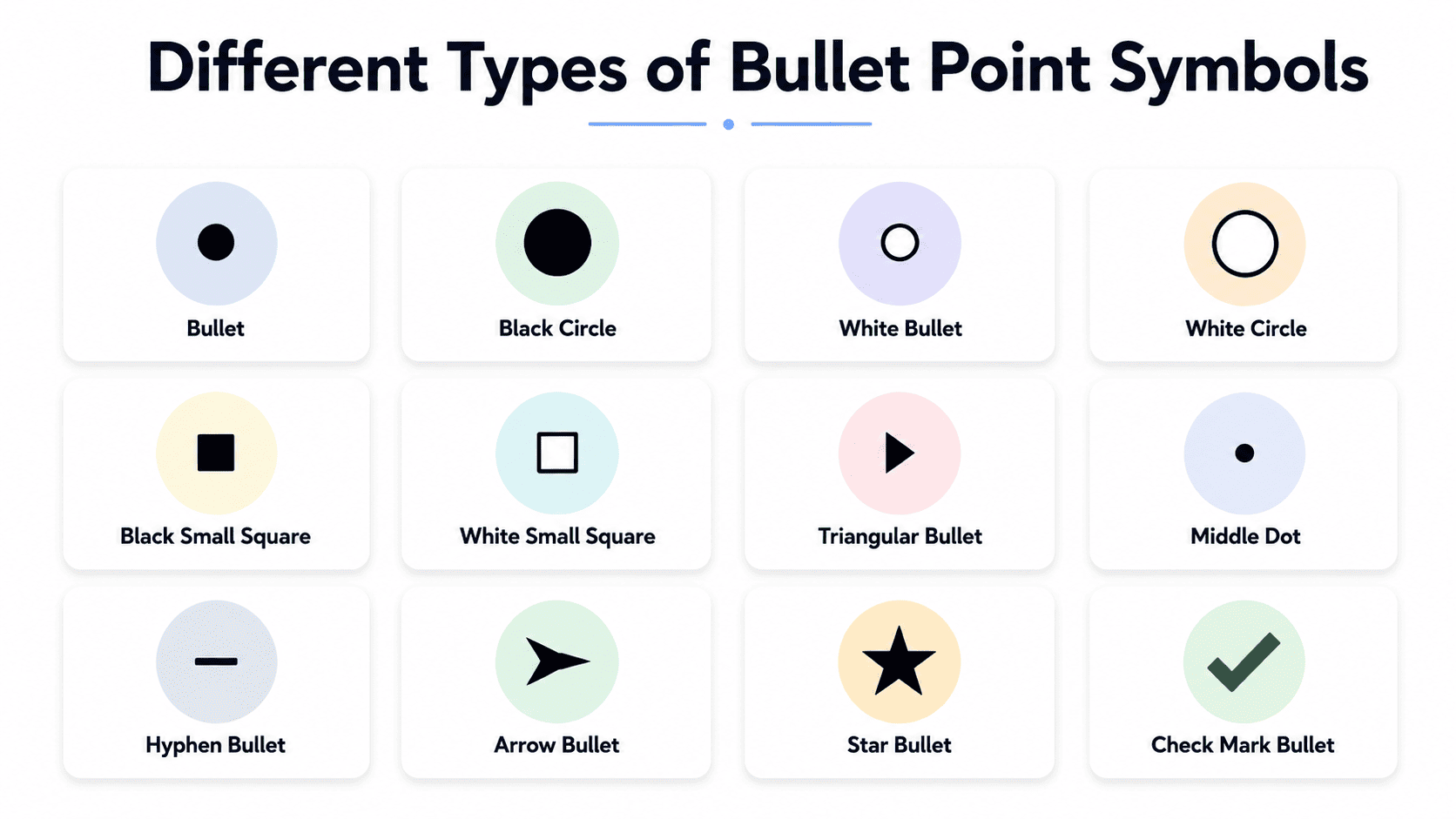
Different Types of Bullet Symbols
- • Filled bullet
- ◦ Hollow bullet
- ▪ Square bullet
- ‣ Triangle bullet
Quickest Ways to Type a Bullet Point Symbol
If you just need the shortcut for your device right now:
| Platform | Fastest Method | Shortcut |
|---|---|---|
| Windows | Alt code (numpad) | Alt + 0149 |
| Mac | Keyboard shortcut | Option + 8 |
| iPhone / iPad | Symbols page | ?123 → #+= → • |
| Android | Symbols keyboard | ?123 → symbols page |
| Chromebook | Unicode input | Ctrl + Shift + U → 2022 → Enter |
| Linux | Unicode input | Ctrl + Shift + U → 2022 → Enter |
| Microsoft Word | Built-in bullet list | Ctrl + Shift + L |
| Google Docs | Built-in bullet list | Ctrl + Shift + 8 |
How to Type or Insert a Bullet Point on Windows
Windows has several methods. The right one for you depends on whether your keyboard has a numeric keypad.
Bullet Point Alt Code (Fastest — Requires Numpad)
The standard Windows bullet point alt code is Alt + 0149. Hold Alt and type 0149 on the numeric keypad, then release Alt. The bullet • appears immediately.
- Make sure Num Lock is on.
- Click where you want the bullet point icon to appear.
- Hold down the Alt key.
- While holding Alt, type 0149 on the numeric keypad (right side of keyboard — not the number row at the top).
- Release Alt. The bullet • appears.
Note: Alt + 7 (just the number 7 on the numpad) also produces a bullet point on many Windows setups.
Using Character Map (No Numpad Required)
- Press the “Windows” key and search for Character Map.
- Check Advanced view at the bottom of the window.
- Type bullet in the search field and press Enter.
- Click the bullet symbol •, then click Select and Copy.
- Paste it into your document with Ctrl + V.
How to Type or Insert a Bullet Point on Mac
The Mac keyboard shortcut for a bullet point is the easiest to remember of all platforms.
Option + 8 — The Quickest Way
- Place your cursor where you want the bullet
- Hold the Option key
- Press 8
- The bullet • appears instantly in any app — documents, notes, email, browsers, everything
Character Viewer
- Press Control + Command + Space
- Type “bullet” in the search field
- Double-click • to insert it at your cursor
How to Type a Bullet Point symbol on iPhone and iPad
Symbols Page
- Tap ?123 to switch to the numbers/symbols keyboard.
- Tap #+= to see more symbols.
- Tap the bullet point symbol • — it appears in the first row on most iOS keyboard configurations.
Long Press the Hyphen Key
On the numbers page, tap and hold the hyphen (–) key. A popup appears showing dash variants — on many iOS keyboards, the bullet • appears as a long-press option. Slide to it and release.
Text Replacement
Go to Settings → General → Keyboard → Text Replacement. Add • as the phrase and \bull as the shortcut. It auto-expands in any text field.
How to Type a Bullet Point on Android
Most Android keyboards have the bullet symbol built in — you just need to know where to look.
The Symbols Keyboard — Fastest Way
- Tap ?123 on your Gboard keyboard
- Browse the symbols pages
- Tap • to insert it — it’s present on most Android symbol layouts without needing to search
Gboard Symbol Search
- Tap the G logo on your Gboard keyboard
- Type “bullet” in the search bar
- Tap • from the results to insert it instantly
Long Press the Hyphen or Period
- Switch to the symbols keyboard
- Press and hold the hyphen (–) or period (.) key
- Slide to • if it appears in the popup and release
How to Type a Bullet Point on Chromebook
Unicode Input (Most Reliable)
- Press Ctrl + Shift + U. A small underlined u appears.
- Type 2022.
- Press Enter or Space. The bullet • appears at your cursor.
For a hollow bullet ◦: use the same method but type 25E6 instead of 2022.
Special Characters Panel
Press Search + Shift + Space to open the emoji and special characters panel. Search “bullet” and select •.
How to Type a Bullet Point Symbol on Linux
Unicode Input
Press Ctrl + Shift + U, type 2022, then press Enter. Works consistently across Ubuntu, Fedora, Debian, and most Linux distributions.
Compose Key
With a Compose key configured, the sequence Compose + . + . (Compose key followed by two periods) produces • on many Linux setups. Set a Compose key in your keyboard settings — common choices are the right Alt or menu key.
How to Type or Insert a Bullet Point on Microsoft Word
Built-In Bullet List (Recommended)
Press Ctrl + Shift + L to apply the default bullet list style to the current paragraph. Or click the Bullets button in the Home tab. This creates properly formatted list items with correct indentation and spacing.
Quick trick: Type an asterisk (
*) followed by a Space at the start of a line — Word’s AutoCorrect often converts it to a bullet list automatically.
Alt + X Conversion
Type 2022 in your document, then immediately press Alt + X. Word converts the Unicode code point to the • character instantly.
Alt Code
Hold Alt and type 0149 on the numpad — same as the standard Windows method.
Insert → Symbol
- Go to Insert → Symbol → More Symbols.
- In the Subset dropdown, select General Punctuation.
- Find and click the bullet symbol •, then click Insert.
How to Insert Bullet Points in Excel
Excel has no native bullet list feature, but you can insert the bullet symbol to create a visual list inside cells.
Insert → Symbol
- Click the cell where you want the bullet, then click into the formula bar.
- Go to Insert → Symbols → Symbol.
- In the Subset dropdown, choose General Punctuation.
- Click the bullet •, then click Insert.
Alt Code
Click inside a cell, hold Alt, type 0149 on the numpad, release Alt.
Bullet Point Symbol in Google Docs
Built-In Bullet List (Recommended)
Press Ctrl + Shift + 8 to toggle a bulleted list at your cursor. Or go to Format → Bullets & Numbering → Bulleted List and choose your preferred style.
Keyboard Shortcut
The same OS shortcuts work inside Google Docs: Option + 8 on Mac, Alt + 0149 on Windows.
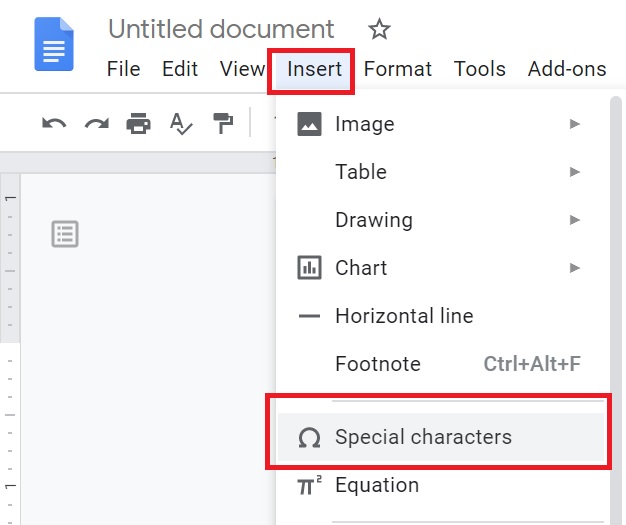
Insert → Special Characters
- Click Insert → Special Characters.
- Select Punctuation and Other in the dropdowns, or type “bullet” in the search field.
- Click the bullet symbol • to insert it.
Bullet Points in HTML and Web Development
In HTML, there are two separate concepts: the bullet character and a bullet list. They serve different purposes.
The Bullet Character in HTML
• <!-- named HTML entity → • -->
• <!-- decimal reference -->
• <!-- hex reference -->
• <!-- direct UTF-8 character -->The named entity • is the cleanest and most readable option. Common use for inline separators:
Home • About • ContactProper Bullet Lists in HTML
For actual bulleted lists, always use semantic HTML — not the bullet character:
<ul>
  <li>First item</li>
  <li>Second item</li>
  <li>Third item</li>
</ul>
The <ul> and <li> approach is semantically correct, accessible to screen readers, and easier to style with CSS.
Bullet Points in Markdown
Markdown doesn’t use the actual • character for lists. It uses hyphens, asterisks, or plus signs, which the renderer converts to proper bullet points:
- Item one
- Item two
- Item three

* Asterisks also work
* For bullet lists

+ And so does the plus sign
All three markers (-, *, +) render identically as bulleted lists in virtually every Markdown parser. The hyphen is the most widely used convention.
Important: If you type the actual • character in a Markdown document, it renders as plain text — not a formatted list item. Always use hyphens or asterisks for proper Markdown lists.
Bullet Point Symbol in LaTeX
LaTeX uses the itemize environment for bulleted lists:
\begin{itemize}
  \item First item
  \item Second item
  \item Third item
\end{itemize}
To use the bullet character inline in text:
\textbullet    % in text mode
$\bullet$      % in math mode
Bullet Point Symbol Variants
The standard filled bullet • is the most common, but several related symbols serve different purposes:
| Symbol | Name | Unicode | Windows Alt Code | Mac Shortcut |
|---|---|---|---|---|
| • | Bullet | U+2022 | Alt + 0149 | Option + 8 |
| ◦ | White Bullet | U+25E6 | Alt + 9702 | Character Viewer |
| ▪ | Black Small Square | U+25AA | Character Map | Character Viewer |
| ▫ | White Small Square | U+25AB | Character Map | Character Viewer |
| ‣ | Triangular Bullet | U+2023 | Character Map | Character Viewer |
| ⁃ | Hyphen Bullet | U+2043 | Character Map | Character Viewer |
| · | Middle Dot | U+00B7 | Alt + 0183 | Option + Shift + 9 |
| – | En Dash | U+2013 | Alt + 0150 | Option + – |
Lists vs. Inline Bullet Characters — Which Should You Use?
Use Built-In List Formatting When…
You’re working in a word processor (Word, Google Docs), building a webpage, or writing in a markup language (Markdown, LaTeX). The application’s built-in list feature creates properly formatted, consistently spaced, semantically meaningful lists that are easier to edit and maintain.
Use the Actual • Character When…
You need an inline bullet separator — like “Item 1 • Item 2 • Item 3” in navigation menus, breadcrumbs, article bylines, or metadata. Also appropriate in plain text files, notes, and chat messages where list formatting isn’t available.
Plain text rule of thumb: The • character looks more polished than a hyphen in plain text. But a hyphen works fine and is universally typeable without any special method — so in casual contexts, a hyphen is perfectly acceptable.
FAQ — Bullet Point Troubleshooting
Alt + 0149 works in Word but not in my browser — why?
Some applications — particularly web browsers and non-Microsoft apps — handle Alt codes differently. The fix: use Option + 8 on Mac, or copy-paste the bullet from this page, or set up a system-wide text expansion shortcut.
How do I type a bullet point on a laptop without a numeric keypad?
On Windows laptops without a numpad: use Character Map (search it from the Start menu), or copy-paste from this page, or set up a text expansion shortcut. On Mac laptops: Option + 8 works without a numpad — it’s built into the standard Mac keyboard layout.
What’s the difference between a bullet symbol and a bullet list?
A bullet symbol (•) is just a character — like typing a letter. A bullet list is a formatting feature in word processors and web languages that creates properly indented, spaced, and styled list items. For documents and web pages, always use the list formatting feature. For plain text or inline separators, use the character directly.
Is there a bullet point emoji?
There’s no dedicated bullet emoji, but the standard • character is universally supported and renders consistently across all modern devices and platforms. For decorative purposes in informal contexts, symbols like ✅ 🔹 ⭐ are sometimes used as visual bullets.
Complete Quick Reference Table
| Platform / App | Fastest Method | Shortcut / Command |
|---|---|---|
| Windows | Alt code (numpad) | Alt + 0149 |
| Mac | Keyboard shortcut | Option + 8 |
| iPhone / iPad | Symbols page | ?123 → #+= → • |
| Android (Gboard) | Symbols keyboard | ?123 → symbols page |
| Chromebook | Unicode input | Ctrl + Shift + U → 2022 → Enter |
| Linux | Unicode input | Ctrl + Shift + U → 2022 → Enter |
| Microsoft Word | Built-in list | Ctrl + Shift + L |
| Microsoft Excel | Alt code or paste | Alt + 0149 |
| Google Docs | Built-in list | Ctrl + Shift + 8 |
| HTML | Named entity | • |
| Markdown | Hyphen | – (renders as bullet) |
| LaTeX | itemize environment | \item |
The Bottom Line
The bullet point • is one of the most commonly needed symbols in writing, and every major platform has a fast, reliable method to produce it.
- Mac: Option + 8 is the fastest keyboard shortcut to type or insert a bullet point symbol on macOS.
- Windows: Alt + 0149 is the standard bullet point alt code and works in many Windows desktop applications.
- Mobile: The symbols page on both iPhone and Android puts • one or two taps away.
- Documents: Always use the built-in list formatting (Ctrl+Shift+L in Word, Ctrl+Shift+8 in Docs) rather than typing the character manually — it looks better, behaves better, and is easier to edit.