How to Subscript in Google Docs (Shortcut, Menu & Equations)
Need to write H₂O, CO₂, x₁, or log₂ in Google Docs? You can easily add subscript to numbers, letters, and other characters using Google Docs’ built-in formatting tools.
Subscript in Google Docs places selected text slightly below the normal text line and usually makes it smaller. It is especially useful for chemical formulas, mathematical indices, scientific notation, and technical documents.
To add a subscript in Google Docs, select your text and press Ctrl + , on Windows or Cmd + , on a Mac. Alternatively, you can apply this formatting by navigating to Format > Text > Subscript from the top menu toolbar. This adjustments drops text slightly below the standard typing baseline, which is essential for chemical formulas, mathematical functions, and scientific notations.
How to Do Subscript in Google Docs Using the Format Menu
The easiest way to add subscript in Google Docs is through the Format menu.
- Open your target file in Google Docs.
- Type your text string normally, then highlight the characters you need to lower (e.g., the “2” in H₂O).
- Click Format located in the primary top menu bar.
- Hover over the Text settings parameter.
- Select Subscript from the extended secondary dropdown menu.

The selected text will now appear lowered below the baseline in a smaller font size. Click Subscript again to remove the formatting.
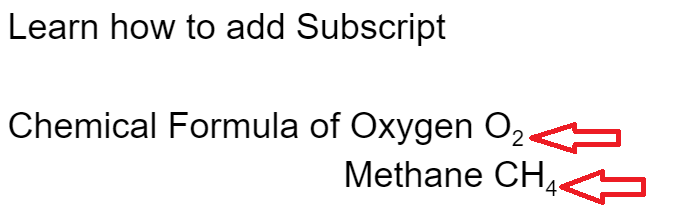
Use the Google Docs Subscript Keyboard Shortcut
The subscript shortcut in Google Docs is almost identical to superscript — just use a comma instead of a period.
- Select the text you want to lower (e.g., the “2” in H2O).
- Press the subscript shortcut:
- Windows / Chrome OS: Ctrl + , (comma)
- Mac: ⌘ Command + , (comma)
- The selected text instantly drops below the baseline.
Press the same shortcut again to remove subscript formatting.
How to Type Subscript in Google Docs
If you want to type subscript directly rather than formatting text afterward, turn on subscript before entering the character.
For example, to type H₂O:
- Type
H. - Turn on subscript.
- Type
2. - Turn subscript off.
- Type
O.
You can also type the entire expression first, select the character you want to lower, and then choose Format > Text > Subscript.
How to Turn Off Subscript in Google Docs
If new text continues appearing below the normal line, subscript formatting may still be active.
To turn it off, use the subscript keyboard shortcut again or go to:
Format > Text > Subscript
You can also select existing subscript text and apply the same option to return it to normal formatting.
How to Add Subscript in Google Docs Equation
If you’re writing equations, formulas, or scientific documents, the Equation Editor provides another way to insert subscript in Google Docs.
- Click Insert → Equation.
- Type your base text in the equation box.
- Press Shift + - (the underscore
_symbol) to enter subscript mode. - Type your subscript value.
- Press Enter or click outside the box when done.
Subscript is frequently needed when writing mathematical formulas.
How to Insert Subscript Characters With Special Characters
If you want your characters to retain their unique lower baseline structure when copied and pasted outside of Google Docs into raw code files or external plain-text editors, use dedicated Unicode symbols.
- Click Insert on your primary application toolbar.
- Select Special characters to launch the glyph configuration panel.
- Type
"subscript"into the search text field on the right. - Click on any native numeric Unicode symbol (₀ ₁ ₂ ₃ ₄ ₅ ₆ ₇ ₈ ₉) to drop it onto your document page.
Add Subscript in the Google Docs Mobile App
You can also use subscript in the Google Docs mobile app on Android and iPhone/iPad.
The desktop keyboard shortcuts aren’t available in the same way on mobile, so you use the formatting toolbar instead.
Subscript on Android or iPhone
- Open the Google Docs app.
- Open the document.
- Tap the pencil icon to enter editing mode.
- Type your text or select existing text.
- Highlight the character you want to make subscript.
- Tap the Format button, shown as an A with lines.
- Under the Text tab, tap X₂.
- The selected text will now appear as subscript.
To turn subscript off, select the formatted text and tap X₂ again.
Frequently Asked Questions
Why is my text stuck in subscript mode in Google Docs?
If all newly typed characters continue to display below the main baseline, the formatting flag is still active. Highlight your empty workspace cursor spot and press Ctrl + , (Windows) or ⌘ + , (Mac), or clear it by clicking Format > Text > Subscript to normalize your font line.
What is the shortcut for subscript in Google Docs?
On Windows and ChromeOS, select the text and press Ctrl + ,. On Mac, use ⌘ + ,.
How do I type H₂O in Google Docs?
Type H2O, select the 2, and apply Subscript from Format > Text > Subscript.
Can I make a single letter or character a subscript?
Yes. Google Docs allows character-level formatting isolation. Simply use your mouse cursor to highlight just one individual letter or digit before applying the shortcut or format menu setting.
Conclusion
Learning how to do subscript in Google Docs makes it easy to write chemical formulas, mathematical expressions, and scientific notation.
For a quick method, select the character and use Format > Text > Subscript. If you use subscript frequently, the keyboard shortcut can make the process much faster.