Spanish Letters With Accents on Keyboard á, é, í, ó, ú, ü, ñ
Learning a new language opens up a world of culture, but one of the first practical hurdles you will face online is figuring out how to use a Spanish accent on a standard keyboard.
Spanish letters with accents are essential for correct spelling, pronunciation, and grammar, transforming everyday words like año (year) so they don’t accidentally turn into typos.
Whether you need to apply a Spanish accent on Windows, Mac, Chromebook, or mobile, you don’t need to buy new hardware. This comprehensive guide breaks down the easiest shortcuts to help you type Spanish letters with accents seamlessly.
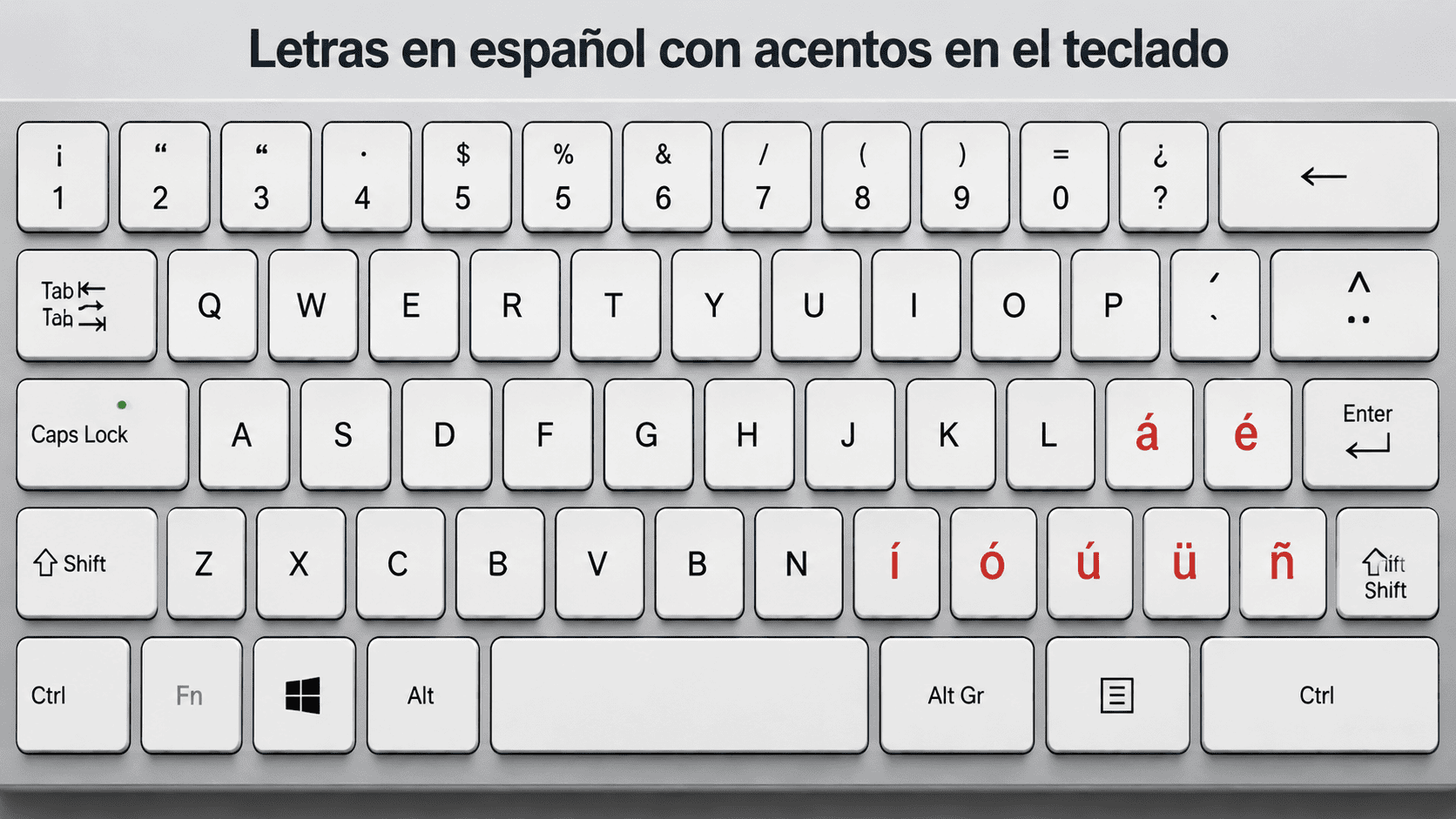
Complete Directory: Individual Accent Typing Guides
If you are looking for exhaustive step-by-step guides, specific Alt codes, HTML entities, and advanced language settings for a particular character, visit our standalone tutorials:
Accented Vowels
- How to Type A with Accent (Á, á) — Complete keyboard mappings for the letter A.
- How to Type E with Accent (É, é) — Exact key combinations for Windows, Mac, and Word.
- How to Type I with Accent (Í, í) — Deep dive into using the acute accent on the letter I.
- How to Type O with Accent (Ó, ó) — Master all variations including acute, grave, and circumflex codes.
- How to Type U with Accent (Ú, ú) — A dedicated guide for the acute U and the Spanish umlaut.
Special Spanish Punctuation & Letters
- How to Type N with Tilde / Spanish N (Ñ, ñ) — The absolute essential guide for the Spanish eñe.
- How to Type Upside Down Exclamation Point (¡) — Learn how to open your exclamatory sentences correctly.
- How to Type Upside Down Question Mark (¿) — Master the opening punctuation mark for interrogative sentences.
The Essential Spanish Letters with Accents
Before learning the shortcuts, here is the full list of characters you will use most often when adding a Spanish accent to your writing:
- Accented Vowels: á, é, í, ó, ú
- The Umlaut: ü
- The Eñe: ñ
- Inverted Punctuation: ¿ and ¡ (Note: Spanish uses these unique punctuation marks at the beginning of questions and exclamations, not just the end!)
How to Type a Spanish Accent by Device
Windows 10 & 11
Windows gives you two great built-in options to type Spanish letters with accents: quick keyboard combinations or manual Alt codes.
Windows Keyboard Shortcuts
Press the Ctrl key and the ‘ (apostrophe) key at the same time, release them, and then quickly press the vowel you want to give a Spanish accent.
- Press Ctrl + ‘, then A to type á
- Press Ctrl + ‘, then E to type é
- Press Ctrl + ‘, then I to type í
- Press Ctrl + ‘, then O to type ó
- Press Ctrl + ‘, then U to type ú
- Ctrl + Shift + ~, then n
Windows Alt Codes for Spanish Accents
Another common method is using Alt codes. This works by holding the Alt key and typing a number using the numeric keypad on the right side of your keyboard.
- á — Press and hold Alt, then type 0225, then release Alt
- é — Press and hold Alt, then type 0233, then release Alt
- í — Press and hold Alt, then type 0237, then release Alt
- ó — Press and hold Alt, then type 0243, then release Alt
- ú — Press and hold Alt, then type 0250, then release Alt
- ñ — Press and hold Alt, then type 0241, then release Alt
- ü — Press and hold Alt, then type 0252, then release Alt
- ¿ — Press and hold Alt, then type 0191, then release Alt
- ¡ — Press and hold Alt, then type 0161, then release Alt
Important: these codes only work with the numeric keypad, not the number keys across the top of the keyboard.
Alt codes are useful if shortcut keys don’t work in a specific app or browser.
macOS (Macbooks & iMacs)
Mac makes typing a Spanish characters incredibly fluid using the Option key. Press the combination first, release it, and then type the letter to create Spanish letters with accents.
- Accented Vowels (á, é, í, ó, ú): Option + E, then press the vowel.
- The letter Ñ (ñ): Option + N, then press N again.
- The letter Ü (ü): Option + U, then press U again.
- Inverted Exclamation (¡): Option + 1
- Inverted Question (¿): Option + Shift + ?
Type Spanish Accents on Chromebook
ChromeOS gives you a couple of simple ways to type a Spanish accent. You can easily use Unicode shortcuts for special characters:
- Press
Ctrl + Shift + U(an underlineduwill appear). - Type the specific 4-digit code and press Enter to create your Spanish letters with accents.
- á:
00E1| é:00E9| í:00ED| ó:00F3| ú:00FA - ñ:
00F1| ü:00FC| ¿:00BF| ¡:00A1
Microsoft Word Methods
If you are writing documents in Word, the platform offers built-in ways to insert a Spanish accent depending on how often you need them.
- Shortcut Keys: Use the same Windows shortcuts (
Ctrl + 'then the vowel, orCtrl + Shift + ~thenn). - Insert Symbol Menu: Go to the Insert tab > Symbol > select your character.
- AutoCorrect: Set up custom replacement rules in Word settings to automatically swap out text strings (like typing a’ to automatically turn into á).
Smartphones (iPhone & Android)
Mobile is by far the easiest platform for adding Spanish letters with accents to your text.
- Press and hold the base letter on your regular keyboard (e.g., hold ‘A’ or ‘N’).
- A small pop-up menu will appear with all available Spanish letters with accents.
- Slide your finger over to the accented version you want and release.
Typing Uppercase Spanish Letters with Accents
Need to capitalize your text? The exact same keyboard shortcuts apply. The only difference is that you hold the Shift key when typing the final letter to create a capital Spanish accents.
| Character | Shortcut |
|---|---|
| Á | Ctrl + ‘ then Shift + A |
| É | Ctrl + ‘ then Shift + E |
| Í | Ctrl + ‘ then Shift + I |
| Ó | Ctrl + ‘ then Shift + O |
| Ú | Ctrl + ‘ then Shift + U |
| Ü | Ctrl + Shift + : then Shift + U |
| Ñ | Ctrl + Shift + ~ then Shift + N |
On most systems, use the same shortcut and capitalize the final letter.
Pro-Tips for Typing a Spanish Accents Faster
Once you know how to enter Spanish letters with accents, a few habits can make typing much quicker. These methods are especially useful if you write in Spanish language regularly for study, work, or communication.
- Switch Keyboard Layouts: If you type Spanish often, go to your device settings and add the US-International Keyboard. This layout allows you to type Spanish letters with accents using a single quote key followed by a vowel, cutting down on multi-key shortcuts.
- Learn the Core Shortcuts: Memorizing the shortcuts for the five accented vowels, ñ, and inverted punctuation marks covers 99% of your daily Spanish typing needs.
- Use AutoCorrect Tools: Many apps allow custom text expansion settings. This can automatically replace specific letter combinations with accented characters on the fly.
Final Thoughts
Learning how to type Spanish accents is simple once you know the right shortcuts for your device. Whether you use Windows, Mac, Chromebook, or Word, there is a quick method available.
Beyond typing, understanding when to use accents in Spanish is equally important. Accent marks change pronunciation and meaning, so practicing them early helps improve both writing and speaking.