How to Write or Insert a Matrix in Google Docs (3 Ways)
If you’ve ever tried to write or insert a matrix in Google Docs, you’ve probably noticed there isn’t a direct “Insert Matrix” button. Unlike Microsoft Word, Google Docs doesn’t come with a built-in matrix tool.
That leaves many students, teachers, and professionals asking:
- How do I make or create a matrix in Google Docs?
- Can I insert matrices in Google Docs for math papers?
- What’s the easiest way to type matrices in Docs?
The good news: Google Docs can absolutely handle matrices — you just need to know a few tricks. In this guide, we’ll cover three proven methods to create a matrix in Google Docs:
- Using a table — fastest method, works for any size
- Using the equation editor — best for clean, math-style formatting
- Using the Hypatia Create add-on — best for complex or frequent matrices
By the end, you’ll know exactly how to write, insert, create, add, or type a matrix in Google Docs — whether it’s a 2×2, 3×3, or even larger.
What Is a Matrix?
In mathematics, a matrix is a rectangular arrangement of numbers in the form of rows and columns used to represent a mathematical object. Matrices are enclosed by brackets like [ ]. They are widely used in fields like physics, engineering, computer science, and economics — for everything from solving systems of equations to representing data transformations. Knowing how to create one clearly in a document is an essential skill for students and professionals alike.
Method 1: Insert a Matrix in Google Docs Using a Table (Quick & Flexible)
The easiest way to create a matrix in Google Docs is with a table. It looks neat, can be resized, and works for any matrix size — 2×2, 3×3, 4×4, or larger.
Step-by-Step Instructions
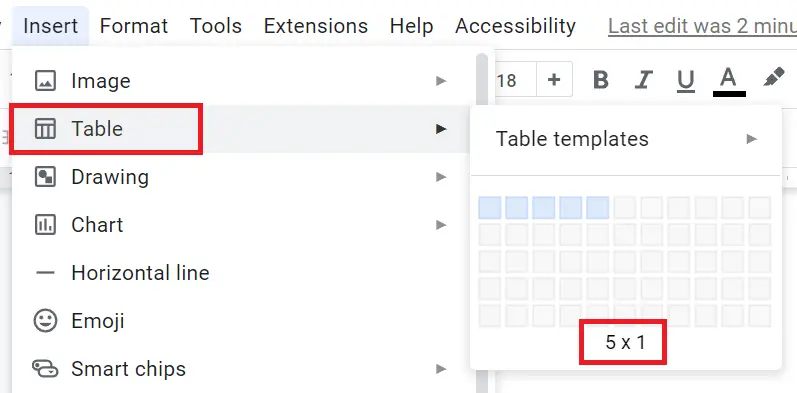
Step 1: Go to Insert and Select Table
Go to the Insert tab and click on Table.
Tip: Insert only one row and keep the number of columns two more than the number of columns you want in your matrix.
Step 2: Select the Table Size
Since we are creating a 4×3 matrix here, we need 3 columns plus 2 more. So insert a 5×1 table.

Step 3: Add the Numbers
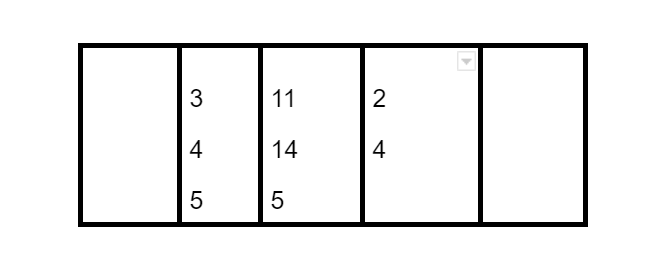
Type your values into the inner columns of the table using the Tab or arrow keys to move between cells.
Step 4: Increase the Width of the Table Border
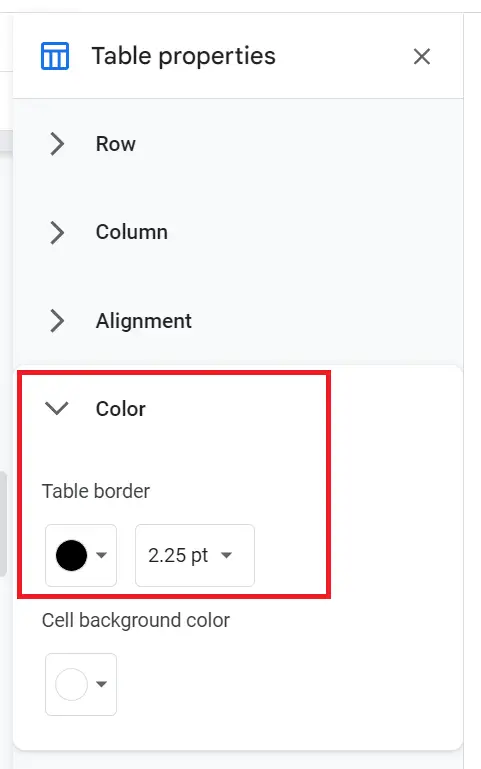
Click anywhere inside the table and open Table properties (right-click → Table properties, or click the three dots in the top-right corner of the table). In the side panel, go to Color → Table border and set the thickness to 2.25 pt.
Step 5: Compress the Columns
Hover over each column border until it changes to a resize arrow, then drag inward to bring the matrix columns closer together.
Step 6: Remove the Inner Borders
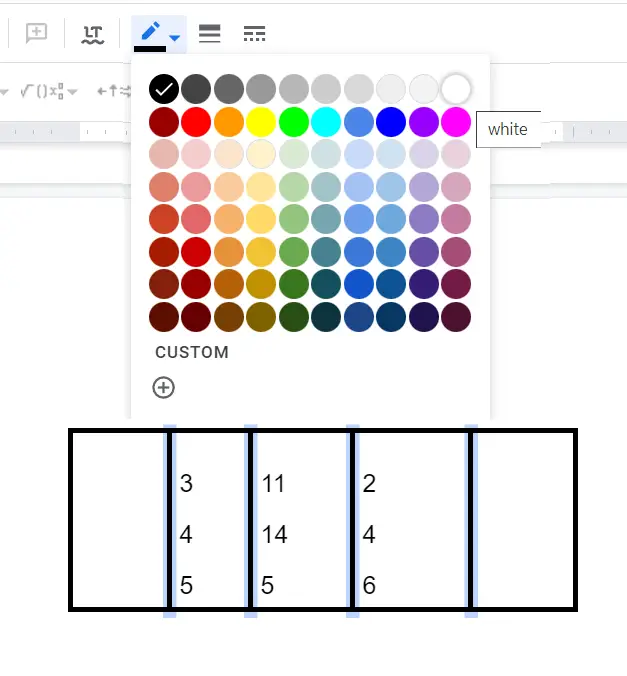
Click on each inner column border and choose 0pt from the Column Border menu in the toolbar. This makes the inner lines invisible, leaving only the outer bracket-style border.
And there you have your matrix!
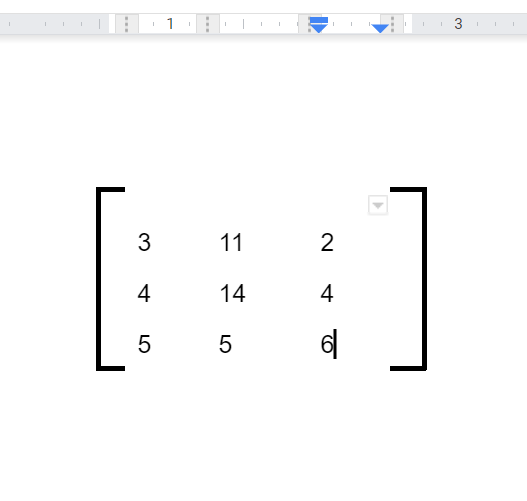
Works for: Any size (2×2, 3×3, 4×4, and beyond). No add-ons needed.
Time-saving tip: Once you’ve built your first matrix, copy and paste it for every future one — just swap out the values. You can also add more rows and columns after pasting.
Method 2: Write a Matrix in Google Docs Using the Equation Editor (Math Style)
If you’re writing a math or science paper, the built-in Equation editor gives you a clean, textbook-style matrix. This method works best for matrices with two rows or fewer.
Step-by-Step Instructions
Step 1: Go to Insert and Select Equation
Click Insert → Equation from the top menu. A new equation toolbar will appear at the top of your document.
Step 2: Click “Mathematical Operators” and Select “Square Brackets”
In the equation ribbon, click Mathematical Operators and select the Square brackets option to insert them.
Step 3: Select “xba” for Two Rows
For a single-row matrix, simply type values with spaces between them inside the brackets.
For two rows, place your cursor inside the brackets, go back to Mathematical Operators, and select xba. This creates a stacked second row inside the brackets.
Step 4: Enter the Numbers
Use the right arrow key to navigate between positions. Type your values and press Enter to move to the next row.
Step 5: Press Spacebar to Add More Columns
Press Spacebar after completing each column entry to move to the next column. Repeat until all values are filled in.
Best for: 1-row and 2-row matrices in academic or scientific documents.
Limitation: Gets messy for matrices larger than 2 rows. Use Method 3 for anything bigger.
Method 3: Create a Matrix in Google Docs Using the Hypatia Add-On (Best for Complex Work)
If you work with matrices regularly, a dedicated math add-on is the best option. Hypatia Create is free, handles any matrix size, and produces professionally formatted output. Other popular options include MathType and EquatIO.
Step-by-Step Instructions
Step 1: Go to the Google Workspace Marketplace
In Google Docs, go to Extensions → Add-ons → Get add-ons to open the Google Workspace Marketplace.
Step 2: Search for Hypatia Create
In the Marketplace search bar, type Hypatia Create and click on the first result that appears.
Step 3: Install the Extension
Click Install, sign in with your Google account, and grant the necessary permissions to allow the add-on to run.
Step 4: Open Insert/Edit Math
Once installed, go to Extensions → Hypatia Create → Insert/Edit Math.
Step 5: Search for “Matrix”
In the dialog box, click the search icon in the bottom-right corner and type “matrix” to see all available templates.
Step 6: Choose and Insert Your Matrix
Browse the matrix templates, select the size and style you want, and click Insert.
Step 7: Add Your Values
Enter your values using the arrow keys to move between cells. Click Insert when done and your matrix will appear in the document.
Best for: Large matrices, frequent use, professional math formatting.
Limitation: Requires an internet connection to install and add-on permissions to be granted.
Pro tip: Save a blank 3×3 matrix as a template in Hypatia Create. You’ll never have to build one from scratch again.
Which Method Should You Use?
| Method | Best For | Pros | Cons |
|---|---|---|---|
| Table | Quick grids, any size | Easy, flexible, no add-ons | No automatic math brackets |
| Equation Editor | Academic math documents | Clean, professional, built-in | Limited to 2 rows |
| Hypatia Create | Complex or frequent matrices | Fast, polished, customizable | Requires install & permissions |
Frequently Asked Questions
How do I write a matrix in Google Docs?
The simplest way to write a matrix in Google Docs is to insert a table with the right number of rows and columns, then type your numbers into the cells. Set the outer border to 2.25pt and remove the inner borders by setting them to 0pt. This gives you a clean bracket-style matrix that works for any size — 2×2, 3×3, or larger.
How do I insert a 3×3 matrix in Google Docs?
Go to Insert → Table and select a 5×1 table (your 3 matrix columns plus 2 extra outer columns). Type your values into the three inner cells, then remove the inner borders by setting them to 0pt. Increase the outer table border to 2.25pt for a clean matrix appearance. This method works for any matrix size.
How do I create a matrix in Google Docs?
There are three ways to create a matrix in Google Docs: using a table (best for any size), using the built-in Equation Editor (best for 1-2 row math matrices), or using the free Hypatia Create add-on (best for large or frequent matrices). The table method is the fastest and requires no add-ons.
Can I make a 2×2 or 4×4 matrix in Google Docs?
Yes — the table method works for any matrix size. For a 2×2 matrix, insert a 4×1 table (2 columns + 2 extra). For a 4×4, insert a 6×1 table. Add your rows using the Enter key inside the cells, remove inner borders, and your matrix is ready.
Does Google Docs support LaTeX for matrices?
Google Docs does not support LaTeX natively. However, you can install add-ons like Auto-LaTeX Equations or MathType from the Google Workspace Marketplace. These tools let you type standard LaTeX matrix code and render it into a properly formatted matrix directly inside your Google Doc.
Can I create a matrix in Google Sheets?
Yes, and Google Sheets is actually better suited for numeric matrices since it is grid-based by default. You can enter values directly into cells, format them with borders, and even perform real matrix operations using built-in formulas like MMULT for multiplication or TRANSPOSE to flip rows and columns.
How do I make my matrix look professional in Google Docs?
For a professional-looking matrix, use the table method and set the outer border to 2.25pt while removing all inner borders. Bold and center-align the numbers inside the cells. For the most polished, academic result — especially for math or science papers — use the built-in Equation Editor or the Hypatia Create add-on.
Final Thoughts
Whether you need to write, insert, or create a matrix in Google Docs for a math paper, homework, or professional document, you now have three solid options:
- Tables — fast and flexible, works for any size
- Equation Editor — clean math style, no add-ons needed
- Hypatia Create — powerful for advanced or frequent use
With these methods, you’ll never struggle with typing matrices in Google Docs again.