Task View Shortcut in Windows 10 & 11: How to Use It
The Task View shortcut in Windows — Windows key + Tab — is the fastest way to see every open window and virtual desktop at a glance, then switch between them without hunting through the taskbar.
This guide covers what the Task View shortcut does, how to use it on both Windows 10 and Windows 11, the full set of virtual desktop shortcuts that pair with it, and what to do if the Task View button has disappeared from your taskbar.
What Is Task View?
Task View is a feature introduced in Windows 10 and carried into Windows 11 that shows a thumbnail preview of every open app window, plus a row of your virtual desktops along the bottom (Windows 10) or top (Windows 11) of the screen. From there you can click any window to jump to it, drag windows between desktops, or create and close virtual desktops entirely with the keyboard.
Think of it as a bird’s-eye view of everything you’re working on — useful the moment you have more than two or three windows open at once.
Task View Shortcut: Windows + Tab
The Task View shortcut is identical on Windows 10 and Windows 11:
Press Windows + Tab
This instantly opens the Task View screen. Press Esc, click anywhere outside the thumbnails, or press Windows + Tab again to close it.
How to Use the Task View Shortcut (Two Ways)
- Keyboard shortcut: Press Windows + Tab.
- Task View button: Click the icon on your taskbar that looks like two overlapping rectangles — it typically sits near the search box or Start button.
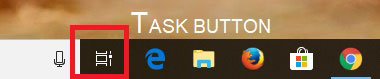
Either method opens the identical screen; the shortcut is simply faster once you’re used to it.
Task View in Windows 11 vs. Windows 10
The shortcut and core function are identical between versions. The only real difference is layout: Windows 10 shows virtual desktop thumbnails along the bottom of the Task View screen, while Windows 11 shows them along the top. Everything else — the Win + Tab shortcut, the taskbar button, and the virtual desktop shortcuts below — works the same way on both.
Virtual Desktop Shortcuts (Used Alongside Task View)
Task View is also your gateway to virtual desktops — separate workspaces you can dedicate to different projects. These shortcuts work in Windows 10 and 11:
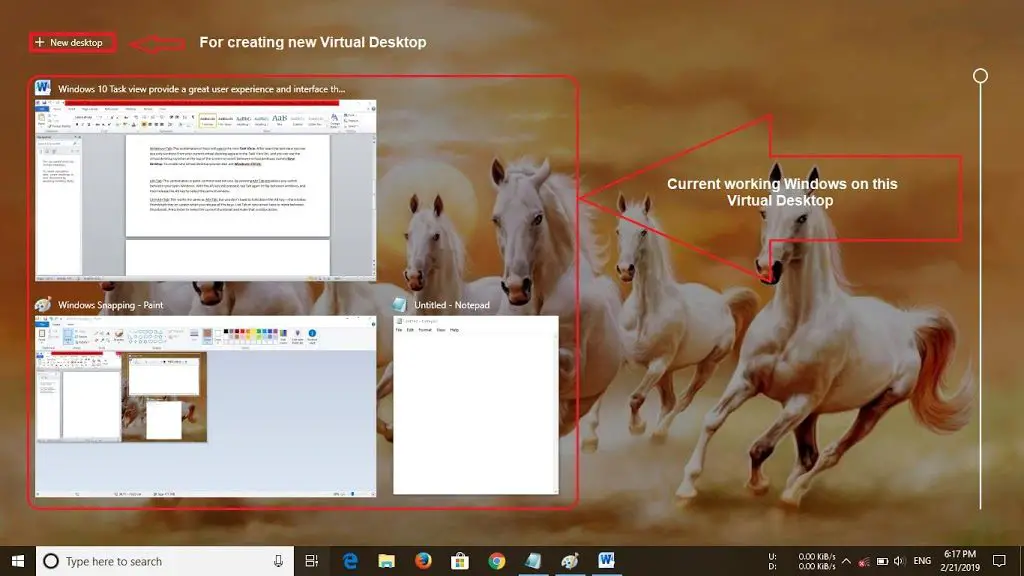
| Action | Shortcut |
|---|---|
| Open Task View | Windows + Tab |
| Create a new virtual desktop | Windows + Ctrl + D |
| Switch to the next virtual desktop | Windows + Ctrl + Right Arrow |
| Switch to the previous virtual desktop | Windows + Ctrl + Left Arrow |
| Close the current virtual desktop | Windows + Ctrl + F4 |
Closing a desktop doesn’t close your apps — any open windows on it automatically move to the adjacent desktop.
How to Show or Hide the Task View Button
If the Task View button is missing from your taskbar, it’s likely been toggled off rather than actually removed:
- Right-click an empty area of the taskbar.
- Select Taskbar settings.
- Find the Task View switch and turn it On (Windows 11) — or look for the same toggle under Taskbar settings on Windows 10.

Turning this off only hides the clickable icon — the Windows + Tab keyboard shortcut still works either way.
Task View with an Xbox Controller
If you’re using an Xbox controller connected to a Windows 11 PC (common in handheld gaming setups), pressing the View button on the controller opens Task View, mirroring what Windows + Tab does on a keyboard.
Task View vs. Alt + Tab: What’s the Difference?
These two get confused often, but they solve different problems. The Task View shortcut differs from Alt + Tab because it shows every window and virtual desktop at once, rather than cycling through them one at a time:
- Alt + Tab cycles through open windows one at a time — hold Alt, tap Tab repeatedly, release to select. It’s fast for switching between two or three windows you already know.
- Ctrl + Alt + Tab does the same thing but keeps the thumbnails on screen without holding any key, so you can use arrow keys to pick one.
- Task View (Windows + Tab) shows everything at once — every open window and every virtual desktop — which is more useful when you’ve lost track of what’s open or want to move a window to a different desktop.
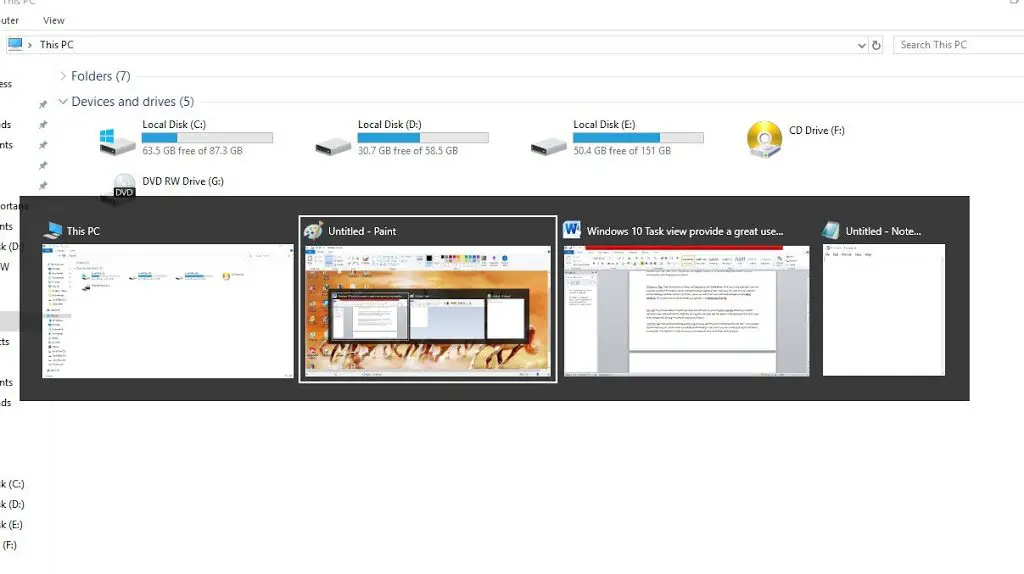
Use Alt + Tab for quick switches, Task View when you need the full picture.
Frequently Asked Questions
What is Task View in Windows 11? Task View is a built-in feature that shows all your open windows and virtual desktops in one screen, opened with Windows + Tab, so you can switch between them or manage desktops without using the taskbar.
What is the Task View shortcut? Windows + Tab, on both Windows 10 and Windows 11.
How do I open Task View with the keyboard? Press and hold the Windows key, then tap Tab.
Where is the Task View button in Windows 11? It’s on the taskbar, usually next to the search box. If it’s missing, enable it in Taskbar settings.
How do I open Task View on Windows 10? Same as Windows 11 — press Windows + Tab, or click the Task View button on the taskbar.
How do I get out of Task View? Press Esc, click anywhere outside the window thumbnails, or press Windows + Tab again.
Bonus: Shortcuts That Pair Well with Task View
A few extra shortcuts that complement multitasking with Task View, though they’re separate features:
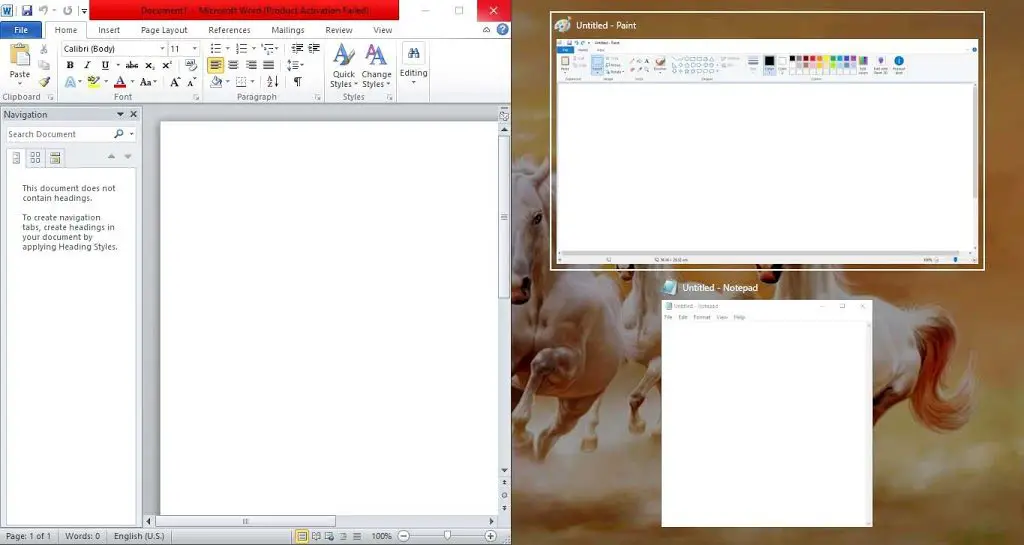
- Windows + Left / Right / Up / Down: Snap the current window to a side or corner of the screen. Combine two (e.g., Left then Up) to snap into a quarter of the screen.
- Windows + 1, 2, 3…: Instantly open or switch to the app pinned in that position on your taskbar.
- Full Screen Shortcut for Windows 10/11 — the F11 shortcut and more, for a distraction-free view once you’ve switched to the right window.
- How to Switch Between Desktops on Windows 10