Advanced Keyboard Settings in Windows: Fix Language & Keyboard Problems
If your keyboard suddenly starts typing the wrong symbols, Windows switches to another language after an update, or your menus become unreadable, the problem usually comes from incorrect advanced keyboard settings or misconfigured time and language settings.
One of the most common causes is accidental keyboard shortcuts that switch the input language or keyboard layout while you’re typing.
The good news is that these issues are usually easy to fix once you understand how Windows handles languages, keyboards, and regional preferences.
In this complete guide, you’ll learn:
- how to change language
- how to change language to English
- how to fix keyboard language settings
- how to use advanced keyboard settings
- how to change Windows display language
- how to restore language back to English
- how to manage display language settings
- how administrative language settings work
- how to configure default language settings properly
Whether you use Windows 10 or Windows 11, this guide will help you fully control your computer’s language and typing behavior.
Why Windows Language and Keyboard Settings Become Confusing
One reason people struggle with language problems is that Windows separates settings into multiple categories.
Your computer may use:
- one display language
- another keyboard layout
- a different regional format
- separate app language preferences
For example, your Windows menus might still appear in English while the keyboard suddenly starts typing different symbols or using another layout, such as UK English instead of US English. Some apps and browsers can also follow separate language preferences, which makes the entire system feel inconsistent and confusing.
Many users don’t realize how closely advanced keyboard settings, keyboard layouts, display language options, and regional preferences are connected inside Windows.
Once you understand how these settings interact, troubleshooting becomes much easier.
Where to Find Time and Language Settings in Windows
If your keyboard starts typing incorrect symbols, Windows changes language unexpectedly, or the date and time format looks unusual, the first place you should check is the Time & Language menu.
- Press Windows + I
- Open Time & Language
This area contains:
- Language & Region
- Typing
- Speech
- Date & Time
- Keyboard preferences
Almost every Windows language or typing issue connects back to these settings.
This area controls:
- advanced keyboard settings
- keyboard language settings
- display language settings
- time and language settings
- regional preferences
- administrative language settings
For example, if your keyboard starts typing different symbols, your menus appear in another language, or Windows keeps changing layouts automatically, the solution is usually somewhere inside the Time & Language menu.
Many users don’t realize how connected these settings are. A small change to keyboard layouts or regional preferences can affect typing, display language, shortcuts, and even app behavior across the entire system.
How to Change Language on Windows
If you accidentally changed the language during setup or bought a laptop configured for another region, you can usually fix the problem directly from the Windows language settings menu.
Most users looking for how to change language or change language to English can solve the issue in just a few minutes by following the steps below.
Step 1: Open Windows Language Settings
Go to:
Settings → Time & Language → Language & Region
Almost every language-related setting in Windows connects back to this menu, including display language, keyboard layouts, regional formats, and typing preferences.
Step 2: Choose Language
Under “Preferred languages” click:
Add a language
Now search for the language you want to use, such as:
- English (United States)
- English (United Kingdom)
- or another preferred language
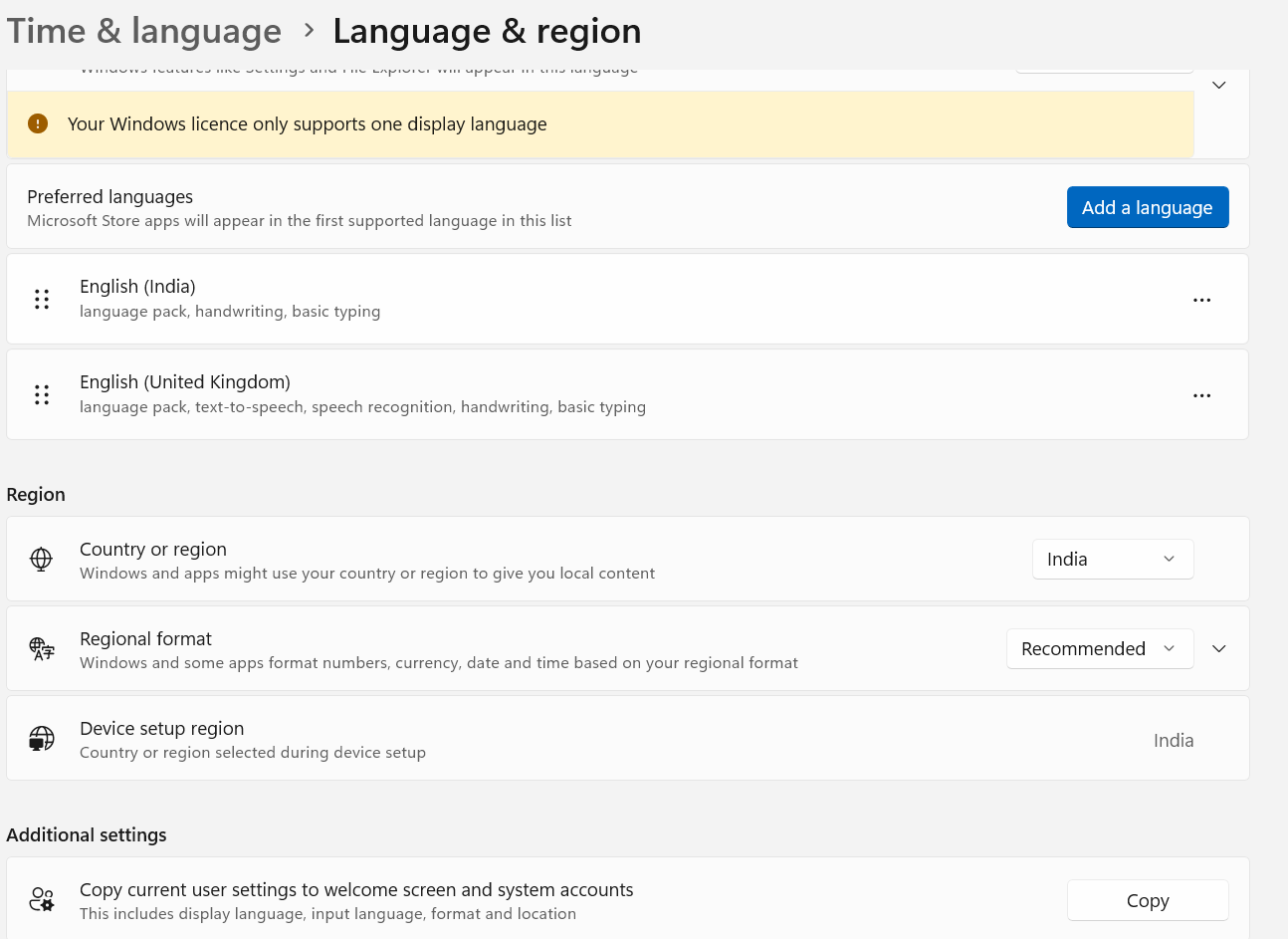
If you want to restore Windows back to English, choose the English version that matches your preferred keyboard layout and regional settings.
Step 3: Install the Language Pack
Once selected:
- click Next
- enable “Set as my Windows display language”
- install the language pack
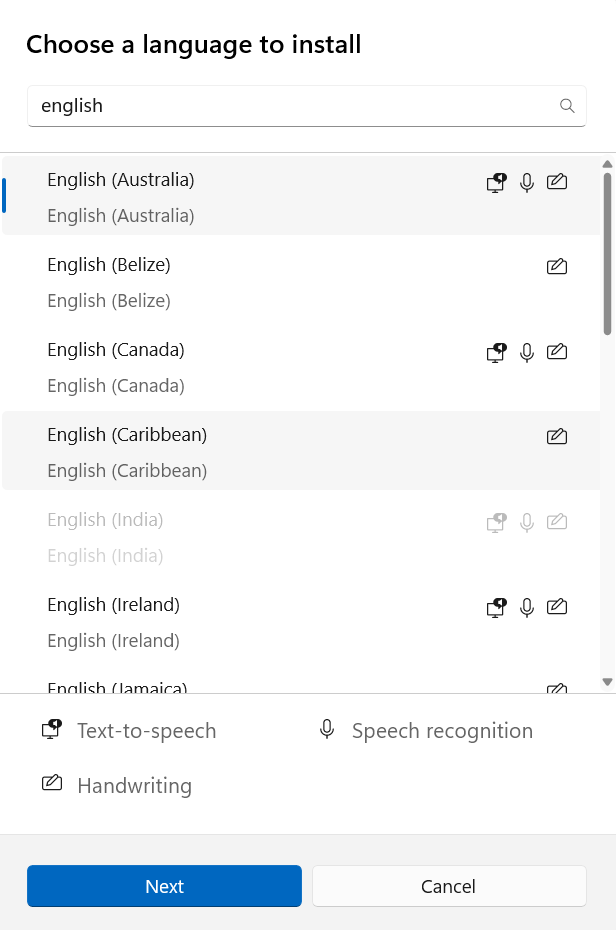
Depending on your internet connection, Windows may need several minutes to download and install the required files. During installation, some menus may temporarily remain in the previous language.
Step 4: Change Windows Display Language
Once installation finishes:
- Open the dropdown for Windows display language
- Select English
- Sign out and sign back in
After signing back in, Windows should begin displaying menus, settings pages, notifications, and built-in apps in English. In some cases, you may also need to restart the computer fully before every change appears correctly.
How to Restore Language Back to English
Sometimes users accidentally switch languages during setup, after a Windows update, or while adding keyboards.
If you need to restore language back to english, follow this process:
- remove unnecessary languages
- reinstall English language pack
- restart Windows
- check keyboard layouts
- verify region settings
- disable automatic syncing
Many users don’t realize that Windows can continue restoring old keyboard layouts from another connected device through Microsoft account syncing.
How Advanced Keyboard Settings Fix Typing Problems
Incorrect typing behavior is one of the most common Windows complaints.
Common symptoms include:
- wrong letters appearing
- special characters typing incorrectly
- keyboard suddenly switching language
- Y and Z keys swapped
- unexpected shortcuts activating
In most cases, the keyboard itself is not broken. Windows is simply using the wrong keyboard layout or switching between multiple installed languages automatically.
How to Remove Extra Keyboard Layouts
Extra keyboard layouts are one of the biggest causes of typing issues in Windows.
To fix language settings keyboard conflicts:
- Open:
Settings → Time & Language → Language & Region - Select your active language
- Click Language options
- Under Keyboards:
- remove unwanted layouts
- keep only your preferred keyboard
This immediately solves many typing problems.
How to Use Advanced Keyboard Settings in Windows
Windows also includes an advanced keyboard settings section that gives users more precise control over typing and language behavior.
To access it:
- Open Settings
- Go to Time & Language
- Select Typing
- Click Advanced keyboard settings
Inside the advanced keyboard settings panel, you can:
- override the default input method
- stop automatic keyboard switching
- manage language hotkeys
- control input preferences
- fix recurring keyboard conflicts
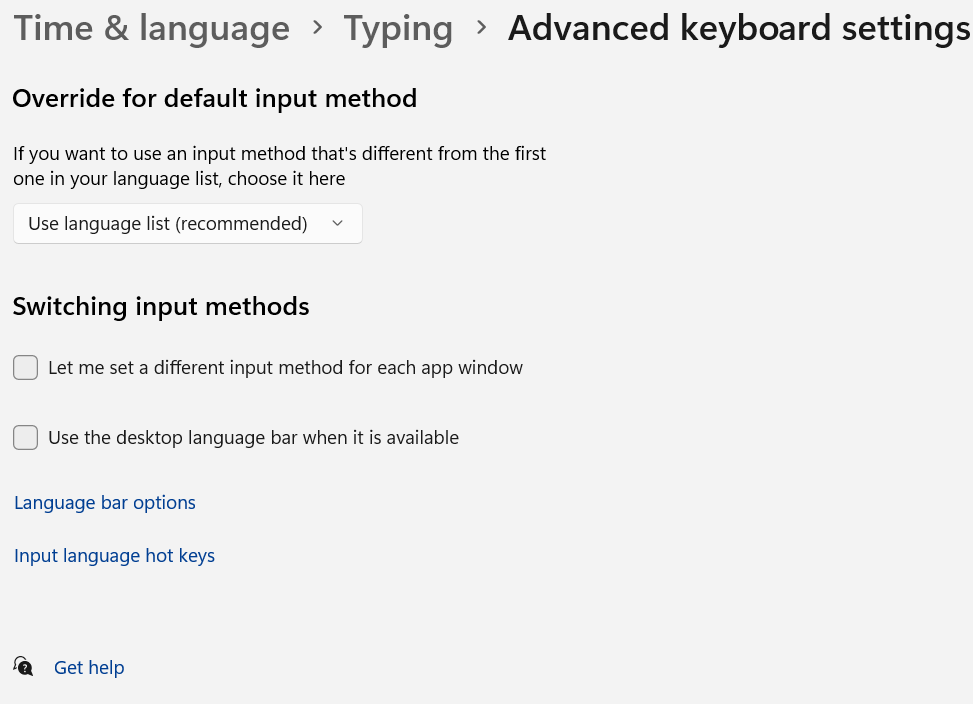
If your keyboard changes language randomly, advanced keyboard settings is usually the fastest solution.
Keyboard Shortcuts That Change Language in Windows
Many users accidentally trigger keyboard shortcuts without realizing it.
Windows commonly uses these shortcuts for language switching:
| Shortcut | Function |
|---|---|
| Windows + Space | Switch keyboard layout |
| Left Alt + Shift | Change input language |
| Ctrl + Shift | Switch keyboard layouts |
While gaming, working, or coding, these shortcuts can activate accidentally and instantly change the keyboard layout.
To disable them:
- Open Advanced keyboard settings
- Select Input language hotkeys
- Disable unwanted shortcuts
Adjusting advanced keyboard settings helps prevent accidental keyboard changes during everyday use.
How to Change Display Language Preferences Easily in Windows
Some users struggle because the language changes only partially.
For example:
- menus become English
- but apps remain another language
- or the login screen still appears differently
To properly change display language preferences easily Windows, follow this sequence carefully:
- Install the full language pack
- Set it as Windows display language
- Restart the computer
- Remove old language packs
- Recheck keyboard layouts
Administrative Language Settings Explained
Advanced users sometimes need to modify administrative language settings.
These settings affect:
- login screen language
- welcome screen language
- non-Unicode programs
- older software
- system accounts
To access administrative language settings:
- Open Control Panel
- Select Region
- Open the Administrative tab
Here you can:
- copy language settings system-wide
- change system locale
- apply settings for new users
Incorrect administrative language settings often cause broken text or unreadable characters in older applications.
Microsoft Account Sync and Keyboard Language Problems
Your Microsoft account can sync:
- keyboard layouts
- preferred languages
- regional settings
This means another Windows device connected to the same Microsoft account can restore old language settings automatically.
To disable syncing:
- Open Settings
- Go to Accounts
- Select Windows Backup
- Disable preference syncing
Without disabling syncing, Windows may continue restoring old keyboard layouts or language preferences from another PC connected to the same Microsoft account.
Quick Fix for Time and Language Errors
If your time language settings suddenly stopped working after an update, try this sequence:
- Remove all unnecessary languages
- Restart the PC
- Reinstall English
- Set English as default
- Verify keyboard layouts
- Check advanced keyboard settings
- Restart again
In many cases, resetting advanced keyboard settings and removing unused language packs resolves most Windows typing and language issues quickly.
Common Windows Language Problems and Solutions
| Problem | Solution |
|---|---|
| Menus not in English | Change Windows display language |
| Wrong keyboard symbols | Fix keyboard language settings |
| Keyboard switches automatically | Disable language shortcuts |
| Mixed-language apps | Reinstall language packs |
| Incorrect date and time format | Adjust region settings |
| Login screen not in English | Modify administrative language settings |
| Keyboard changes while typing | Configure advanced keyboard settings |
Final Thoughts
Language and keyboard problems in Windows can feel confusing because several settings work together behind the scenes. Display language, keyboard layouts, regional preferences, and advanced keyboard settings all influence how Windows behaves.
Once you understand how these settings connect, troubleshooting becomes much easier.
Whether you want to stop automatic keyboard switching, fix typing problems, change display language, or restore Windows back to English, the Time & Language section gives you full control over the system.
Taking a few minutes to remove unused layouts and organize advanced keyboard settings can prevent many common Windows problems in the future.