Floating Keyboard Guide: Enable, Fix & Use on Windows, Android & iPad
The floating keyboard is one of the most practical yet underutilized features across modern devices. Whether you’re using a PC, Android phone, iPhone, or iPad, this feature allows you to move, resize, and reposition your keyboard for better control and multitasking.
Instead of being locked to the bottom of the screen, this keyboard layout adapts to your workflow—making typing faster, more flexible, and far less intrusive. This is especially helpful when you’re browsing, watching videos, or working in split-screen mode.
In this complete guide, you’ll learn how to enable floating keyboard, use it across different devices, fix common issues, and optimize it for your daily use.
What is a Floating Keyboard?
A floating keyboard is a movable and resizable on-screen keyboard that is not fixed to the bottom of your display. Unlike traditional keyboards that occupy a large portion of the screen, this layout gives you full control over its position and size.
With a this feature, you can:
- Drag it anywhere on the screen
- Resize it for one-handed or compact typing
- Use it while multitasking across apps
- Keep important content visible while typing
This feature is especially useful on large smartphones, tablets, iPads, and touchscreen laptops, where full-sized keyboards can feel bulky and obstructive.
In simple terms, this feature improves usability by combining flexibility, accessibility, and efficiency—making it ideal for modern multitasking environments.
Floating Keyboard on PC (Windows 10 & 11)
The floating keyboard on PC is built into the Windows touch keyboard system and is especially useful on touchscreen laptops, 2-in-1 devices, and tablets. Instead of staying docked at the bottom, the keyboard can switch to a movable layout—giving you more control over screen space while typing.
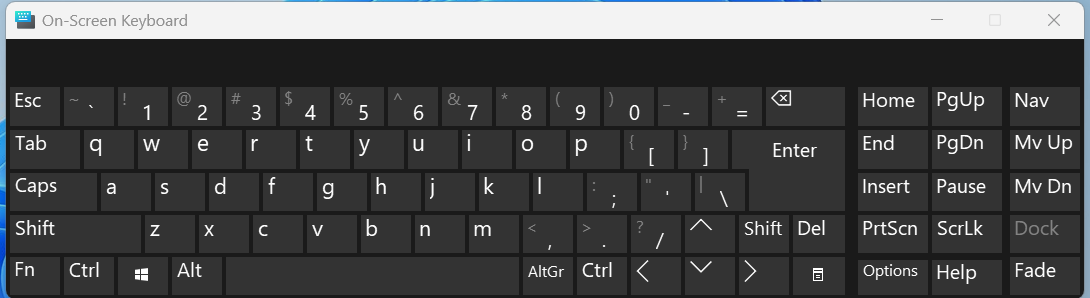
How It Works
On Windows 10 and Windows 11, the keyboard can switch from docked mode to a movable floating layout.
Steps to Enable Floating Keyboard on Windows
Follow these steps to activate the on-screen keyboard in floating mode:
- Click on any text field to trigger the keyboard
- If it doesn’t appear, click the keyboard icon in the taskbar
- Tap the settings (gear) icon on the keyboard
- Select Floating keyboard mode
- Drag the keyboard to reposition it anywhere on the screen
This method works for both Windows 10 and Windows 11
You can also quickly open the on-screen keyboard using the shortcut Win + Ctrl + O, then switch to floating mode from settings.
Why Use Floating Keyboard on PC?
Using a floating keyboard on laptop or PC offers several advantages:
- Better multitasking – Type while keeping apps, documents, or videos visible
- Flexible positioning – Place the keyboard where it’s most comfortable
- Improved touch experience – Ideal for stylus input and tablet mode
- Reduced screen obstruction – Especially useful on smaller screens
Floating Keyboard on Android
Android provides one of the most refined experiences for the floating keyboard, especially through popular apps like Gboard and Microsoft SwiftKey. The floating keyboard on Android is highly customizable, responsive, and designed for both multitasking and one-handed use.
Whether you’re chatting, browsing, or working across apps, enabling this feature can significantly improve your typing efficiency.
How to Enable Floating Keyboard on Android
Follow these steps to turn on the floating keyboard on Android phone:
- Open any app where you can type (e.g., WhatsApp, Notes, Messages)
- Tap on a text field to bring up the keyboard
- Tap the menu icon (⋮ or toolbar options)
- Select Floating
- Drag the keyboard and resize it as needed
This method works on most devices using Gboard floating keyboard or SwiftKey floating keyboard
Floating Keyboard on iPhone & iPad
Apple handles the floating keyboard differently across devices. The floating keyboard on iPad is fully supported and highly functional, while the floating keyboard on iPhone is limited to a one-handed typing mode.
How to Enable Floating Keyboard on iPad
The iPad floating keyboard is easy to activate using gestures:
- Open any app with a text field
- Bring up the keyboard
- Use two fingers to pinch inward on the keyboard
- The keyboard will shrink into a floating mode
- Drag it anywhere on the screen
To return to full keyboard:
- If you accidentally enable it, you can easily turn off floating keyboard on iPad using the pinch-out gesture or by docking it back to the bottom.
On iPhone
- Apple doesn’t offer a true floating version of the keyboard
- But you can enable one-handed keyboard mode:
- Long press the globe icon
- Choose left or right alignment
How to Turn Off Floating Keyboard (iPad Focus)
Many users accidentally enable the iPad floating keyboard and then struggle to return to the full-size layout. Fortunately, disabling it is quick once you know the right gestures.
Steps to Disable Floating Keyboard on iPad
You can turn off the floating keyboard on iPad using any of the following methods:
Method 1: Pinch to Expand (Fastest Method)
- Place two fingers on the smaller keyboard
- Pinch outward (zoom gesture)
- The keyboard instantly returns to full size
Method 2: Drag and Dock to Bottom
- Tap and hold the floating keyboard
- Drag it toward the bottom of the screen
- Release it to dock and expand
Method 3: Use Keyboard Dock Option
- Tap and hold the keyboard icon (bottom right)
- Select “Dock” or “Dock and Merge”
- The keyboard returns to standard layout
Device Differences
| Device | Method |
|---|---|
| Android | Menu → Floating |
| Windows | Settings → Floating keyboard |
| iPad | Pinch gesture |
| iPhone | One-handed mode |
Floating Keyboard Shortcut Keys
Many users actively search for floating keyboard shortcut keys, especially on PC. However, it’s important to clarify a key limitation: most platforms do not provide a direct shortcut to enable floating mode.
Windows Shortcut (Indirect Method)
On Windows 10 and Windows 11, you can quickly open the on-screen keyboard using a shortcut, but switching to floating mode still requires manual action.
- Press Win + Ctrl + O → Opens On-Screen Keyboard
- Then manually switch to floating mode
Floating Keyboard Not Working? Here’s How to Fix It
Even though the feature is stable, users sometimes encounter issues.
1. Floating Option Not Visible
- Ensure your keyboard app supports it
- Update your keyboard app (e.g., Gboard)
2. Keyboard Keeps Docking Back
- Check if “floating mode” is turned off in settings
- Restart the device
3. Lag or Glitches
- Clear keyboard app cache
- Disable and re-enable the keyboard
4. Not Available on Your Device
- Some older devices or basic keyboards don’t support floating mode
- Install a third-party keyboard like Gboard
Final Thoughts
The floating keyboard is a small feature with a big impact. It enhances usability, boosts productivity, and makes typing far more adaptable—especially on today’s large-screen devices.
If you haven’t tried it yet, enabling floating keyboard mode could completely change how you interact with your device. And if you’re already using it, mastering its customization options will take your efficiency even further.