How to Strikethrough in Google Docs [Shortcut ,Color ,Double]
Strikethrough is one of the most useful formatting tools in Google Docs. Whether you’re editing a shared draft, crossing off completed to-do items, or showing tracked revisions without deleting text, knowing how to strikethrough in Google Docs saves time and keeps your documents clean.
This guide covers every method — keyboard shortcuts, the toolbar, the Format menu, and mobile devices — plus answers to the most common questions people search for. If you’re exploring other text formatting options, you may also want to check out how to underline text in Google Docs, how to highlight text in Google Docs, or how to use superscript and subscript in Google Docs.
Quick Answer: How to Strikethrough in Google Docs
To strikethrough in Google Docs:
- Highlight the text.
- Click Format > Text > Strikethrough.
Or use the Google Docs strikethrough shortcut:
- Windows/Chromebook: Alt + Shift + 5
- Mac: Cmd + Shift + X
This will instantly put a line through the selected text without deleting it.
Google Docs Strikethrough Shortcut (Fastest Method)
The quickest way to do strikethrough in Google Docs is with a keyboard shortcut. Many users search for the Google Docs strikethrough shortcut because it is the fastest way to cross out text without opening menus.
- Windows / Chromebook:
Alt + Shift + 5 - Mac:
⌘ (Cmd) + Shift + X
That’s it — the selected text will instantly get a line through it. To remove the strikethrough, select the text again and press the same shortcut, which acts as a toggle.
Strikethrough in Google Docs Cheat Sheet
| Platform | Shortcut |
|---|---|
| Windows | Alt + Shift + 5 |
| Chromebook | Alt + Shift + 5 |
| Mac | ⌘ + Shift + X |
| Android app | No shortcut — use the formatting menu |
| iPhone/iPad app | No shortcut — use the formatting menu |
How to Strikethrough Using the Toolbar
If you prefer not to memorize shortcuts, you can use the toolbar:
- Open your Google Doc and highlight the text you want to strike through.
- Click the three-dot “More” icon in the toolbar (it appears if your toolbar is condensed) — or look for the strikethrough icon (an “S” with a line through it) directly in the toolbar.
- Click the Strikethrough icon to apply the formatting.
If you don’t see the icon, widen your browser window or click the overflow arrow at the end of the toolbar to reveal more formatting options.
How to Do a Strikethrough in Google Docs Using the Format Menu
For a menu-based approach:
- Select the text you want to format.
- Click Format in the top menu.
- Hover over Text.
- Click Strikethrough.
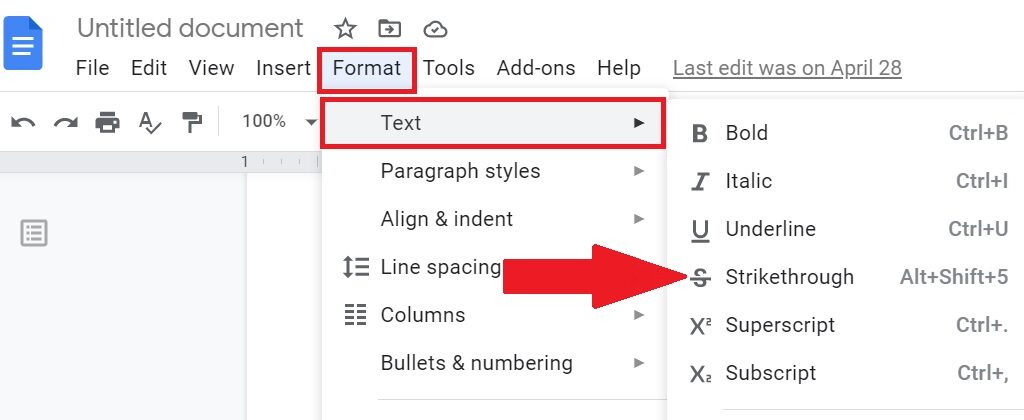
A line will instantly appear through the selected text.
This is an example of strikethrough on Google Docs
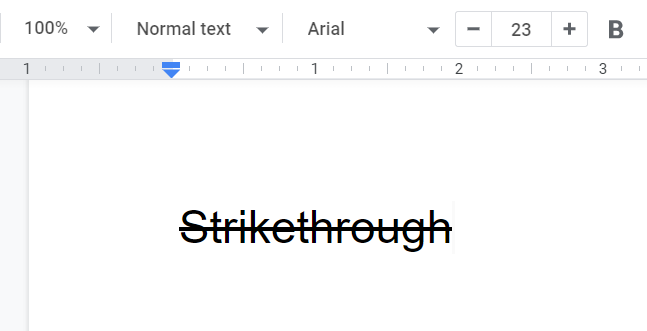
This method works identically on Windows, Mac, and Chromebook since it doesn’t rely on keyboard shortcuts.
How to Strikethrough on Google Docs Mobile (iPhone & Android)
The Google Docs mobile app doesn’t have a dedicated strikethrough button by default, but you can still apply it:
- Open your document in the Google Docs app.
- Tap the pencil icon to enter editing mode.
- Select the text you want to format.
- Tap the formatting icon (the “A” with lines, usually at the top).
- Go to the Text tab.
- Tap Strikethrough (S).
The selected text will immediately appear crossed out. This works the same way on both iOS and Android versions of the app.
How to Remove Strikethrough in Google Docs
To undo strikethrough:
- Highlight the struck-through text.
- Use the same keyboard shortcut (
Alt+Shift+5orCmd+Shift+X), or - Go to Format > Text > Strikethrough again to toggle it off.
Because strikethrough is a toggle, applying the same command twice removes it.
If you just applied strikethrough by mistake and want to reverse it immediately, Ctrl+Z (or Cmd+Z on Mac) undoes the last action just like it would for any other edit.
Apply Strikethrough Before You Type
You don’t have to format text after writing it — you can turn strikethrough in Google Docs on first and then type directly into it:
- Place your cursor where you want to start.
- Press
Alt+Shift+5(Windows/Chromebook) orCmd+Shift+X(Mac) to turn strikethrough on. - Start typing — everything you enter will appear with a line through it automatically.
- Press the same shortcut again to turn it off and continue typing normally.
This is handy for drafting crossed-out placeholder text or annotations without switching back and forth between typing and selecting.
How to Change Strikethrough Color in Google Docs
Google Docs’ built-in strikethrough is always the same color as the text — there’s no direct setting to change it. To get a colored line through your text, you’ll need to work around it using the Drawing tool:
- Click Insert > Drawing > + New.
- In the drawing panel, click the Text box icon and type your text. (If you’re not familiar with this tool, see how to insert a text box in Google Docs.)
- Select the Line tool and draw a line across the text.
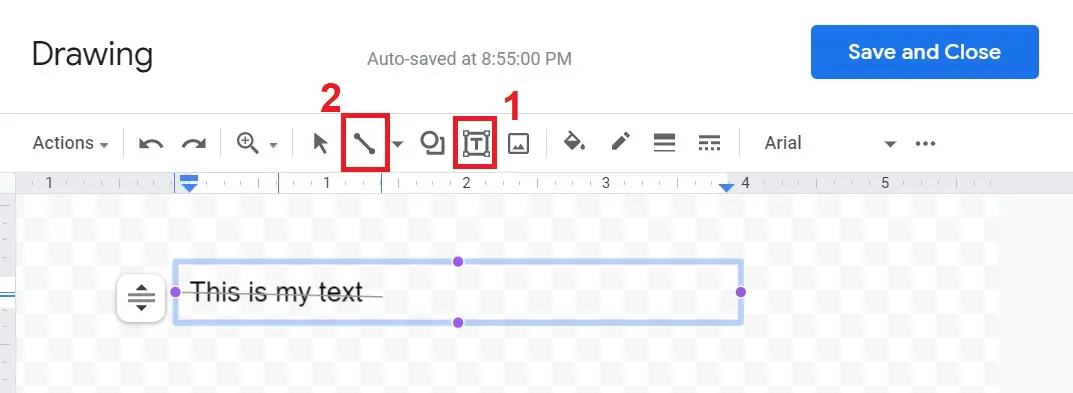
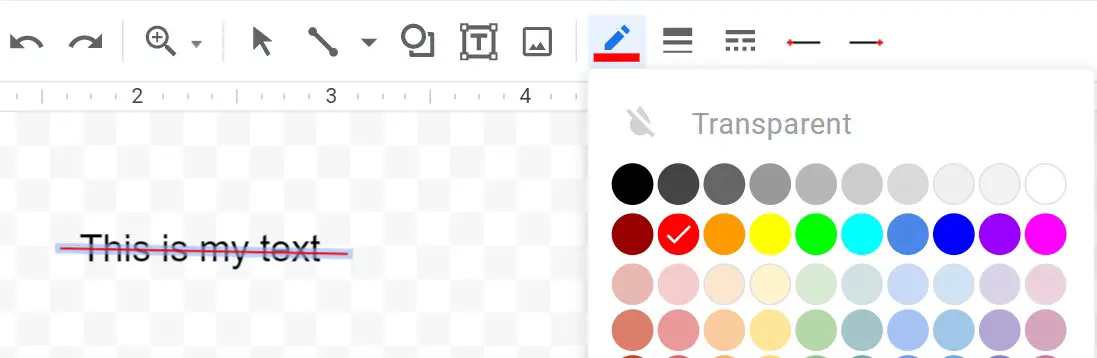
- Click the Line color icon and choose the color you want for the strikethrough (red is common for marking errors or edits).
- Click Save and Close to insert the drawing into your document.
How to Create a Double Strikethrough in Google Docs
Google Docs doesn’t offer a native double strikethrough option either. The same Drawing tool workaround can be adapted to add two lines instead of one:
- Click Insert > Drawing > + New.
- Add a text box with your content.
- Use the Line tool to draw one line through the text, then draw a second line just above or below the first.
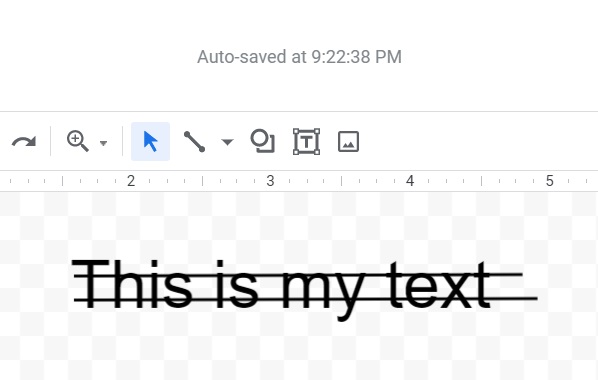
- Adjust color and position as needed, then click Save and Close.
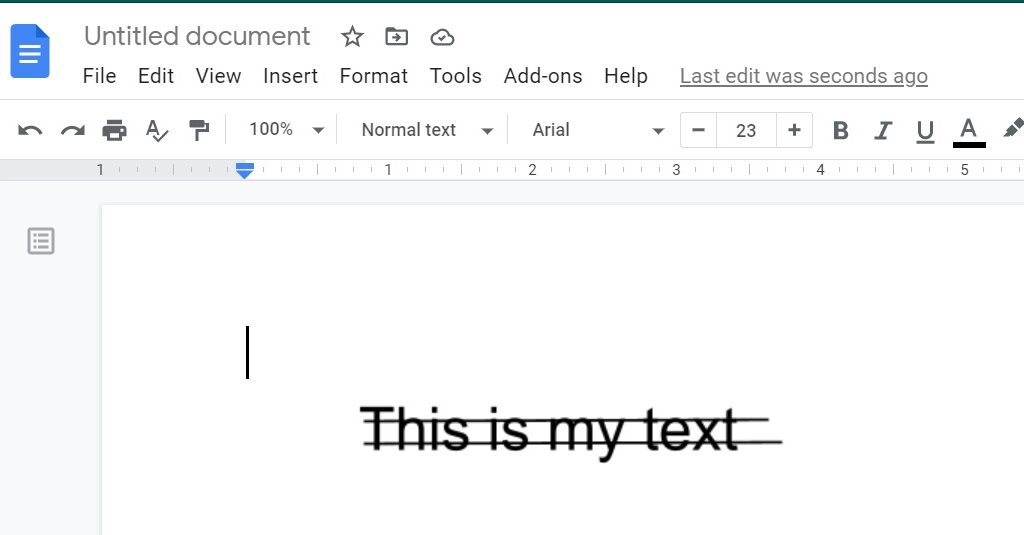
As with colored strikethrough, this inserts as an image rather than live text, so it’s best reserved for occasional stylistic use rather than large amounts of content.
Before making Google Docs strikethrough always remember, that when you do a word count on Google Docs, text with strikethrough formatting, will also count.
Bonus: Strikethrough with Find and Replace
Google Docs doesn’t currently allow formatting changes through Find and Replace.
However, you can still speed up the process:
- Press Ctrl + F.
- Search for a word or phrase.
- Jump between occurrences.
- Apply the Google Docs strikethrough shortcut to each result.
This is helpful when editing large documents.
Troubleshooting: Strikethrough Shortcut Not Working
If the keyboard shortcut isn’t applying, work through these fixes in order:
- Confirm text is actually selected. The shortcut only formats highlighted text — it won’t insert strikethrough at the cursor.
- Use the top-row number keys, not the numeric keypad, for
Alt+Shift+5. - Check for browser extension conflicts. Extensions for other apps (Grammarly, screenshot tools, window managers) sometimes intercept the same key combo. Try disabling extensions or testing in an Incognito window.
- Refresh the page. A stuck browser tab can occasionally stop keyboard shortcuts from registering.
- Fall back to the Format menu (Format > Text > Strikethrough) if the shortcut still doesn’t work — it’s slower but never fails.
FAQ
How to cross out text in Google Docs?
Crossing out text and strikethrough are the same thing. Select the text and apply strikethrough formatting.
How do I put a line through text in Google Docs?
Select the text and choose Format > Text > Strikethrough.
Final Thoughts
Now you know exactly how to do strikethrough in Google Docs, whether you’re using a Windows PC, Mac, Chromebook, Android phone, or iPhone. The fastest route is the keyboard shortcut (Alt+Shift+5 or Cmd+Shift+X).
Whether you’re editing documents, crossing out completed tasks, or tracking revisions, strikethrough is one of the simplest formatting tools that can significantly improve your workflow in Google Docs.