How to Remove Grammarly from Chrome (Disable or Uninstall)
Want to remove Grammarly from Chrome? Grammarly is one of the best tools for writing online, flagging grammar, punctuation, and style issues as you type. But sometimes you want it gone — maybe you’ve noticed Chrome loading slower with too many extensions installed, running into performance issues, or you just want it out entirely.
This guide covers how to disable Grammarly temporarily, how to turn it off on specific sites, and how to remove the Grammarly extension from Chrome completely.
Quick Answer: How to Disable or Remove Grammarly from Chrome
To remove Grammarly from Chrome permanently, go to chrome://extensions and click Remove on the Grammarly card. To just turn it off for now without removing it, toggle it off on the same page instead.
How to Disable Grammarly Temporarily on Chrome
If you just want Grammarly to stop checking your writing for now — without removing the extension — you can turn it off from the same Chrome extensions page rather than uninstalling it:
- Go to the Chrome extensions page directly by typing chrome://extensions in the address bar.
- Find the Grammarly for Chrome card.
- Click the toggle switch to turn it off.
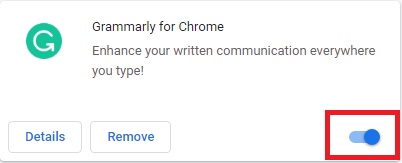
This disables Grammarly across every site until you toggle it back on. It’s the best option if you plan on using Grammarly again later and don’t want to reinstall it — for example, just to test whether Grammarly is the cause of a slow or crashing browser before committing to removing it.
How to Turn Off Grammarly on a Specific Website
You don’t have to disable Grammarly everywhere just to turn it off on one site. To disable it only on the page you’re currently viewing:
- Click the Grammarly icon in the Chrome toolbar.
- Look for the option to disable Grammarly “on this site” or “for this domain.”
- Select it. Grammarly will remember this setting and stay off on that site going forward.
You can re-enable it for that site the same way, or manage your full list of enabled/disabled sites from Grammarly’s account settings.
How to Uninstall Grammarly from Chrome (Full Removal)
If you want to remove Grammarly from Chrome completely — not just switched off — you’ll need to remove the extension rather than toggle it. First, go to the page where all your extensions live:
Open the Google Chrome browser, go to the Chrome menu, navigate to More tools, then click Extensions.
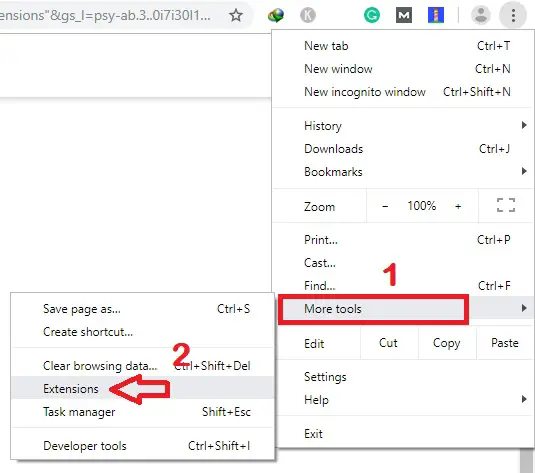
Or type chrome://extensions/ directly into the address bar to open the Chrome extensions page without going through the menu.
You’ll see a list of every extension and Chrome App installed on your browser, like below:
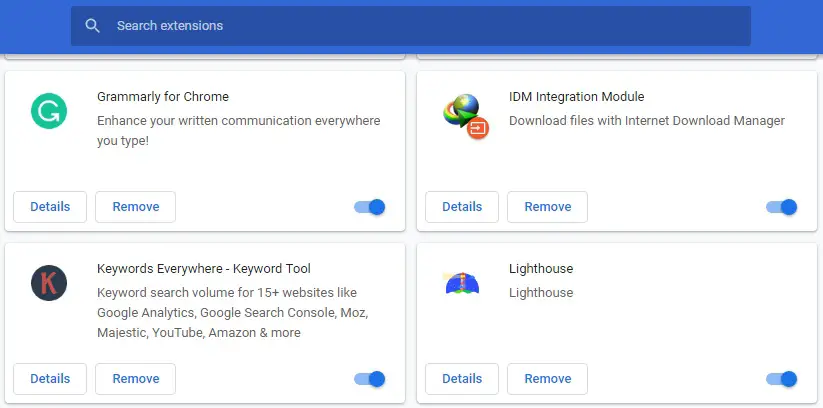
Find Grammarly: AI Writing Assistant in the list and click the Remove button to uninstall it.
This deletes the extension from Chrome entirely. Grammarly will no longer check your writing on any site, and the icon disappears from your toolbar. Your Grammarly account itself stays active — this only removes the browser extension, not your account or subscription.
Bonus: How to Uninstall Grammarly from Firefox
Using Firefox instead of Chrome? The process is just as quick:
- Open the Firefox browser.
- Right-click the Grammarly icon in the Firefox toolbar.
- Click Remove Extension.
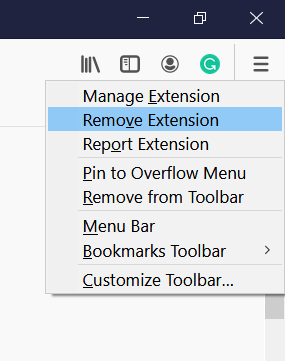
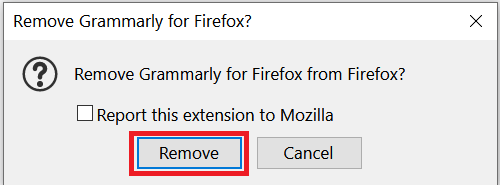
Firefox will ask for confirmation before removing the extension. Click Remove again to complete the uninstall.
Disable vs. Remove: Which Should You Use?
| What you want | What to do |
|---|---|
| Stop Grammarly for now, use it again later | Toggle it off on the chrome://extensions page |
| Stop it on one specific site only | Disable Grammarly “on this site” from the icon menu |
| Remove it from Chrome completely | chrome://extensions > find Grammarly > Remove |
| Remove it from Firefox completely | Right-click the Grammarly icon > Remove Extension |
| Close your Grammarly account entirely | Log into your Grammarly account settings and cancel/delete from there — separate from removing the extension |
Final Thoughts
If you only need a break from Grammarly, toggling it off from chrome://extensions is faster and easier to undo than uninstalling — it’s also a good way to test whether Grammarly is behind a slow or crashing browser before you commit to removing it. Save the full removal for when you’re sure you don’t want it checking your writing at all, and remember that removing the extension doesn’t touch your Grammarly account, so you can always reinstall it later without losing anything.
If extensions in general are slowing things down, you can also reset Chrome to its default settings to see everything that’s currently installed.
This WAS SOO HELPFUL THANK U 😀 GOD BLESS U