How to Save a Google Doc as PDF, Word, Template, or JPEG
Google Docs saves your work automatically, which is great—until you actually need a real file you can send, upload, print, store offline, or keep on your iPhone. That’s where people get tripped up. “Saved” in Google Docs doesn’t always mean saved where you need it.
Here’s the short version: Google Docs auto-saves to Google Drive, but if you want a Google Doc as a PDF, Word file, iPhone file, desktop file, template, or image, you need to export or move it in a specific way. The exact steps depend on where you’re working—desktop browser, iPhone, or Google Docs app.
If you’ve ever asked how to save a Google Doc as a PDF, how to save a Google Doc to Files on iPhone, or how to save a Google Doc as a Word doc, this guide covers all of it in one place.
Table of Contents
How to save a Google Doc normally
Let’s clear up the first confusion fast: Google Docs saves automatically while you type. You do not need to hit a Save button the way you would in Microsoft Word on a local computer.
When you create or edit a document in Google Docs, it saves to Google Drive under your Google account. If you’re online, those changes sync almost instantly. If you lose power, close the tab, or your browser crashes, your latest edits are usually still there.
Where Google Docs saves files by default
By default, your document lives in Google Drive, not on your desktop and not in your phone’s Files app. That distinction matters.
Here’s what “saved” usually means inside Google Docs:
| What you’re doing | Where the file is saved |
|---|---|
| Typing in Google Docs on a browser | Google Drive |
| Editing in the Google Docs app | Google Drive |
| Using Google Docs offline mode | Local cache first, then Google Drive when you reconnect |
| Downloading a copy as PDF, DOCX, or other format | Your chosen download location |
How to tell if your Google Doc is saved
Look near the top of the document, beside or under the file name. You’ll usually see one of these status messages:
- Saving… while Google Docs is syncing recent edits
- All changes saved in Drive when the document is fully saved
- Offline if you’re editing without internet and offline mode is active
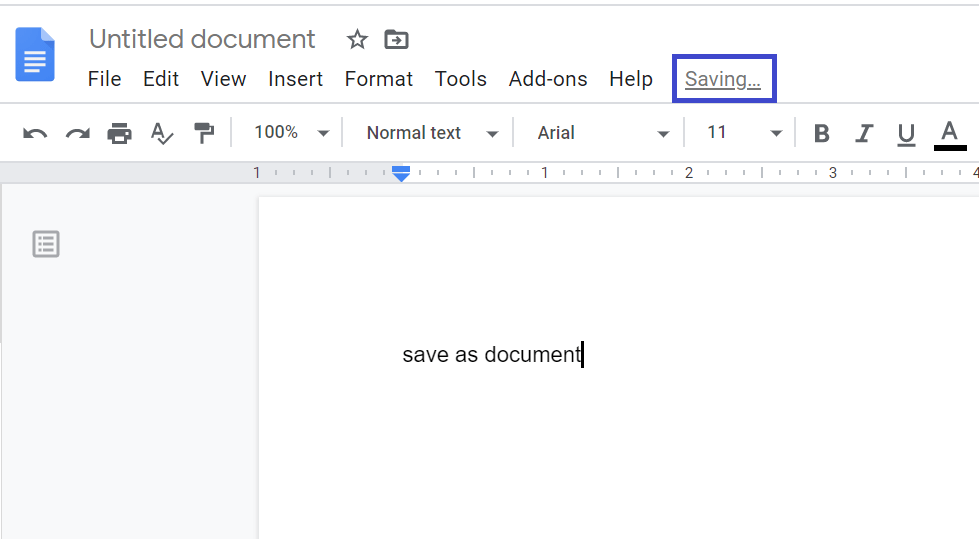
If you see All changes saved in Drive, your latest edits are stored in Google Drive.

How to save a Google Doc as a file on your computer
If your goal is to have a file you can email, upload to a portal, back up on an external drive, or open without internet, you need to download the document.
How to save a Google Doc as a file from desktop
On a Mac, Windows PC, or Chromebook browser, do this:
- Open the Google Doc you want to save.
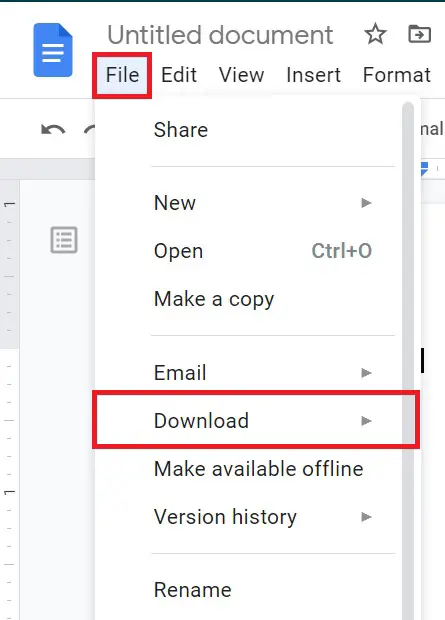
- Click File in the top menu.
- Hover over Download.
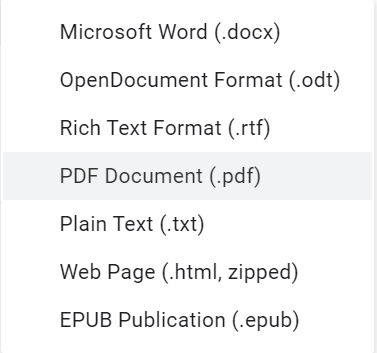
- Choose the file format you want:
- PDF Document (.pdf) if you need a locked, easy-to-share version.
- Microsoft Word (.docx) if someone needs to edit it in Word.
- Plain text (.txt) if you only want raw text.
- Web page (.html, zipped) for web use.
- EPUB (.epub) for ebook readers in some cases.
- The file downloads to your browser’s default download folder unless you’ve changed that setting.
How to save a Google Doc to desktop
If you specifically want the file on your desktop rather than in your Downloads folder, you have two options.
Option 1: Download, then move it
- Download the file from File > Download.
- Open your Downloads folder.
- Drag the file to your desktop.
Option 2: Change your browser’s download location
Most browsers let you choose where downloaded files go. If you set your desktop as the download destination, the file lands there automatically.
Watch out for this: if you’re using a work or school computer, browser download settings may be locked by admin policy. In that case, download first and move the file manually.
How to save a Google Doc as a PDF
This is probably the most common request, and for good reason. PDFs are cleaner to share, harder to accidentally edit, and usually the safest choice for resumes, reports, invoices, school assignments, and signed-off drafts.
Save a Google Doc as a PDF on desktop
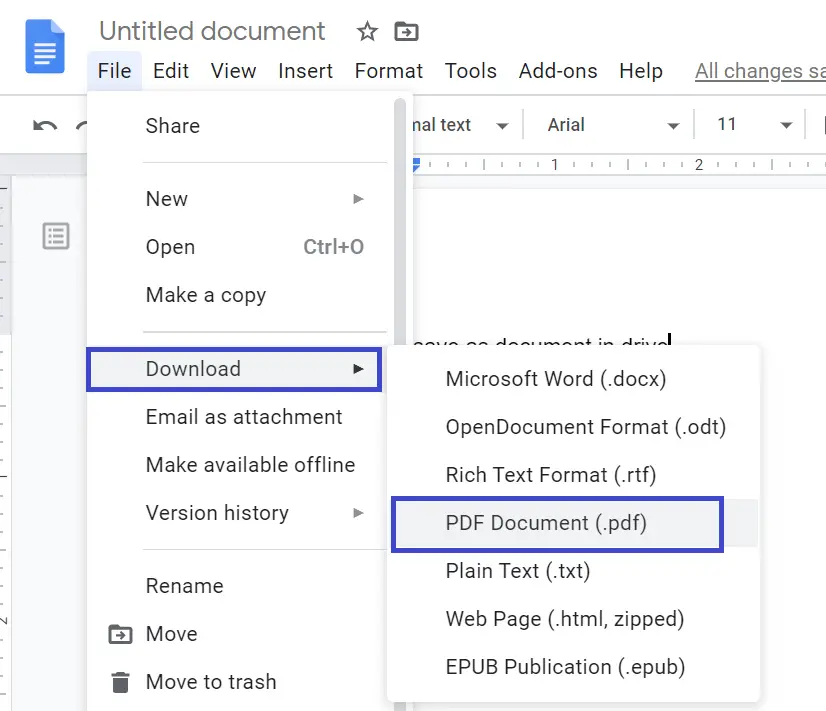
- Open the document in Google Docs.
- Click File.
- Select Download.
- Click PDF Document (.pdf).
- The PDF downloads to your computer.
That’s it. No extra tools needed.
How to save a Google Doc as a Word doc or DOCX file
Sometimes the person on the other end doesn’t use Google Docs. Sometimes a job portal wants a Word file. Sometimes legal, HR, or a client specifically asks for .docx. No problem.
How to save a Google Doc as a Word doc
- Open your Google Doc.
- Click File.
- Hover over Download.
- Select Microsoft Word (.docx).
- The file downloads as a Word document.
Will formatting stay the same when you save a Google Doc as DOCX?
Usually, yes. But not always.
Basic formatting—headings, paragraphs, bold text, tables, bullets, page breaks—generally survives just fine. More complex formatting can get messy, especially if your doc includes:
- Unusual fonts that aren’t installed in Word
- Advanced tables or custom spacing
- Embedded drawings, charts, or add-ons
- Footnotes and page layout tricks in longer documents
Here’s what most guides miss: if formatting matters, download the DOCX and open it once before sending it. Don’t assume it converted perfectly.
Google Docs vs Word format: when to use each
| Format | Best for | Main advantage |
|---|---|---|
| Google Doc | Ongoing collaboration | Live editing, comments, sharing |
| DOCX / Word | Sending editable files | Widely accepted by employers, clients, schools |
| Final version | Preserves layout and looks polished |
How to save a Google Doc on iPhone
This is where many people get stuck because Google Docs, Google Drive, and Apple’s Files app are not the same thing.
A document can be safely stored in Google Drive but still not appear in the Files app until you manually export it.
Save a Google Doc as a PDF on iPhone
If you’re using the Google Docs app on iPhone:
- Open the document in the Google Docs app
- Tap the three-dot menu
- Tap Share & export
- Tap Send a copy
- Choose PDF
- Tap OK, Export, or the equivalent option shown in your version of the app
- Choose where to send it, such as Save to Files, Mail, AirDrop, or another app
Save a Google Doc as a Word file on iPhone
The process is almost the same:
- Open the document in the Google Docs app
- Tap the three-dot menu
- Tap Share & export
- Tap Send a copy
- Choose Word (.docx)
- Save or share the file wherever you want
Save a Google Doc to Files on iPhone
If you want the document inside Apple’s Files app, do this:
- Open the document in the Google Docs app
- Tap the three-dot menu
- Tap Share & export
- Tap Send a copy
- Choose PDF or Word (.docx)
- When the iPhone share sheet appears, tap Save to Files
- Choose the destination folder, such as:
- On My iPhone
- iCloud Drive
- another connected storage location
- Tap Save
Now the document exists in Apple’s Files app, not just in Google Drive.
How to find the saved file in Apple Files
After saving, open the Files app and check the folder you selected.
If you can’t find it:
- open Files
- tap Browse
- check Recents
- search for the document name
- search by file type if needed, such as .pdf or .docx
How to save a Google Doc as a template
Google Docs templates are useful when you create the same kind of document over and over: proposals, meeting notes, blog briefs, SOPs, invoices, classroom worksheets, or client onboarding docs.
But here’s the catch: there isn’t a simple “Save as template” button in every Google account. The method depends on whether you’re using a personal Google account or a Google Workspace account.
Option 1: Save a Google Doc as a template by making a copy
For most people, this is the easiest and most reliable method.
- Open the document you want to turn into a reusable template.
- Remove any personal or one-off details.
- Replace fixed information with placeholders like:
[Client Name][Date][Project Title]
- Click File > Make a copy.
- Rename it something obvious like Blog Post Template or Proposal Template.
- Store it in a dedicated Templates folder in Google Drive.
- Every time you need it, open that file and click File > Make a copy again before editing.
For solo users, this is usually the smartest setup. Simple wins.
Option 2: Use the Google Docs template gallery in Google Workspace
If you’re using a work or school Google Workspace account, your organization may allow custom templates.
In that case, you may be able to:
- Open Google Docs.
- Go to the Template gallery.
- Choose your organization’s template section.
- Submit or upload your document as a reusable template, depending on your admin settings.
How to save a Google Doc as a JPEG
This is where things get awkward. Google Docs does not offer a built-in “Download as JPEG” option. You can save as PDF, DOCX, TXT, EPUB, and a few others—but not JPG or JPEG.
So the short answer is no. You can’t directly save a Google Doc as a JPEG from the standard File > Download menu. But you can still get there with a workaround.
How to convert a Google Doc to JPEG: the easiest workarounds
If you need a document page as an image—for a presentation, social post, visual reference, or upload form—use one of these methods.
Method 1: Save the Google Doc as PDF, then convert PDF to JPEG
This is the cleanest method for most users.
- In Google Docs, click File > Download > PDF Document (.pdf).
- Open the PDF on your computer or phone.
- Use a PDF-to-JPEG converter app, preview tool, or built-in export tool depending on your device.
- Save the resulting image as .jpg or .jpeg.
This works well if you want the whole page rendered neatly as an image.
Method 2: Take a high-quality screenshot
If you only need one page or one section fast, a screenshot is often quicker.
- Zoom the document so text is readable and clean.
- Hide clutter where possible.
- Take a screenshot of the section or page.
- Crop it and save it as an image.
It’s not elegant, but it’s fast.
Method 3: Copy content into Google Slides or Canva, then export as JPEG
If the final output is meant to look visual—not like a plain document page—this method is better.
- Copy the content from your Google Doc.
- Paste it into Google Slides, Canva, or another design tool.
- Format it for image dimensions.
- Export the design as JPEG or PNG.
How to save a Google Doc offline
Sometimes you don’t need a new file format—you just need access when Wi-Fi disappears. That’s a different problem, and Google Docs handles it differently.
How to make a Google Doc available offline in Google Drive
On desktop:
- Open Google Drive.
- Find the Google Doc.
- Right-click the file.
- Turn on Available offline.
You may need Google Docs Offline enabled in Chrome for this to work properly.
On mobile:
- Open the Google Docs or Google Drive app.
- Tap the three dots next to the document.
- Turn on Available offline.
Offline access vs saving a file: not the same thing
This is a key distinction.
- Offline access means you can still open and edit the Google Doc without internet, and it will sync later.
- Saving as a file means you create a separate PDF, DOCX, or other downloadable version.
People often mix those up. Google definitely doesn’t help.
Common problems when saving a Google Doc—and how to fix them
Most “Google Docs won’t save” problems aren’t really saving problems. They’re export, sync, browser, or permission issues.
Problem: the document won’t download
Try these fixes:
- Refresh the page and try again. A temporary browser hiccup can interrupt the download.
- Check your browser’s download blocker or pop-up settings. Some security settings stop file downloads silently.
- Try another browser. Chrome usually plays nicest with Google Docs.
- Make sure you have permission to download the file. Some shared docs restrict downloading, printing, and copying.
Problem: Google Docs says changes saved, but you can’t find the file
That usually means the doc is in Google Drive, not your local device. Search for it in Drive by name, or check the folder where it was originally created.
Problem: your PDF or Word file looks different after download
Test the file before sending it. If spacing, fonts, or page breaks look off:
- Simplify custom formatting
- Use standard fonts
- Re-download the file
- Try PDF instead of DOCX if layout matters more than editing
Problem: you can’t save a Google Doc to iPhone Files
Make sure you choose Share & export > Send a copy > Save to Files. If you only open the doc in Google Drive or Google Docs, it remains in Google’s cloud and won’t appear in Apple Files automatically.
Which format should you use when saving a Google Doc?
If you’re stuck choosing a format, use the goal—not the tool—as your guide.
Best file format for each use case
| If you need to… | Best format | Why |
|---|---|---|
| Send a final document | It preserves formatting and looks polished | |
| Let someone edit the file in Microsoft Word | DOCX | It’s the standard editable format outside Google Docs |
| Keep a reusable structure for future docs | Google Doc template or copied master doc | It stays easy to duplicate and edit |
| Store a copy on your iPhone | PDF or DOCX to Files | It becomes available in the Files app and other iPhone apps |
| Post a document page as an image | JPEG via PDF conversion or screenshot | Google Docs doesn’t export directly to JPEG |
| Work without internet | Offline mode | It keeps the doc editable and syncs later |
My practical rule for saving Google Docs
If I’m working on something collaborative, I leave it as a Google Doc until the last possible moment. Once the document is approved or ready to send, I create the final format based on the job:
- PDF for sending
- DOCX for editable handoff
- Files on iPhone for mobile access
- Template copy for repeatable workflows
- JPEG workaround only when an image is specifically required
That keeps the working version clean and the final version usable.
If you remember just one thing, make it this: Google Docs already saves your work, but exporting it in the right format is what turns it into a usable file. Once you know whether you need a PDF, DOCX, iPhone file, template, desktop copy, or image, the path becomes straightforward.