How to Do Hanging Indent on Google Docs (3 Easy Ways)
A hanging indent in Google Docs keeps the first line of your paragraph aligned with the left margin while indenting all subsequent hanging lines to the right.
Learning how to do hanging indent on Google Docs is essential for formatting professional academic papers. It is the standard format required for MLA citations, APA references, annotated bibliographies, and work-cited pages.
If you are wondering how to add hanging indent in Google Docs, you can do it quickly using the menu options, Google Docs ruler tool, or quick shortcut keys. This step-by-step guide will show you how to make a hanging indent in Google Docs on mobile and desktop device.
What Is a Hanging Indent Google Docs?
A hanging indent is a paragraph formatting style where the first line remains at the left margin and all following lines are indented.
How to Do Hanging Indent on Google Docs Using Menu Option
The easiest way to create a hanging indent in Google Docs is through the Indentation Options menu. This method works best when your document is already created and you want precise formatting.
Steps to Create a Hanging Indent
- Open your Google Docs document.
- Select and highlight the paragraph or text you want to format.
- Click Format in the top menu.
- Select Align & Indent.
- Click Indentation Options.
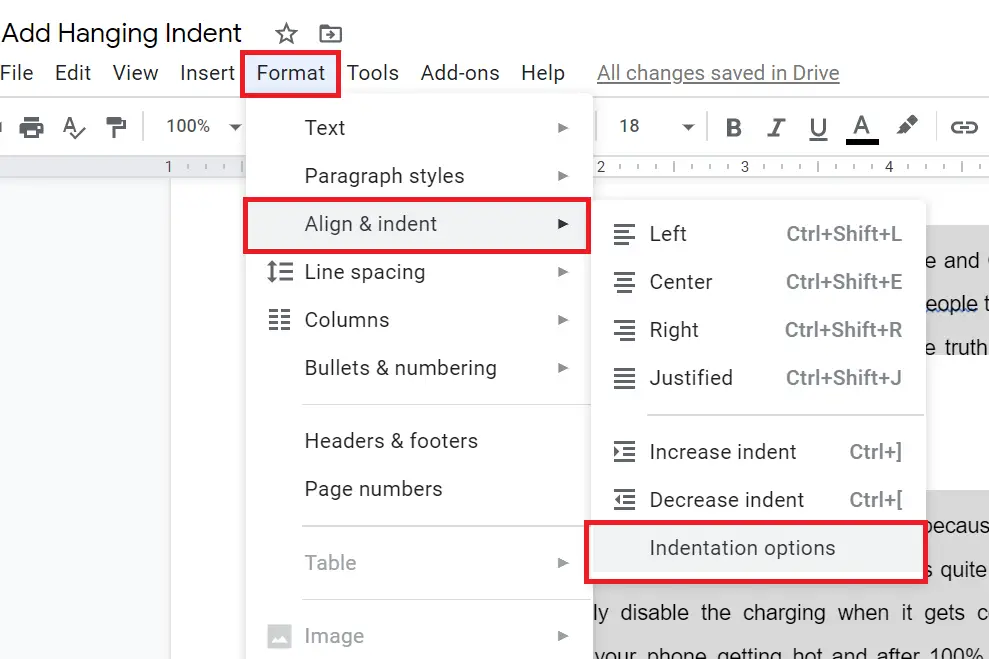
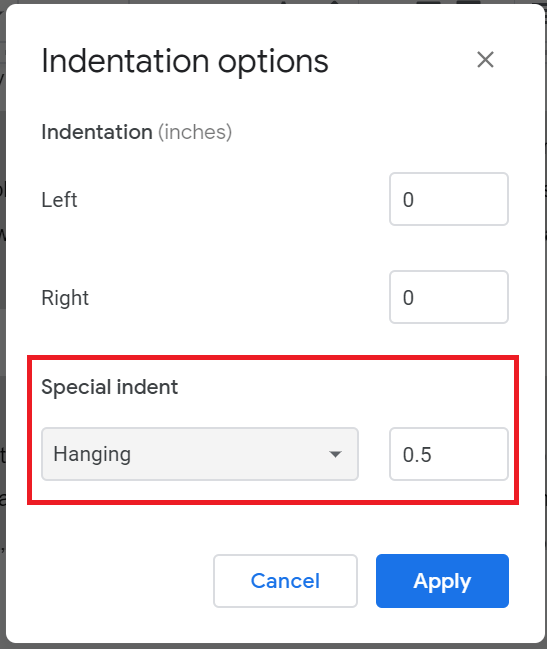
- In the Special indent dropdown menu, select Hanging.
- Enter the indent size. For MLA or APA formatting, use 0.5 inches.
- Click Apply.
Your selected paragraph will now display a hanging indent.
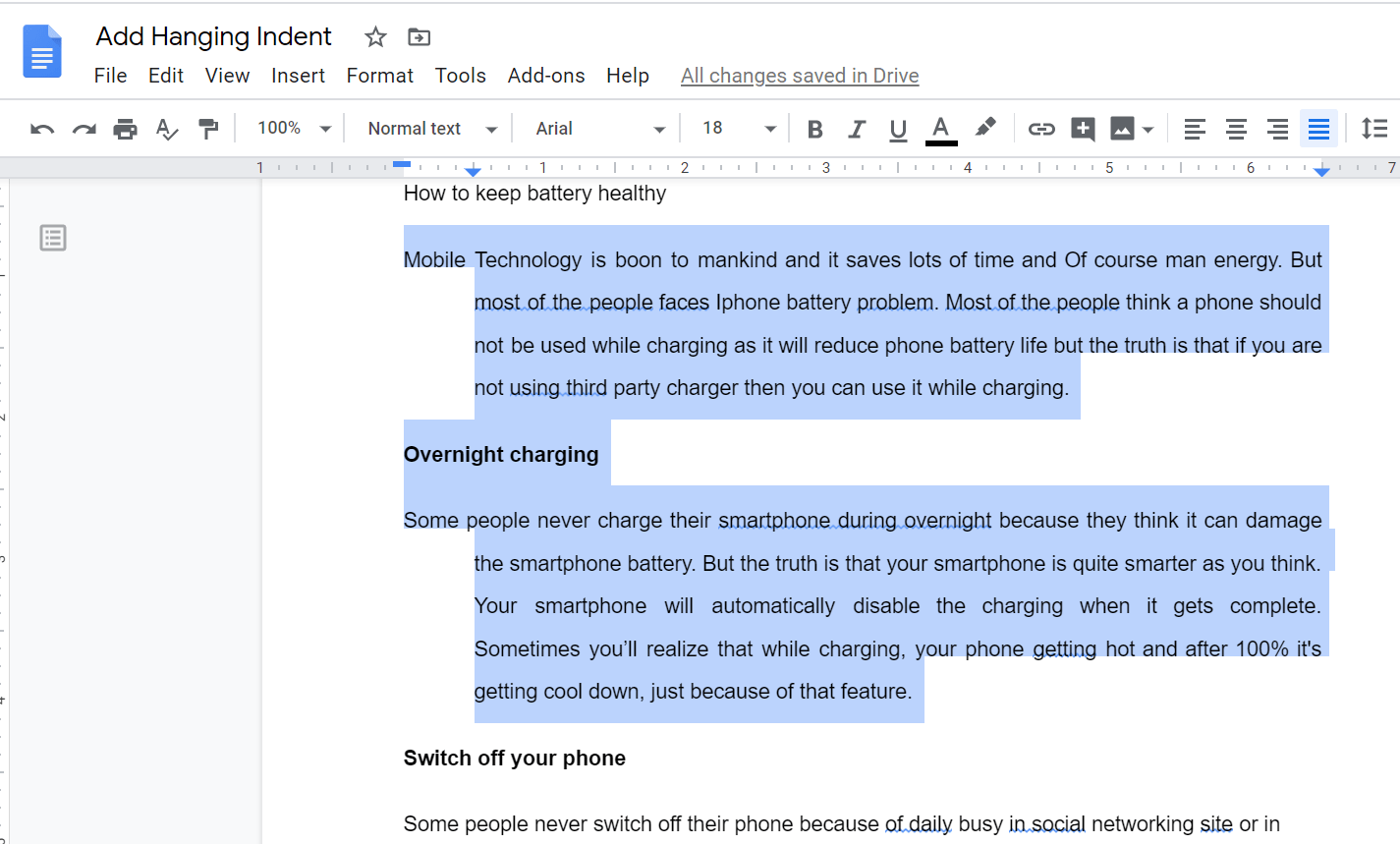
How to do Hanging Indent on Google Docs Using the Ruler
With the help of Google Docs Ruler you can also create hanging indent Google Docs.
- Open a Google Docs document and highlight the text you want to indent.
- Click on the “Ruler” icon at the top of the page. If the ruler is not visible, go to “View” on the top menu and select “Show ruler.”
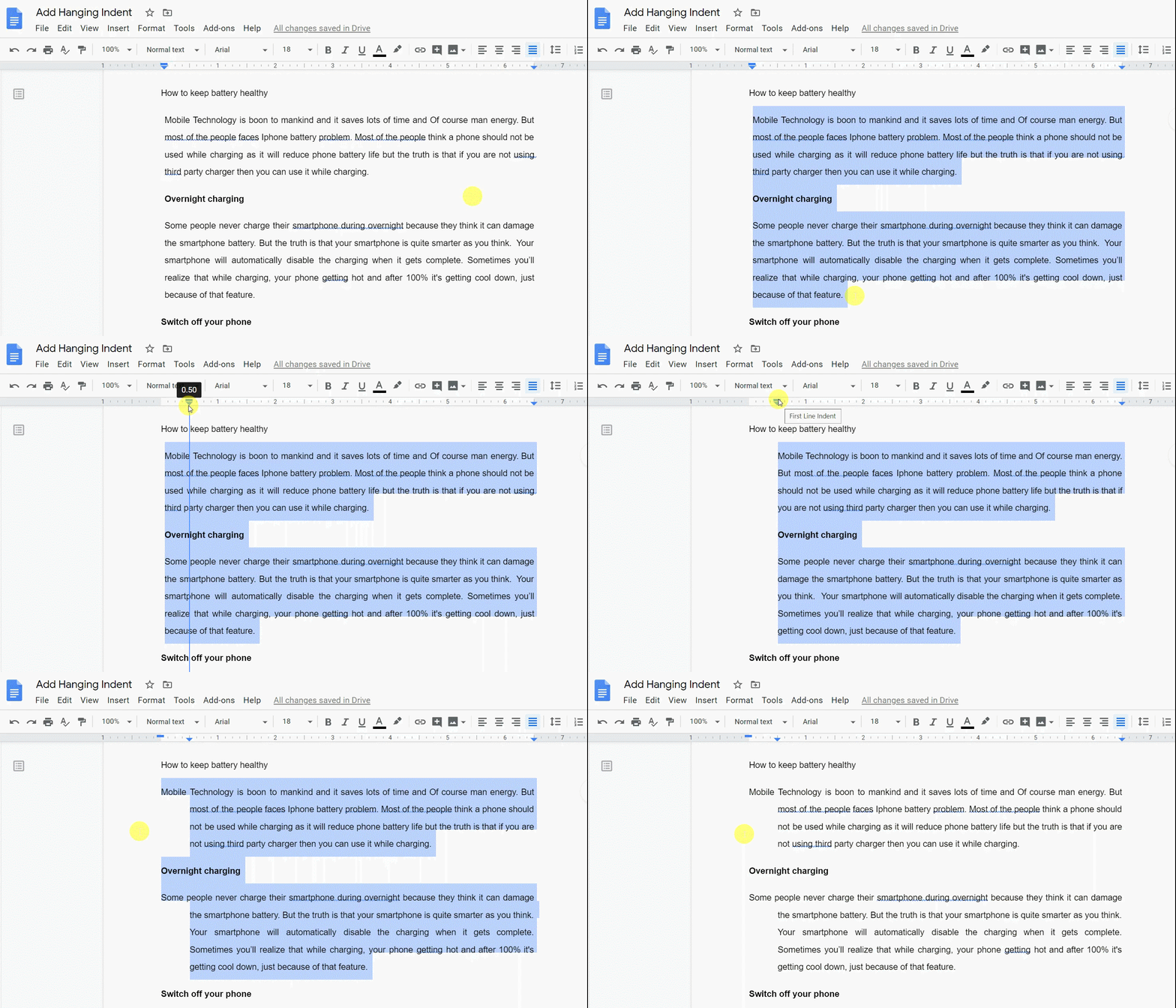
- Click and drag the left indent (small down arrow) to the right the desired distance, for example, 0.5 (half an inch).
- Click and drag the First line indent (small rectangle) back to the starting position. See the below image for how it can be done.
Google Docs Hanging Indent Keyboard Shortcut
While there is no single, dedicated hanging indent shortcut key in Google Docs that formats citations automatically, you can use quick keyboard shortcuts to manage your overall paragraph margins and hanging lines.
Paragraph Indentation Shortcuts
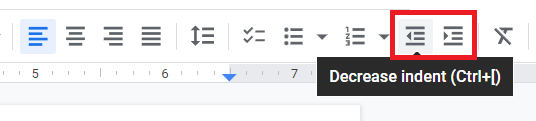
To quickly shift an entire paragraph, highlight your text and press:
- Windows / ChromeOS:
- Ctrl + ] → to increase paragraph indent
- Ctrl + [ → to decrease paragraph indent
- On Mac:
- Command + ] → Increase indent
- Command + [ → Decrease indent
These shortcuts help adjust paragraph spacing quickly, although they do not create a true hanging indent automatically like the menu or ruler methods.
How to Indent First Line on Google Docs
Indenting the first line of a paragraph can be helpful in creating professional-looking documents, such as essays or reports. To indent first line of a paragraph on Google Docs, the Google Docs ruler is the simple and easiest way to do it.
- Make the ruler visible by going to the “Menu bar”, clicking on the “View” option, and selecting “Show ruler”.
- Select the whole paragraph in which you want to indent the first line.
- Click and drag the First line Indent (small rectangle) on the ruler to the right side position where you want the first line to start.
From the above steps, you can create a hanging indent on Google Docs.
Tips for Perfect Hanging Indents
- Standard indent size: 0.5 inches for MLA or APA.
- Use the ruler for precise control.
- Highlight multiple paragraphs to apply the indent consistently.
- For mobile, use the Google Docs app formatting options to apply hanging indents.
- Combine with line spacing adjustments for better readability.
How Many Inches Should a Hanging Indent Be?
The standard size is 0.5 inches for MLA, APA, and Chicago formatting styles.
Where Is the Hanging Indent Option in Google Docs?
Go to:
Format → Align & Indent → Indentation Options → Hanging
Conclusion
Creating a hanging indent in Google Docs is simple and improves the professional appearance of your documents. Whether you use the Menu bar, ruler, or keyboard shortcuts, these methods ensure your citations, bibliographies, and reports are properly formatted.