How to Add an Outline in Google Docs (Step-by-Step)
If you’ve ever scrolled through a 20-page Google Doc hunting for one section, you already understand why the document outline feature exists. The Google Docs outline is a real-time navigation panel that mirrors every heading in your document — and with one click, it jumps you straight there.
In this complete guide, you’ll learn how to add an outline in Google Docs, how to format headings so they appear correctly, how to edit and manage the outline, how to fix common problems like the outline not showing, and how the outline compares to a full table of contents.
Whether you’re on desktop, Android, or iPhone — everything is covered here.
In This Guide
- What Is the Google Docs Outline?
- How to Add an Outline in Google Docs (Desktop)
- How to Use Headings to Build Your Outline
- How to Show the Outline on Mobile
- Editing and Managing the Outline
- Troubleshooting: Outline Not Showing or Missing
- Outline vs. Table of Contents in Google Docs
- How to Create a Clickable Outline
- Pro Tips for Power Users
- Frequently Asked Questions
What Is the Google Docs Outline?
The document outline in Google Docs is a built-in sidebar that automatically lists every heading in your document as a clickable link. It appears on the left side of the editing window and updates in real time as you add or change headings.
It works by detecting text formatted with Heading 1, Heading 2, or Heading 3 styles — and displaying them in a hierarchical structure. Regular “Normal text” paragraphs do not appear in the outline.
What the outline is great for:
- Navigating long reports, essays, or eBooks without scrolling
- Visualizing your document’s structure at a glance
- Reorganizing sections efficiently during editing
- Collaborating on large team documents with shared sections
- Keeping formatting consistent across headings
How to Add an Outline in Google Docs (Desktop)
Enabling the outline takes under five seconds. You have three methods to choose from on desktop.
Method 1: View Menu (Most Common)
- Open your document at docs.google.com.
- Click View in the top menu bar.
- Click Show document outline.
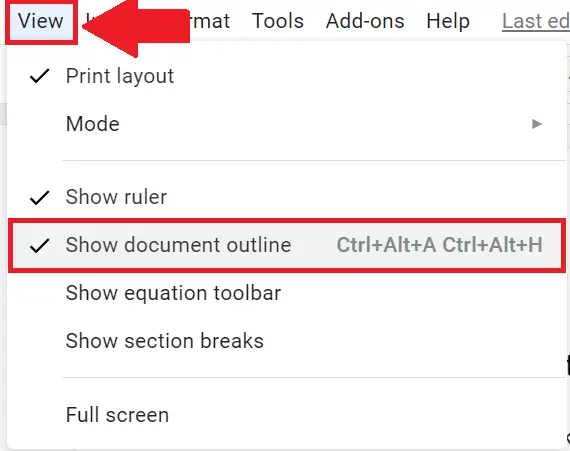
The outline panel slides in on the left instantly. If your document already has headings, they’ll appear right away.
Method 2: Keyboard Shortcut (Fastest)
Toggle the outline on or off without touching the menu:
- Windows / ChromeOS: Press
Ctrl + Alt + A, thenCtrl + Alt + H - Mac: Press
Ctrl + ⌘ + A, thenCtrl + ⌘ + H
Method 3: The Outline Icon
Look for the small outline icon (three horizontal lines with a small box) at the top-left corner of your document, just above the page margin. Click it to toggle the panel open or closed.
Quick Answer: To turn on the document outline in Google Docs, go to View → Show outline. The outline panel will appear on the left side of your screen.
How to Use Headings in Google Docs for the Outline
The outline only shows text formatted as headings. If yours looks empty after enabling it, you need to add headings to your Google Docs outline by applying heading styles to your section titles.
How to Apply a Heading Style
- Click on the line of text you want to make a heading (or highlight it).
- Click the Styles dropdown in the toolbar — it usually shows “Normal text.”
- Choose a heading level from the list:
- Heading 1 — Top-level sections (chapter titles, major sections)
- Heading 2 — Sub-sections within a Heading 1
- Heading 3 — Sub-sub-sections within a Heading 2
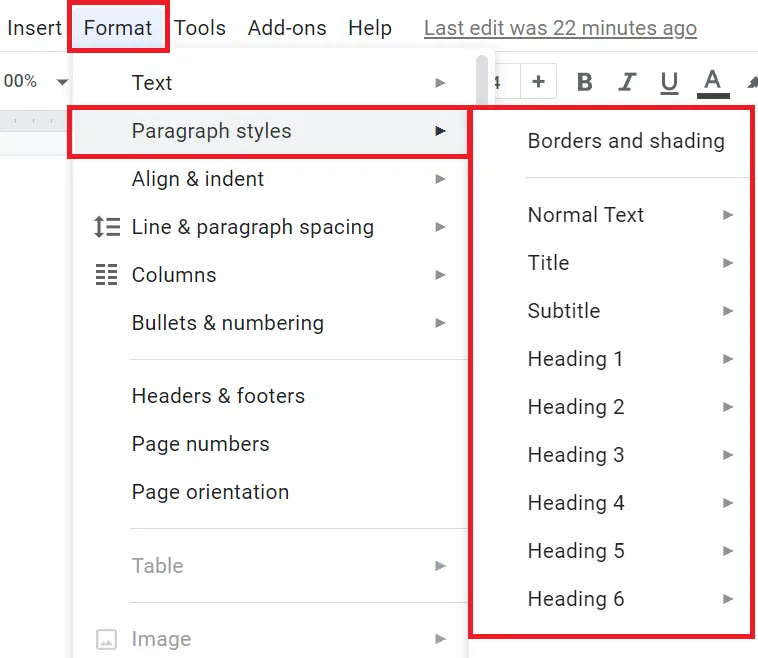
The text changes style and immediately appears in the outline panel on the left.
How to Change Heading Levels in Google Docs
Need to promote or demote a heading? Simply highlight the heading text, open the Styles dropdown, and select a different heading level. The outline updates instantly.
Keyboard Shortcuts for Headings
- Heading 1:
Ctrl + Alt + 1(Windows) /⌘ + Option + 1(Mac) - Heading 2:
Ctrl + Alt + 2/⌘ + Option + 2 - Heading 3:
Ctrl + Alt + 3/⌘ + Option + 3 - Normal text:
Ctrl + Alt + 0/⌘ + Option + 0
How to Format Text for the Google Docs Outline
Follow this hierarchy for the cleanest outline:
| Heading Level | Best Used For | Example |
|---|---|---|
| Heading 1 | Major sections / chapters | Introduction, Chapter 1 |
| Heading 2 | Key points within a section | Why It Matters, How It Works |
| Heading 3 | Supporting details or sub-points | Step 1, Example A, Pro Tip |
Pro Tip: Avoid skipping levels (e.g., jumping from Heading 1 straight to Heading 3). A clean hierarchy makes your outline — and your document — much easier to read and scan.
How to Show the Outline in Google Docs on Mobile
The document outline is fully available on the Google Docs mobile app. Here’s how to access it on both platforms.
Google Docs Outline on Android
- Open the Google Docs app and open your document.
- Tap the three-dot menu (⋮) in the top-right corner.
- Tap Document outline.
- The outline slides up from the bottom of the screen. Tap any heading to jump there.
- Tap anywhere outside the panel to dismiss it.
Google Docs Outline on iPhone / iPad (iOS)
- Open the document in the Google Docs app.
- Tap the three-dot menu (⋮) in the top-right corner.
- Scroll down and tap Document outline.
- Tap any heading to navigate to that section instantly.
Note: Unlike desktop, the mobile outline is an overlay — not a persistent sidebar. It appears temporarily when called and closes after you select a heading or tap outside it.
Editing and Managing the Google Docs Outline
Once your outline is set up, you’ll want to know how to customize and maintain it. Here’s how to handle common editing tasks.
How to Remove Items from the Google Docs Outline
Want a heading-styled title to stay visually styled but disappear from the outline? (Useful for cover pages, decorative titles, or callout headers.)
- Right-click the heading text inside the document.
- Select “Remove from document outline” from the context menu.
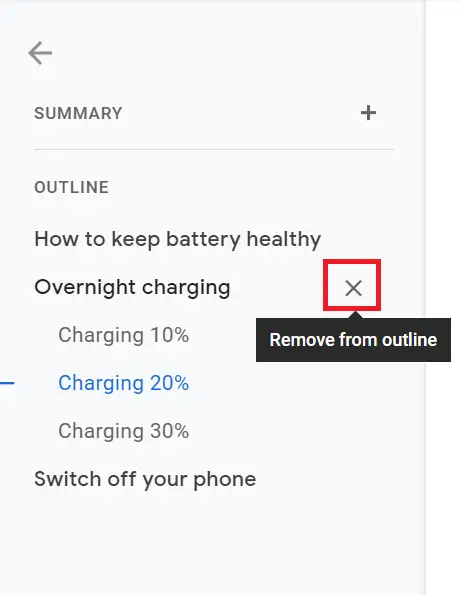
The text retains its visual heading style but no longer appears in the navigation panel.
How to Update the Document Outline in Google Docs
The outline updates automatically in real time — you never need to manually refresh it. Add a heading anywhere in your document, and it appears in the outline panel within seconds.
How to Reorganize the Outline in Google Docs
The outline panel is for navigation only — you cannot drag and drop items within the panel itself. To reorder sections, cut (Ctrl + X) and paste (Ctrl + V) the content in the document, then the outline will reflect the new order automatically.
How to Delete Outline Headings in Google Docs
To permanently remove a heading from the outline, either:
- Delete the text entirely from the document, or
- Reformat it back to Normal text (select it, choose “Normal text” from the Styles dropdown).
How to Customize the Google Docs Document Outline
You can customize how heading styles look (font, size, color) without affecting the outline structure:
- Apply a heading, then change its formatting (font, size, color).
- With the cursor in that heading, open the Styles dropdown.
- Hover over the heading level, click the arrow, and select “Update ‘Heading X’ to match”.
This updates all matching headings throughout the document while keeping them in the outline.
How to Hide the Outline in Google Docs
To hide the outline without losing your heading structure:
- Go to View → Show outline (click to toggle it off), or
- Click the close arrow (<) inside the outline panel, or
- Use the same keyboard shortcut you used to show it.
Troubleshooting: Google Docs Outline Not Showing or Disappeared
If your document outline has vanished or isn’t working as expected, here are the most common causes and fixes.
Problem 1: Google Docs Outline Not Showing
Cause: The outline panel is toggled off.
Fix: Go to View → Show outline. If it’s checked but still not visible, try scrolling left — the panel may be collapsed.
Problem 2: Outline is Empty (No Headings Appear)
Cause: Your text is set to “Normal text” instead of a heading style.
Fix: Select your section titles and apply Heading 1, 2, or 3 from the Styles dropdown. Only text with heading styles appears in the outline.
Problem 3: Can’t Find the Outline Icon in Google Docs
Fix: Look at the very top-left of your document — above the white page area, near the ruler. You’ll see a small icon that looks like three horizontal lines with a box beside them. Click it to show or hide the outline.
Problem 4: Google Docs Outline Disappeared After Reload
Cause: Google Docs does not save the outline panel’s open/closed state consistently across sessions or devices.
Fix: Simply re-enable it via View → Show outline each time. Your headings and document structure are never lost.
Problem 5: Outline Not Updating
Cause: Rare browser rendering issue.
Fix: Toggle the outline off and back on via the View menu. If that doesn’t work, refresh the page — all your content is auto-saved.
Problem 6: Why Is My Document Outline Missing in Google Docs?
If you’re in Suggesting mode or viewing a shared document as a viewer (not editor), the outline panel may behave differently. Switch to Editing mode and try again.
Most Common Fix: 90% of “outline not working” problems are solved by two steps: (1) enabling it via View → Show outline, and (2) making sure your section titles use a Heading style — not Normal text.
Difference Between Outline and Table of Contents in Google Docs
These two features are closely related but serve different purposes. Here’s a clear comparison:
| Feature | Document Outline | Table of Contents |
|---|---|---|
| Where it appears | Left sidebar in Google Docs | Inside the document itself |
| Who can see it | Anyone with editing access | Anyone who views or prints the document |
| Primary purpose | Navigation while editing | Reader-facing document navigation |
| Updates automatically | Yes, in real time | May require manual refresh after edits |
| Clickable links | Yes | Yes |
| Shows page numbers | No | Yes (when using the page number style) |
| Printable | No | Yes |
| How to add | View → Show outline | Insert → Table of contents |
Best practice: Use the document outline while writing and editing for fast navigation. Add a table of contents when the document is ready to be shared with readers who need a formatted contents page.
How to Add a Table of Contents in Google Docs (Clickable Outline)
If you want a clickable outline inside your document — visible to readers, not just editors — use the Table of Contents feature. For a complete walkthrough, see our guide on table of contents in Google Docs.
How to Add a Table of Contents in Google Docs
- Click at the top of your document where you want the contents to appear.
- Go to Insert → Table of contents.
- Choose a style:
- With page numbers — classic style with dots and page numbers
- With blue links — clean, hyperlinked style (no page numbers)
- Plain text — simple text without links
How to Update a Table of Contents in Google Docs
Unlike the outline panel, the table of contents does not update automatically. When you add or change headings:
- Click anywhere inside the table of contents.
- Click the refresh icon (↺) that appears, or right-click and choose “Update table of contents.”
Linking Headings in Google Docs
You can also link directly to any heading within a Google Doc:
- Click on a heading in your document.
- Right-click and select Copy link to heading.
- Paste the link anywhere — in a comment, another doc, Slack, or an email.
This creates a direct anchor link that jumps to that section — perfect for collaboration and referencing specific parts of a shared document.
Google Docs Navigation Pane
The outline sidebar is Google Docs’ navigation pane. There is no separate “navigation pane” like in Microsoft Word — the outline serves the same function. If you’re coming from Word and looking for the navigation pane, the Google Docs outline (View → Show outline) is its equivalent.
Pro Tips: Getting the Most from the Google Docs Outline
1. Draft with Headings First
Before writing a single paragraph, type out all your section headings and apply Heading styles. The outline becomes your live writing roadmap, making it much easier to stay on track and notice structural gaps.
2. Use the Outline for Document Review
During editing, scan the outline panel to check that your document flows logically. If a section looks out of place in the outline, it probably is — restructure before you finalize.
3. Collaborate More Precisely
When leaving comments or giving feedback, link directly to a heading (right-click → Copy link to heading) and paste it in your comment or message. Teammates jump directly to the right section.
4. Pair with the Word Count Tool
Go to Tools → Word count and check “Display word count while typing.” Combined with the outline, this helps you balance section lengths and hit word count targets per section.
5. Use Heading 3 Sparingly
Heading 3 is powerful but easy to overuse. If you find yourself needing Heading 4 or deeper, it’s usually a signal that a section should be split into a new Heading 1 or 2 section instead.
6. Works Offline Too
If you’ve enabled offline mode in Google Docs (via the Chrome extension or Google Drive settings), the outline works exactly the same — no internet required.
Frequently Asked Questions
Where is the outline button in Google Docs?
The outline button (a small icon showing three lines with a box) is at the top-left corner of your document, just above the page area near the ruler. You can also find it under View → Show outline in the menu bar.
Why is my Google Docs outline not showing?
Two likely reasons: (1) The outline panel is toggled off — fix it via View → Show outline. (2) Your text uses “Normal text” formatting — apply Heading 1, 2, or 3 styles to your section titles so they appear in the outline.
Why did my Google Docs outline disappear?
Google Docs doesn’t always remember the outline panel state between sessions. Simply re-enable it via View → Show outline. Your document headings and content are unaffected.
How do I create an outline for an essay in Google Docs?
Create section headings for your essay and apply Heading 1, Heading 2, or other heading styles from the toolbar. Then go to View → Show outline to display the document outline and navigate between sections.
Can I create an outline in Google Docs without headings?
No. The document outline only displays text formatted with heading styles such as Heading 1 through Heading 6. Regular paragraph text will not appear in the outline.
Final Thoughts
Knowing how to add an outline in Google Docs — and how to use it properly — is one of those small skills that pays outsized dividends. From instant navigation to cleaner formatting and smoother collaboration, the outline feature is underused by most people and indispensable to those who discover it.
Here’s the short version of everything covered:
- Enable it: View → Show outline
- Populate it: Apply Heading 1 / 2 / 3 styles to your section titles
- Edit it: Right-click headings to remove them; reformat to reorganize
- Fix it: If it’s empty or missing, check heading styles first
- Extend it: Add a Table of Contents for reader-facing navigation
Start using it on your next document — you’ll wonder how you ever worked without it.