How to Flush DNS Cache (Windows, macOS, Linux, Browsers)
If a website suddenly refuses to load, constantly redirects to the wrong domain, or displays outdated content after a recent update, your device’s DNS cache might be corrupted or obsolete. Learning how to flush DNS cache—also known as clearing your DNS resolver cache—is one of the fastest, safest network troubleshooting steps you can take, requiring less than a minute across any operating system.
Every time you visit a website, your computer logs its domain name and maps it to a unique IP address via the Domain Name System (DNS). Storing this locally saves time on future visits, but if a website switches servers, hosts, or security certificates, your system will keep using the old data. Flushing the DNS forces your device to fetch fresh, accurate network records.
Quick Cheat Sheet: How to Flush DNS Cache
| Platform / Environment | Action or Command to Execute |
|---|---|
| Windows 10 / 11 | Open CMD as Administrator → Type ipconfig /flushdns |
| macOS (Modern) | Open Terminal → Type sudo dscacheutil -flushcache; sudo killall -HUP mDNSResponder |
| Linux (systemd-resolved) | Open Terminal → Type sudo systemd-resolve --flush-caches |
| Google Chrome Browser | Navigate to chrome://net-internals/#dns → Click Clear host cache |
| iPhone & Android Mobile | Toggle Airplane Mode On for 15–30 seconds, then toggle Off |
How to Flush DNS on Windows (The ipconfig /flushdns Command)
The flush DNS command on Windows is run at a command prompt, and it works the same way on Windows 10 and Windows 11.
- Open the Start Menu and type
cmd. - Right-click Command Prompt and select Run as administrator.
- Type the following command and press Enter:
ipconfig /flushdns
- You should see a confirmation message: “Successfully flushed the DNS Resolver Cache.”
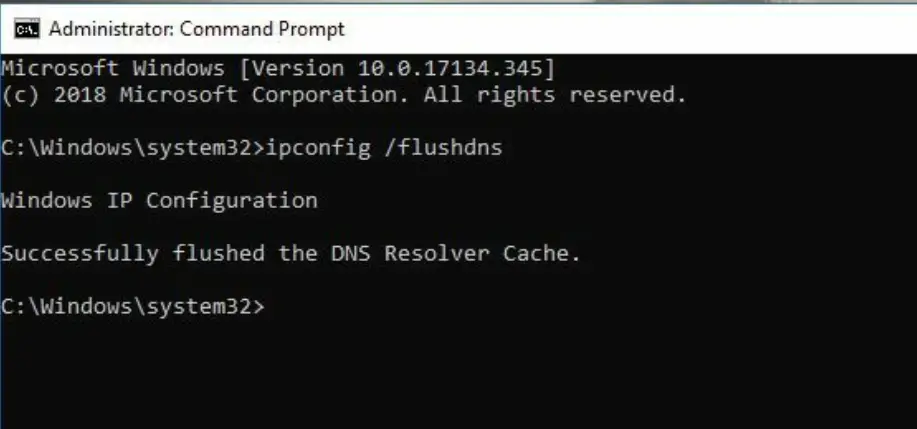
You might see this same command written a few different ways — ipconfig/flushdns (no space), ipconfig flushdns (no slash), or just flushdns/dnsflush. They all refer to the exact same command; Windows only recognizes the version with a space and forward slash: ipconfig /flushdns.
If you’re still having connection issues afterward, you can also reset your IP configuration with these two follow-up commands:
ipconfig /release
ipconfig /renew
A couple of other useful commands while you’re at it:
- To view your current DNS cache:
ipconfig /displaydns - To fully reset your network stack (helpful for stubborn connection issues):
netsh winsock reset
How to Flush DNS on macOS
Apple macOS handles local host name caching through system services. You will need your administrative account password to authorize these commands inside the Terminal utility.
- Open Spotlight Search (
Cmd+Space), type Terminal, and launch the app. - Paste the command corresponding to your current software version and press Enter:
- macOS Monterey, Ventura, Sonoma, Sequoia, and Later:
sudo dscacheutil -flushcache; sudo killall -HUP mDNSResponder - Legacy macOS Configurations (Yosemite through Sierra):
sudo killall -HUP mDNSResponder
- macOS Monterey, Ventura, Sonoma, Sequoia, and Later:
- Enter your account password when prompted (the cursor will not show characters while typing for security) and hit Enter.
How to Flush DNS on Linux
Linux distributions manage local host resolution based on their active networking engine. Open your terminal window and deploy the command matching your distribution’s backend structure:
- Distributions using systemd-resolved (Ubuntu, Fedora, Debian):
sudo systemd-resolve --flush-caches - Ubuntu (Network Manager Restart Alternative):
sudo service network-manager restart(Refreshes active network bindings and triggers a clean DNS update). - Environments using nscd daemon:
sudo /etc/init.d/nscd restart - Environments using dnsmasq service:
sudo /etc/init.d/dnsmasq restart
How to Clear DNS Cache in Chrome, Firefox, and Edge
Browsers keep their own separate DNS cache on top of your operating system’s cache, so clearing your OS cache alone doesn’t always solve browser-specific loading issues. Here’s how to clear DNS cache in each major browser.
Google Chrome:
- Open Chrome and go to:
chrome://net-internals/#dns - Click Clear host cache.
You can also clear Chrome’s broader socket cache for good measure:
- Go to
chrome://net-internals/#sockets - Click Flush socket pools.
Mozilla Firefox:
- Open Firefox and go to Settings > Privacy & Security.
- Scroll to Cookies and Site Data and click Clear Data.
- Check Cached Web Content and click Clear.
Microsoft Edge:
- Open Edge and go to Settings > Privacy, search, and services.
- Under Clear browsing data, click Choose what to clear.
- Select Cached images and files and click Clear now.
How to Flush DNS on Android
- Open Settings.
- Go to Apps > Chrome (or your default browser).
- Tap Storage and then Clear Cache.
Android doesn’t have a dedicated system-wide DNS flush command like desktop operating systems, so clearing your browser cache and toggling Airplane Mode on and off (which resets your network connection) is usually the most effective fix.
How to Flush DNS on iPhone or iPad
iOS doesn’t provide a manual DNS flush option either. Instead:
- Turn on Airplane Mode under Settings.
- Wait about 15-30 seconds.
- Turn Airplane Mode back off.
This resets your device’s network connection, which clears its temporary DNS cache in the process.
Quick Cheat Sheet for Flushing DNS
| Platform | Command / Action |
|---|---|
| Windows 10/11 | ipconfig /flushdns |
| macOS | sudo dscacheutil -flushcache; sudo killall -HUP mDNSResponder |
| Linux (systemd) | sudo systemd-resolve --flush-caches |
| Ubuntu (Network Manager) | sudo service network-manager restart |
| Chrome | chrome://net-internals/#dns → Clear host cache |
Still Having Issues After Flushing DNS?
If flushing DNS doesn’t fix the problem, try these next steps:
- Restart your router. Unplug it for 30 seconds, then plug it back in.
- Switch your DNS server. Public DNS servers like Google DNS (8.8.8.8) or Cloudflare (1.1.1.1) are often faster and more reliable than your ISP’s default.
- Clear your browser’s cache and cookies, not just its DNS cache, since old page data can also cause loading issues.
- Check if the site is down for everyone, not just you, using a service like downdetector.com.
Frequently Asked Questions
Is it safe to flush DNS?
Yes. Flushing DNS is completely safe — it doesn’t affect your files, apps, or system settings. It only removes outdated or corrupted DNS entries, which get rebuilt automatically as you keep browsing.
Will restarting my computer flush DNS?
Not always. A restart may clear some temporary cache, but the DNS resolver cache often persists across reboots until you explicitly run the flush command for your operating system.
Does flushing DNS speed up my internet?
Not directly. It won’t make your connection faster, but it fixes errors caused by old or corrupted DNS records, which can make sites load correctly again.
Is “flush DNS” the same as “clear DNS cache”?
Yes, they’re two names for the same action. “Flush DNS,” “clear DNS cache,” and “DNS cache flush” all refer to deleting your device’s stored DNS records so it fetches fresh ones.
Final Thoughts
Flushing DNS is a quick, low-risk fix that solves a surprising number of everyday browsing problems, from broken websites to stubborn redirects. Whether you’re on Windows, Mac, Linux, or mobile, the process takes less than a minute and can save you a lot of troubleshooting time down the road.