How to Type Numero Sign (№) on Keyboard, Word & Windows
This guide explains everything about the № symbol, including meaning, keyboard shortcuts, Unicode, HTML codes, and how to insert it on Windows, Mac, Word, Google Docs, and phones.
The Numero Sign (№) is a typographic symbol used to represent the word “number.” It is commonly used in documents, invoices, labels, apartment numbers, forms, and official records.
Example:
- № 1 = Number 1
- Room № 24
- Invoice № 5002
What Is the Numero Sign (№)?
The Numero Sign (№) is a special typographic and Unicode symbol used to represent the word “number.”
It comes from the Latin word numero, meaning “number.”
The symbol was originally created as a typographic abbreviation by combining the capital letter N with a small superscript-style o, which later evolved into the modern symbol №.
Numero Symbol Information Table
| Property | Value |
|---|---|
| Symbol | № |
| Name | Numero Sign |
| Unicode | U+2116 |
| Unicode Name | NUMERO SIGN |
| HTML Code | № |
| HTML Entity | № |
| Hex Code | № |
| CSS Code | \2116 |
| Alt Code | Alt + 8470 |
| Word Shortcut | 2116 + Alt + X |
How to Type Numero Sign on Keyboard (Windows)
The Numero Sign (№) is not available directly on a standard Windows keyboard, but you can still type it using several easy methods.
Below are the best ways to insert the Numero symbol on Windows PCs and laptops.
Method 1 — Alt Code
One of the most popular ways to type the Numero symbol on Windows is by using the Alt code.
Numero Sign Alt Code:
Alt + 8470
Steps:
- Open Microsoft Word
- Place the cursor where needed
- Hold the
Altkey - Type
8470using the numeric keypad - Release the
Altkey - The symbol will appear: №
Method 2 — Character Map (Most Reliable)
Windows includes a built-in “Character Map” tool that lets you copy and insert special symbols like the Numero Symbol.
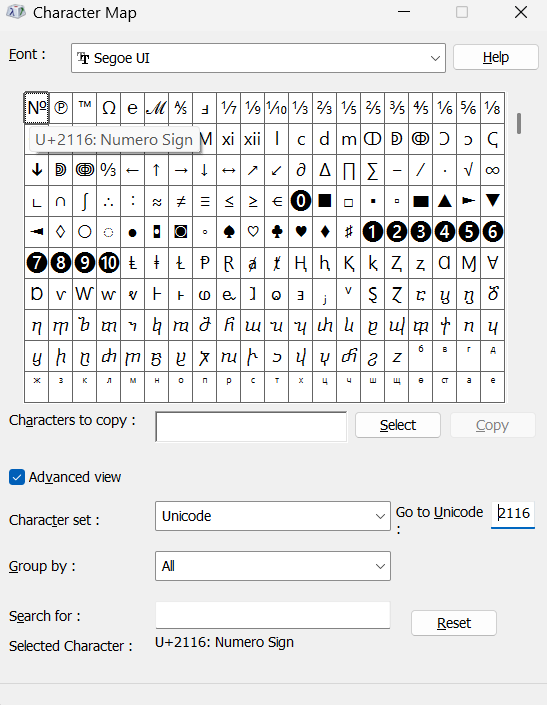
Steps:
- Open the Windows Start Menu
- Search for Character Map and open the app
- Enable Advanced View
- Select a font such as Segoe UI Symbol
- Search for Numero
- Select the symbol №
- Click Copy
- Paste it anywhere using
Ctrl + V
This method works in nearly all Windows programs.
How to Type Numero Sign in Word
Microsoft Word provides several easy ways to type the Numero Sign (№). Since the symbol is not available directly on a standard keyboard, most users insert it using a shortcut, Unicode code, or the Symbol menu.
Method 1 — Word Shortcut (Fastest Method)
This is the easiest and fastest way to type the Numero Symbol (№) in Microsoft Word.
Steps:
- Open your Microsoft Word document
- Place the cursor where you want the symbol
- Type
2116 - Press
Alt + X
Word will instantly convert the code into the Numero symbol: №.
This shortcut works in most modern versions of Microsoft Word on Windows.
Method 2 — Insert Symbol Menu
If you prefer using Word’s built-in symbol picker, you can manually insert the Numero Symbol (№) using the Symbol menu.
Steps:
- Open Microsoft Word
- Go to Insert → Symbol → More Symbols
- In the Symbol window, select a font like Segoe UI Symbol
- Enter the character code
2116 - Click Insert
The Numero symbol № will be added to your document.
How to Type Numero Symbol on Mac
Mac users can insert the Numero Symbol (№) using the built-in Character Viewer.
Steps:
- Press
Control + Command + Space - Search for “Numero”
- Double-click the symbol №
The symbol will be inserted instantly into your document or text field.
How to Insert Numero Sign in Google Docs
Google Docs includes a built-in special character tool that allows you to insert the Numero Sign (№) easily.
Steps:
- Open Google Docs
- Go to Insert → Special Characters
- Search for “Numero”
- Click the symbol №
The Numero sign will be inserted instantly into your document.
Final Thoughts
The Numero Sign (№) is a useful Unicode symbol that represents the word “number.” Whether you want to copy and paste the symbol, type it on Windows or Mac, or insert it in Microsoft Word and Google Docs, the methods above make it easy to use the Numero symbol in any document or text field.