How to Do Roman Numerals on Google Docs
This guide covers every real method for using Roman numerals in Google Docs: typing them manually, inserting them via special characters, formatting a numbered list to display them automatically, the truth about Roman numeral page numbers (including two workarounds), and how to do all of this on mobile.
Quick answer: To use Roman numerals in Google Docs, either type them manually using the letters I, V, X, L, C, D, and M, insert them via Insert > Special characters, or select a numbered list and click the dropdown arrow next to the list icon to choose a Roman numeral style (I, II, III). Google Docs does not have a built-in Roman numeral option for page numbers — that requires a manual workaround, covered further down.
How to Type Roman Numerals in Google Docs Manually
The simplest method is typing them directly using your keyboard, since Roman numerals are just combinations of seven letters:
| Letter | Value |
|---|---|
| I | 1 |
| V | 5 |
| X | 10 |
| L | 50 |
| C | 100 |
| D | 500 |
| M | 1000 |
For example, “24” is written as “XXIV” and “99” is written as “XCIX.” If you want Google Docs to auto-capitalize your Roman numerals as you type, check Tools > Preferences > “Automatically capitalize” isn’t interfering — otherwise, lowercase Roman numerals like “iv” or “xii” will type exactly as entered.
How to Insert Roman Numerals Using Special Characters
If you only need a single Roman numeral — for a chapter heading, a list label, or a one-off symbol — you don’t have to type the letter combination yourself. Google Docs has a built-in Special Characters table that includes every Roman numeral glyph pre-made.
- Open Google Docs on your computer.
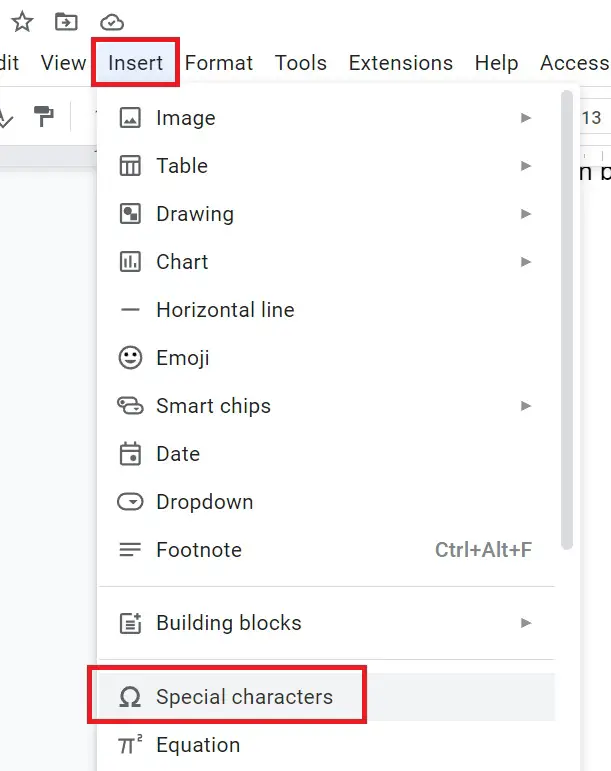
- In the menu bar, click Insert, then find and click Special characters.
A table of special characters opens in front of the document editor. Type Roman in the search box to get a list of all Roman numerals available in Google Docs.
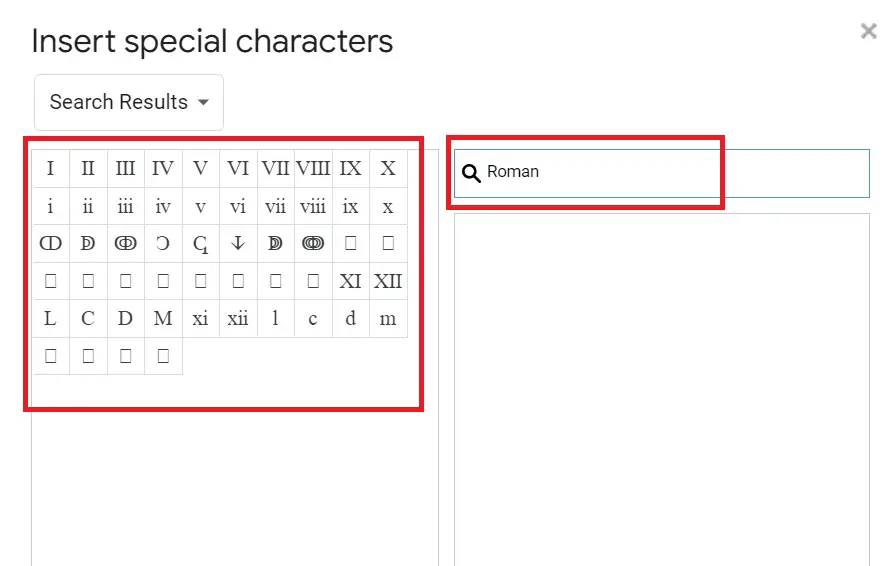
Select the Roman numeral you want from the table, and it will be inserted directly into your document. This method is quicker than typing letter-by-letter if you only need one or two numerals, though for longer lists the numbered-list style below is faster.
How to Format a Numbered List as Roman Numerals in Google Docs
If you want an outline, chapter list, or set of steps to automatically number itself using Roman numerals, Google Docs’ built-in numbered list styles include this option — no manual typing required.
- Highlight the list you want to format, or place your cursor where the list should start.
- Click the Numbered list icon in the toolbar.
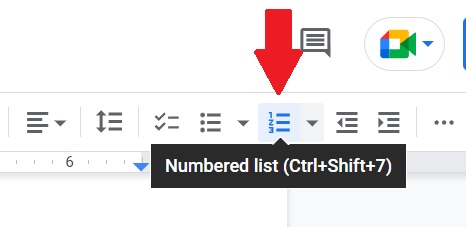
- Click the small dropdown arrow next to the Numbered list icon.
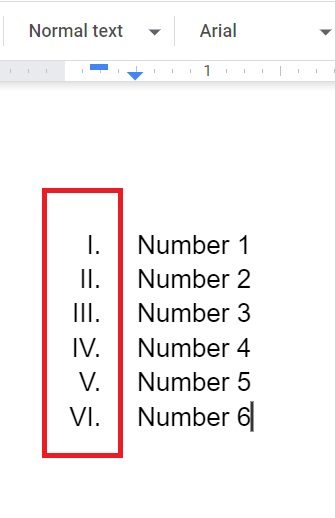
- Choose the Roman numeral style — Google Docs offers both uppercase (I, II, III) and lowercase (i, ii, iii) options.
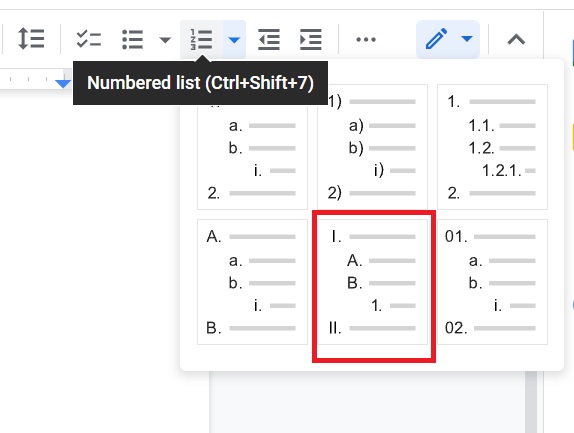
Once applied, Google Docs will automatically continue the Roman numeral sequence (I, II, III, IV…) as you add new list items — you never need to type the numerals yourself.
Tip: This is the method to use for multi-level outlines too — set your top level to Roman numerals, then use Tab to indent sub-points into letters (A, B, C) or Arabic numbers automatically. There’s also a proper way to create an outline in Google Docs if you want the full structure.
Can You Get Roman Numeral Page Numbers in Google Docs?
Here’s the honest answer, since a lot of guides get this wrong: Google Docs does not currently have a built-in option to format page numbers as Roman numerals. If you open Insert > Headers & footers > Page numbers, you’ll only find Arabic numeral options with a “start at” field — there’s no numeral-style dropdown like Microsoft Word offers.
This trips up a lot of students and researchers, since academic formatting standards (like APA or a university thesis template) often require Roman numerals on front-matter pages (title page, abstract, table of contents) before switching to Arabic numerals on the main body.
Since there’s no native option, here are two manual workarounds — pick whichever fits your document better.
Workaround 1: Section Breaks Method
This is the more reliable method for documents with a clear front-matter/body split (like a thesis):
- Go to View and turn on “Show non-printing characters” so you can see section breaks.
- Place your cursor at the end of each page in your front-matter section (title page, abstract, etc.).
- Go to Insert > Break > Section break (next page) after every page that needs a Roman numeral.
- Double-click the footer area of the first front-matter page to open the footer editor.
- Type your first Roman numeral manually (usually “i” for the first numbered front-matter page).
- Move to the footer of the next page, uncheck “Link to previous” in the footer options, and manually type the next numeral (“ii,” then “iii,” and so on).
- When you reach the main body of your document, insert one more section break, uncheck “Link to previous” again, and switch that section back to a standard Arabic page number starting at 1.
Workaround 2: Special Characters Method
If you find section breaks fiddly, this is a simpler — though equally manual — alternative:
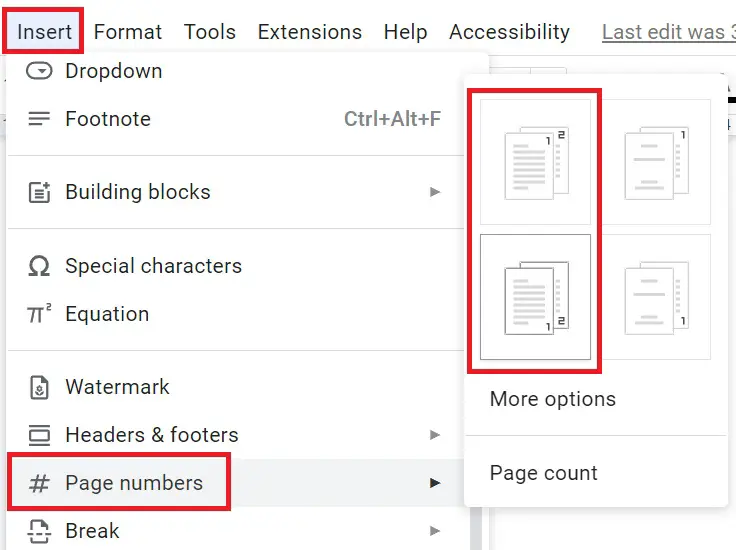
- From the menu bar, click Insert, navigate to Page numbers, and choose either Header or Footer format.
- Double-click the page number to select it, and check “Different first page” if your title page shouldn’t show a number.

- Open Insert > Special characters or Alt+I+C shortcut key to open special character list, type Roman in the search box, and select the numeral you want to use as a page number.
As you select the numeral, it will replace the Arabic digit on that page.

- Repeat this process on each front-matter page, increasing the numeral each time.
Either workaround has the same core limitation: the numerals are static text, not a dynamic numbering format. If your document’s front matter changes length later (you add or remove a page), you’ll need to revisit each footer and update the numerals by hand, since they aren’t dynamically generated.
How to Add Roman Numerals in Google Docs on iPad or Android
The Roman numeral list style is also available in the Google Docs mobile app, though the menu path looks a little different than on desktop.
- Open Google Docs on your iPad or Android device.
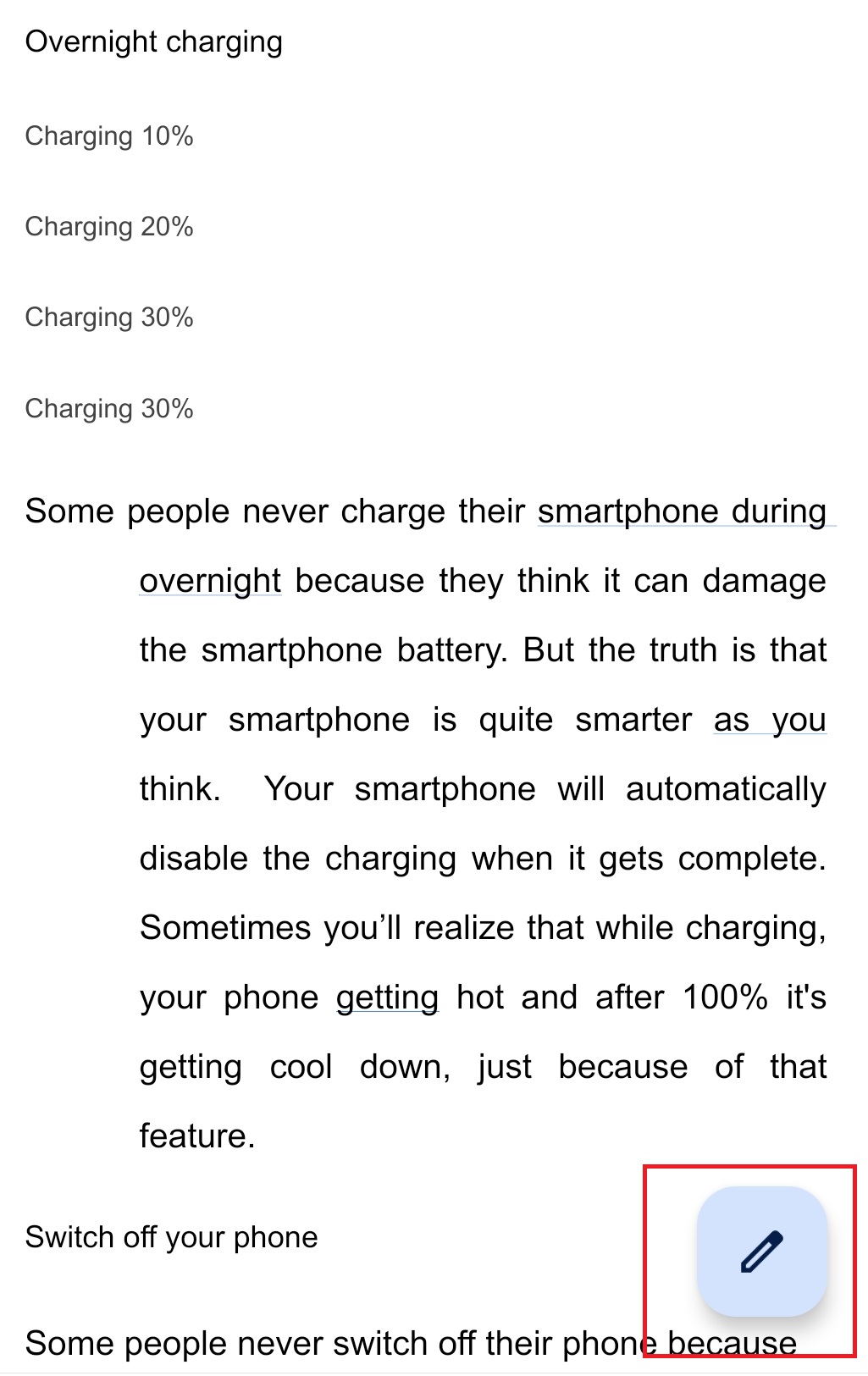
- Tap the pencil icon to enter editing mode.
- Select the text you want to format with Roman numerals.
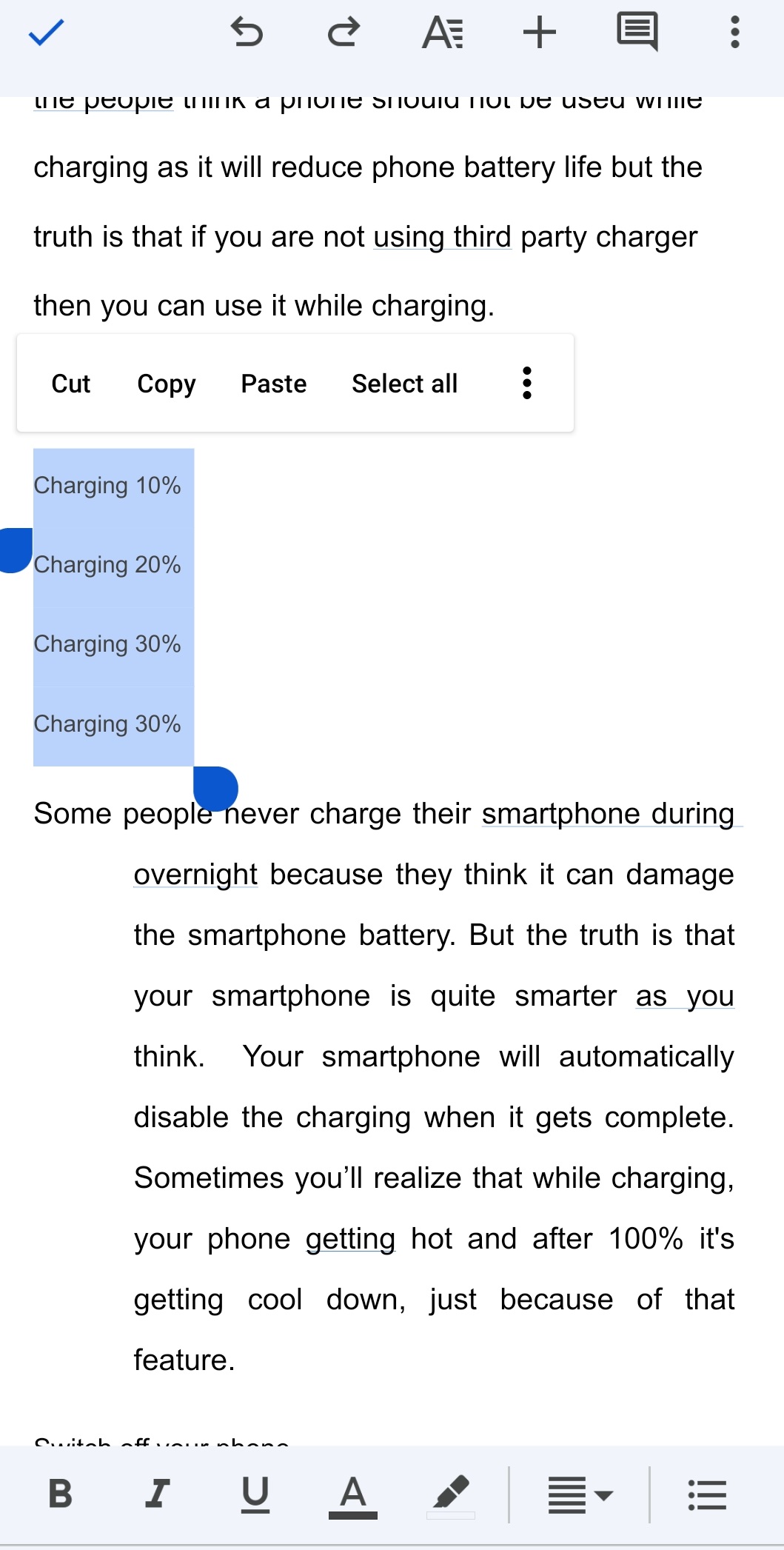
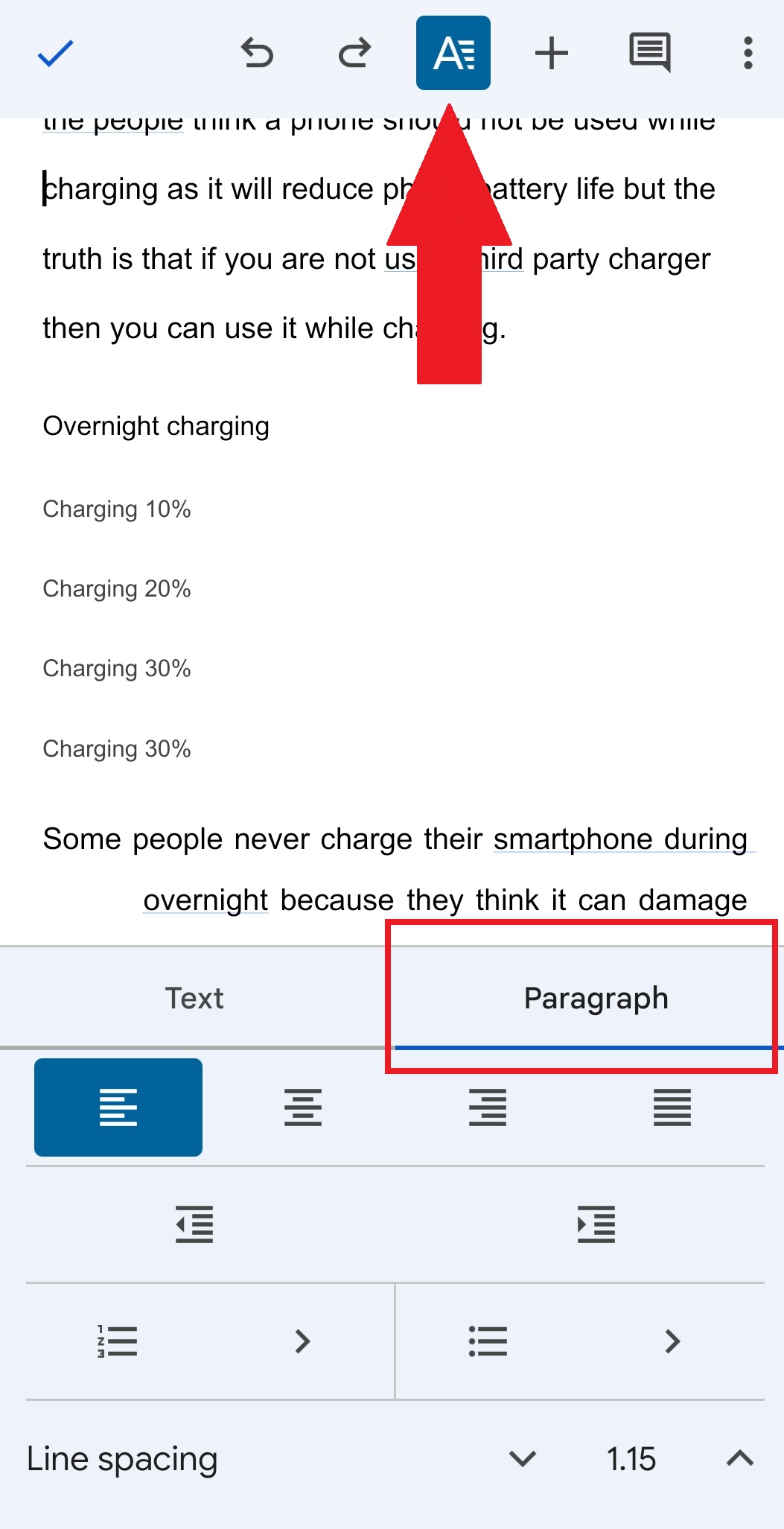
- Tap the “A” formatting icon in the top toolbar, then tap the Paragraph tab at the bottom.
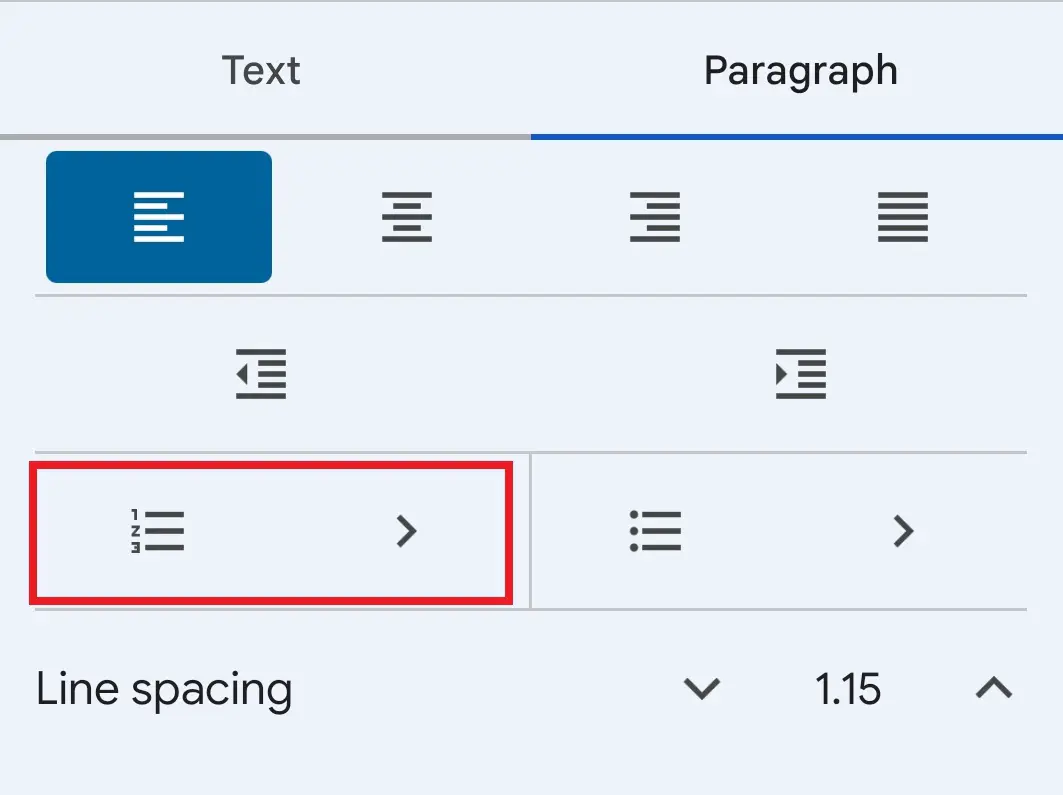
- Tap Numbered list.
- Select the Roman numeral list format from the options shown.
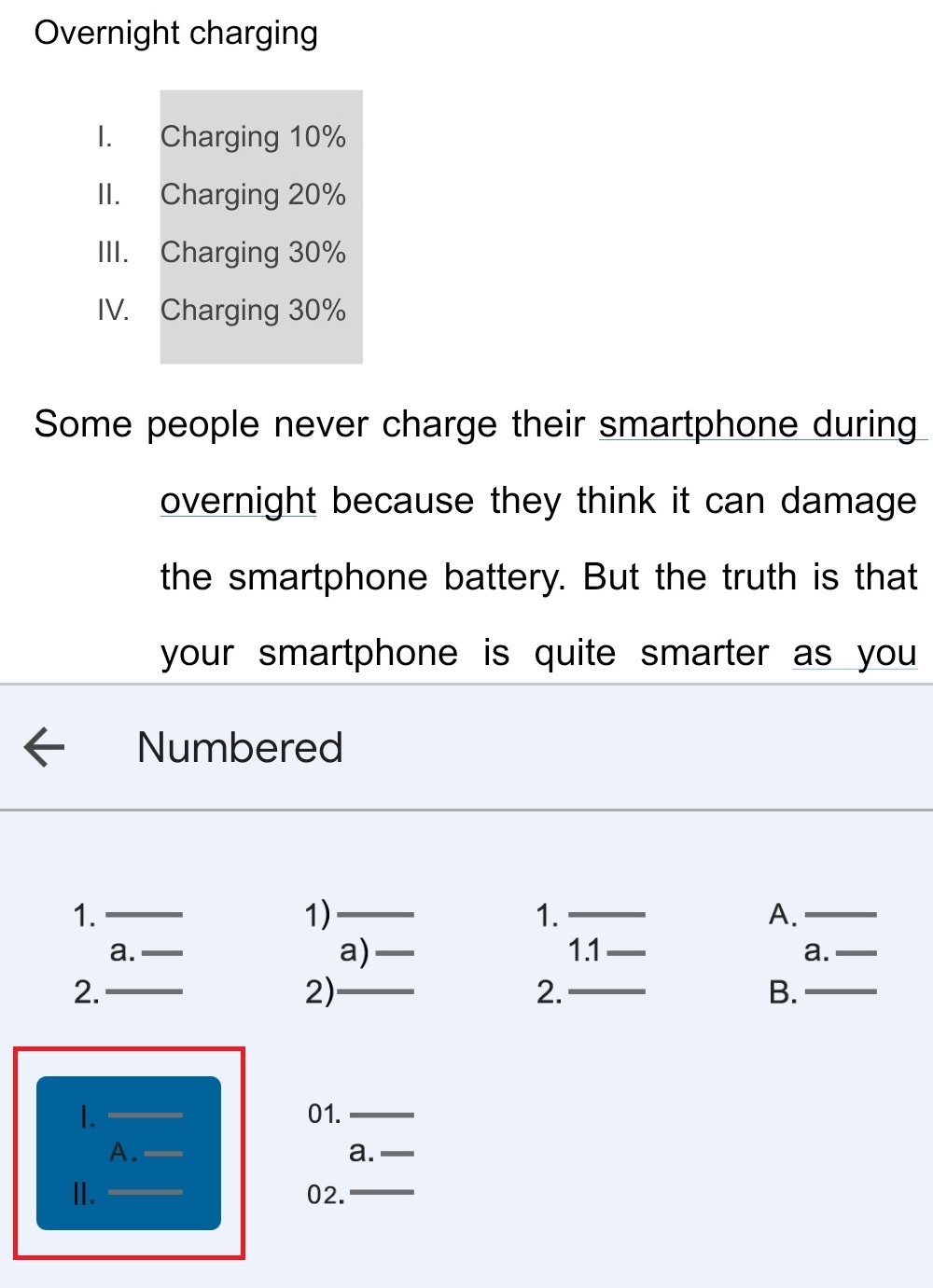
The same limitation applies here as on desktop: the mobile app has no dedicated option for Roman numeral page numbers, only for list formatting.
Frequently Asked Questions
Does Google Docs support Roman numerals for page numbers?
Not natively. The Insert > Page numbers menu only offers Arabic numerals with a start-at option. Roman numeral page numbers require manually typing them into each footer using section breaks.
How do I make a numbered list show Roman numerals in Google Docs?
Select your list, click the numbered list icon, then click the dropdown arrow next to it and choose the uppercase or lowercase Roman numeral style. Google Docs will continue the sequence automatically as you add items.
Can I use lowercase Roman numerals in Google Docs?
Yes. Both the numbered list style menu and manual typing support lowercase Roman numerals (i, ii, iii), which are commonly used for front-matter page numbers in academic papers.
Why did my Roman numeral page numbers reset or duplicate?
This usually happens when pages are added or removed before a section break. Since Google Docs page numbers in this workaround are typed manually rather than generated automatically, you’ll need to revisit each footer and correct the numerals by hand.
Between manual typing, special characters, the built-in Roman numeral list style, and the two page-number workarounds, you now have every method for adding Roman numerals in Google Docs — on desktop or mobile — whichever your document actually calls for.