How to Indent on Google Docs App (Android & iPhone)
Learn how to indent on Google Docs app using Android, iPhone, or iPad devices. Whether you need to indent an entire paragraph or format a first-line indent for academic writing (like MLA or APA), this guide covers the exact steps and mobile workarounds you need.
What Is Indentation in Google Docs?
An indent moves text away from the page margin to structure a document properly. The two primary types are:
- Paragraph Indent: Moves the entire block of text to the right.
- First-Line Indent: Moves only the very first line of a paragraph inward, keeping the rest aligned to the margin.
How to Indent a Full Paragraph on Google Docs Mobile
The Google Docs app includes built-in buttons to shift entire paragraphs.
- Open the Google Docs app on your mobile device.
- Open the document you want to edit.
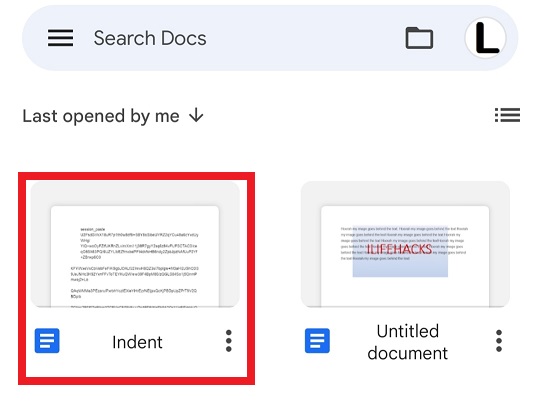
- Tap the Pencil icon to enable editing mode.
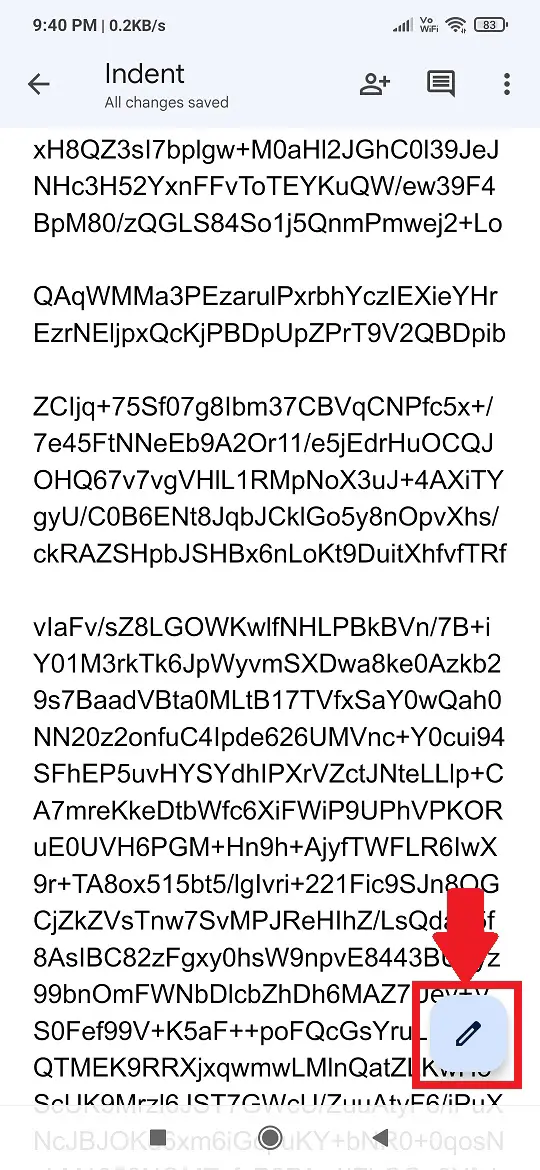
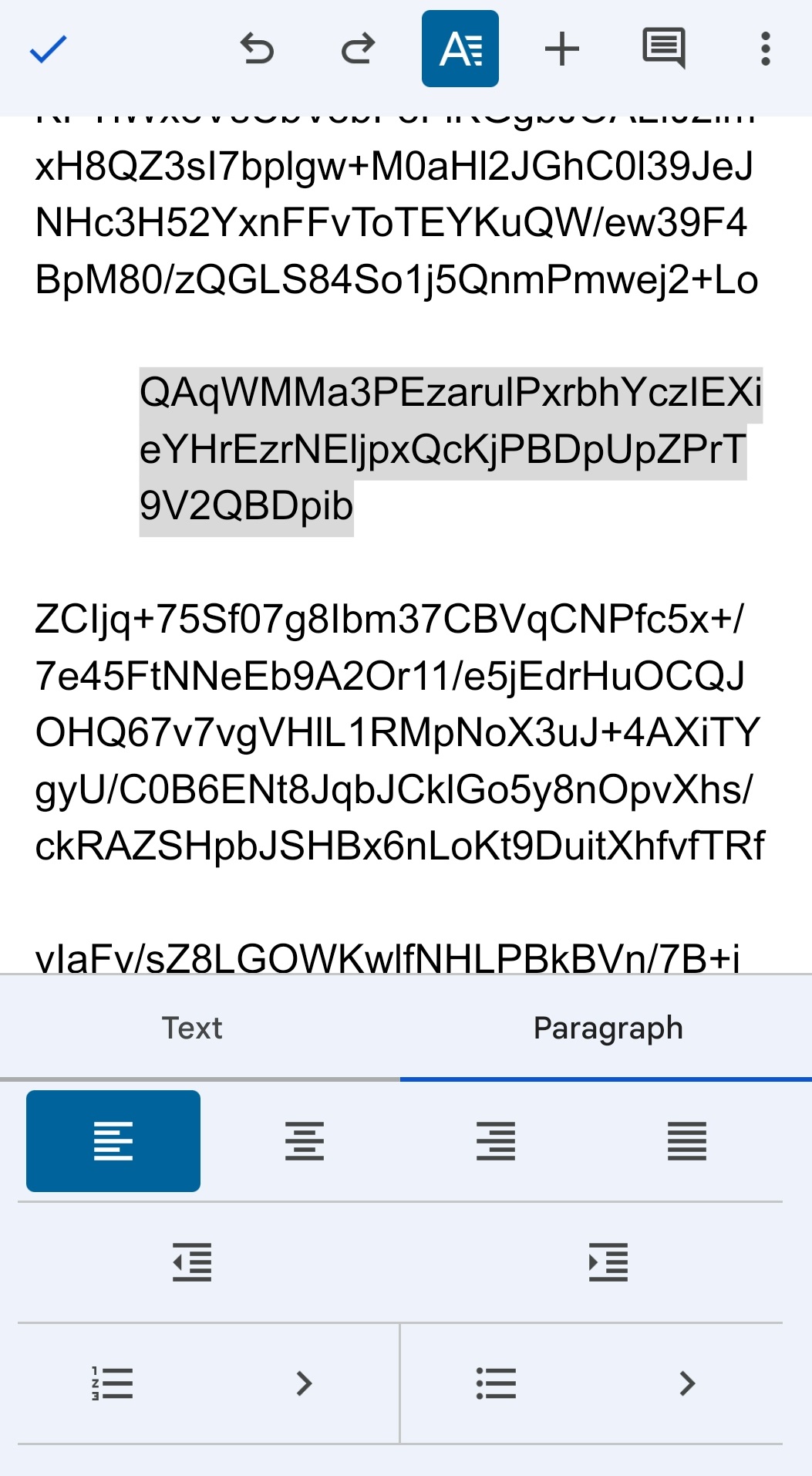
- Select the paragraph or text you want to indent.
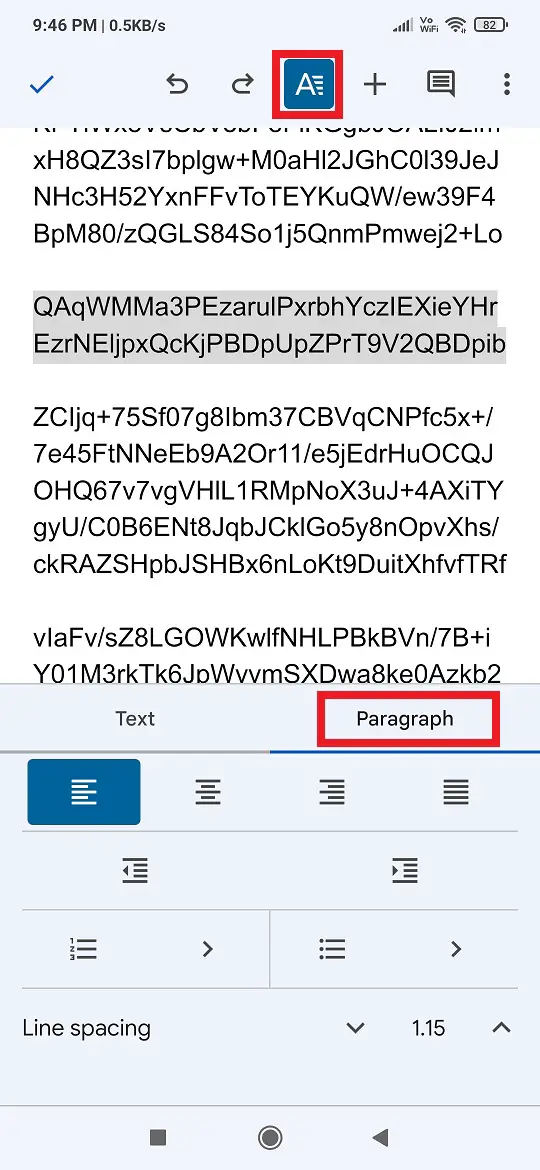
- Tap the A formatting icon at the top of the screen.
- Switch to the Paragraph tab.
- Tap Increase indent.
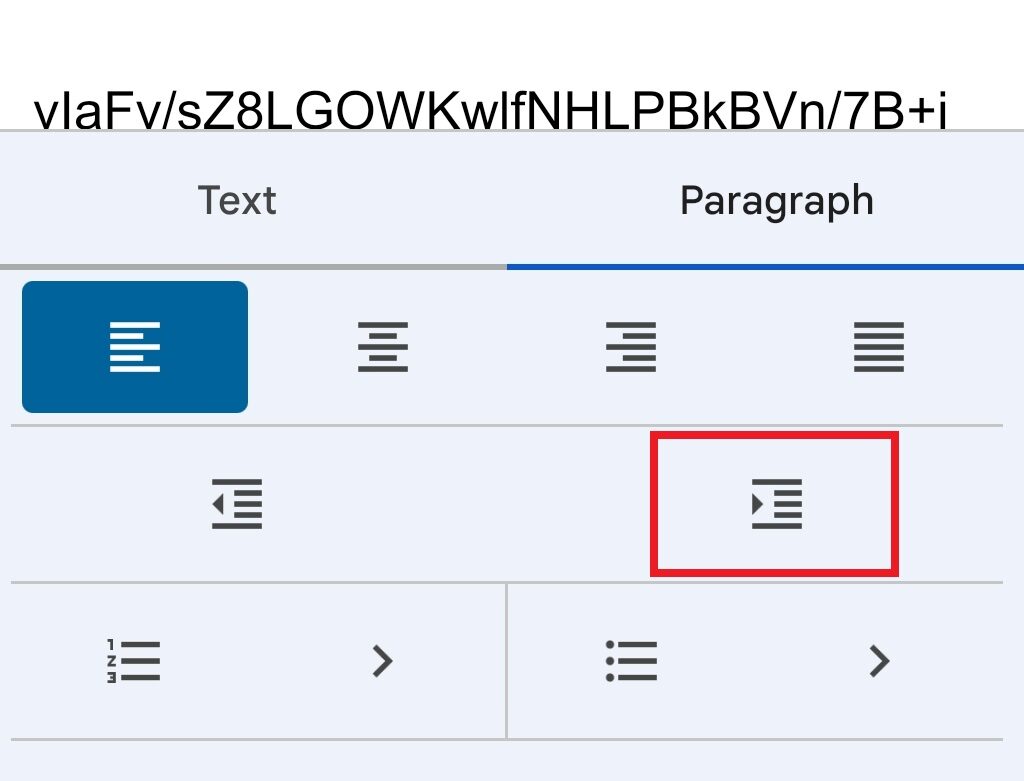
Your selected paragraph will now move toward the right margin.
When to Use Paragraph Indent
Paragraph indentation is useful for:
- organizing sections,
- formatting notes,
- creating nested content,
- and improving readability in long documents.
Learn: How to turn ON dark mode in Google Docs whether it is mobile app or desktop.
How to Indent the First Line on Google Docs App
A first-line indent only moves the first line of a paragraph inward while keeping the remaining lines aligned with the margin.
Steps to Create a First-Line Indent
- Open the Google Docs app.
- Open your document and tap the Pencil icon to edit.
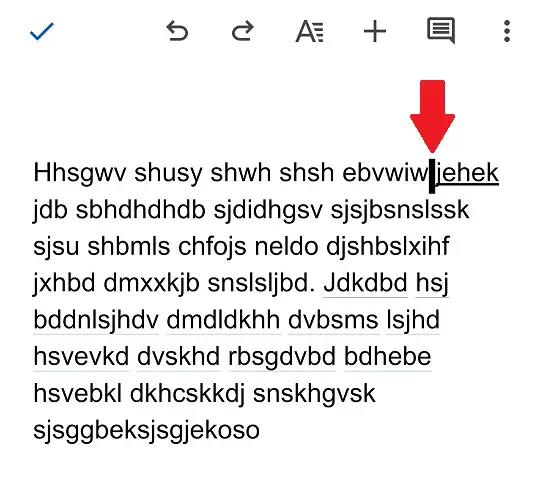
- Place the cursor where you want first line indent.
- Press the Enter/Return key on your mobile keyboard.
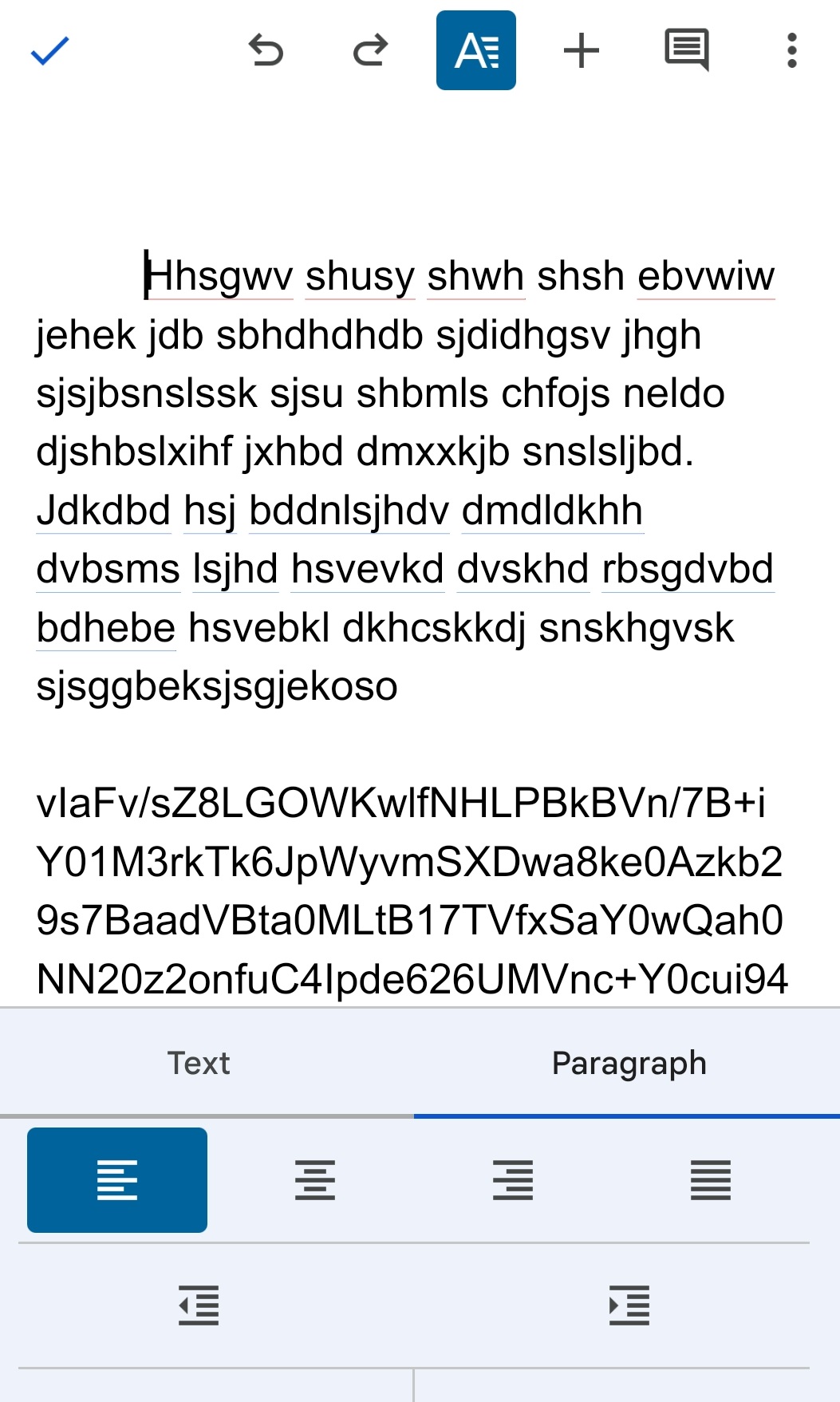
- Tap the A formatting icon.
- Open the Paragraph section.
- Tap Increase indent.
The first line of your paragraph will now appear indented.
Difference Between Paragraph Indent and First-Line Indent
| Type of Indent | Description | Common Use |
|---|---|---|
| Paragraph Indent | Moves the entire paragraph | Notes, formatting blocks |
| First-Line Indent | Only the first line moves inward | Essays, MLA, APA papers |
Tips for Indenting in Google Docs Mobile
- Use Increase indent to move text right.
- Use Decrease indent to move text back toward the margin.
- For academic writing, first-line indents are usually preferred.
- Use the desktop version of Google Docs for advanced indentation controls like hanging indents.
- Preview your document before printing or exporting as PDF.
Can I indent the first line only on Google Docs mobile?
Yes. You can create a first-line indent by placing the cursor before the paragraph and using the Increase indent option.
Is indentation the same on Android and iPhone?
Yes. The indentation steps are nearly identical on both Android and iPhone versions of Google Docs.
Wrapping Up
Now you know how to indent on Google Docs app using both Android and iPhone devices. Whether you need to indent an entire paragraph or create a first-line indent for essays and reports, the built-in formatting tools in Google Docs mobile make the process simple.
I kept trying the method you explained but it still didn’t work. The whole paragraph was indented instead of the first line.
If the above method doesn’t work for you then simply put the cursor on the first line of the paragraph and hit the “SPACEBAR” from the mobile keyboard till you get the required space. This is not the right method but will help you to a certain extent.
You can also try to indent the first line in a desktop mode which is very easy as compared to the mobile version.
This is a great tip! I’ve been struggling to indent my Google Docs on my phone, but this is a great way to do it. Thanks for the tip!
This is a great tip! I’ve been struggling to indent my Google Docs on my phone, but this is a great way to do it. Thanks for the tip!
I love how you indent your Google Docs posts! It makes them so much easier to read.
Thank you for this helpful guide! I always struggled with indentation on my phone, and your step-by-step instructions made it really simple. I appreciate the clarity and easy-to-follow tips!