How to Turn Off Auto Capitalization on Google Docs (Desktop & Mobile)
Google Docs auto capitalization is a built-in feature designed to streamline formatting by automatically capitalizing the first letter of every new sentence. While highly efficient for standard essays, emails, and reports, this automation can disrupt specialized formatting, such as writing code snippets, poetry, technical documentation, or case-sensitive brand names.
Because this feature is tied to your account preferences rather than individual files, disabling it applies globally across all your documents. Here is the step-by-step guide to turning off auto capitalization on Google Docs on both desktop browsers and mobile devices.
Turn Off Auto Capitalization on Google Docs (Desktop)
Turning off Auto Capitalization only takes a few clicks:
- Open Google Docs in your browser and open the document you’re working on.
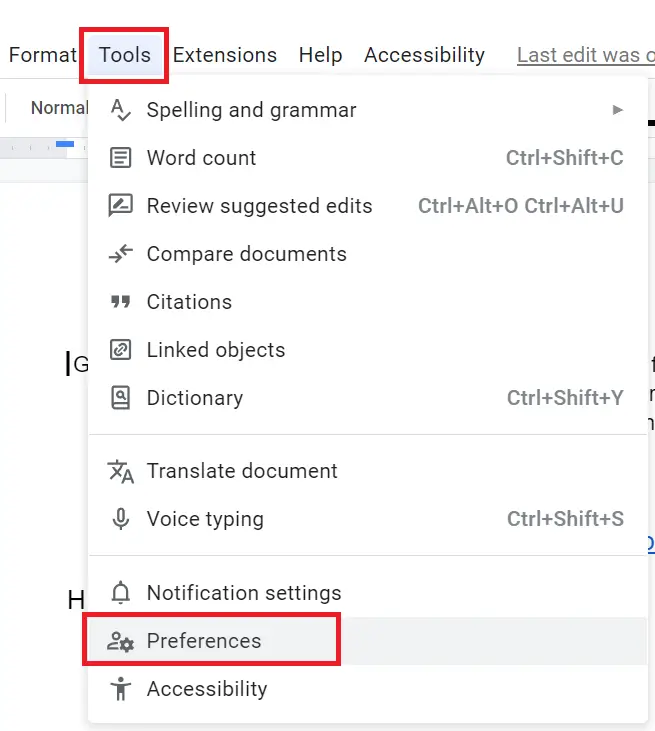
- Click Tools in the top menu bar.
- Select Preferences from the dropdown menu.
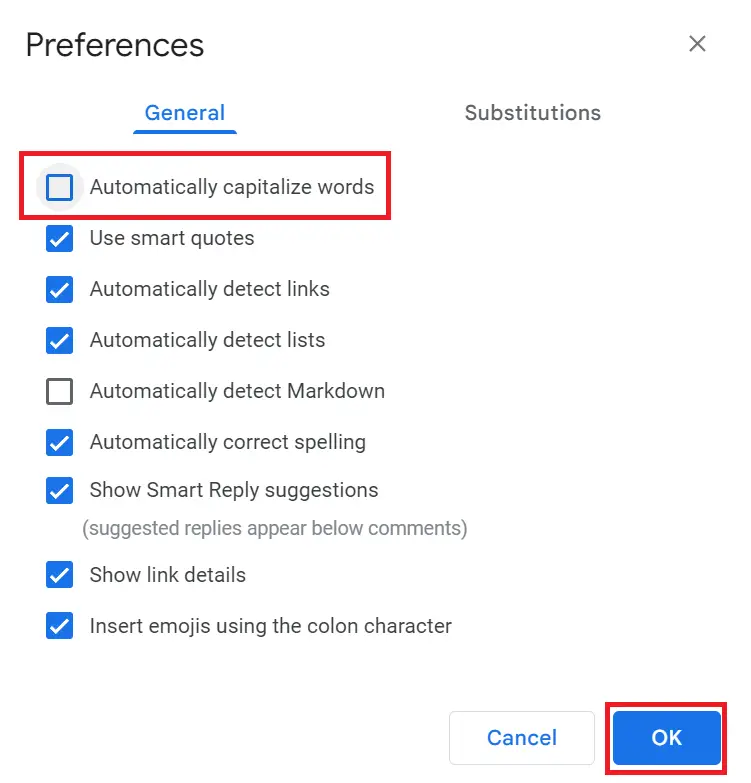
- Under the General tab, locate Automatically capitalize words.
- Uncheck the box next to the setting..
- Click OK to save your changes.
That’s it — Google Docs will stop auto-capitalizing the first letter of your sentences going forward.
Note: To turn the feature back on at any time, simply repeat these steps and re-check the box.
Essential Facts to Keep in Mind
- Not Retroactive: Disabling this setting will not change text you have already typed. It only applies to text you type moving forward.
- Account-Wide Setting: This setting updates your global account profile. It remains disabled for all future documents until you manually toggle it back on.
- No Mobile Sync: Web preferences do not sync to mobile applications. Disabling auto-capitalization on your desktop browser will not alter the behavior of the Google Docs app on your phone.
Turn Off Auto Capitalization on Google Docs (Mobile)
The Google Docs mobile application does not feature an in-app toggle for text correction. Instead, mobile capitalization is dictated directly by your smartphone’s operating system keyboard settings. Disabling it here will affect all text input across your entire device.
How to Turn Off Auto Capitalization on Android (Gboard)
- Open your device Settings app.
- Go to System > Languages & input.
- Tap On-screen keyboard and select your keyboard (usually Gboard).
- Tap Text correction.
- Toggle off Auto-capitalization.
How to Turn Off Auto Capitalization on iOS (iPhone & iPad)
- Open the device Settings app.
- Go to General > Keyboard.
- Toggle off Auto-Capitalization.
Just like Android, this changes the behavior across your entire device, not just within Google Docs.
Should You Keep Auto Capitalization Enabled?
For most everyday writing, it’s worth leaving on — it catches small mistakes and keeps your documents looking clean without any extra effort. But if you regularly write code, poetry, technical documentation, or anything with intentional lowercase styling, turning it off can save you from constantly undoing corrections you never wanted in the first place.
The good news is that switching it on or off takes less than a minute, so there’s no harm in toggling it depending on what you’re working on.
Final Thoughts
Auto Capitalization on Google Docs is one of those small features you might not think about until it gets in the way. Now that you know exactly where to find the setting — and how mobile and desktop behave differently — you can customize Google Docs to match the way you actually write.