How to Anchor a Picture in Word (with Lock Anchor Pro Tip)
Learning how to anchor a picture in Word is essential if you want to keep your images perfectly aligned with your text. When you anchor an image to a specific paragraph, the graphic stays tied to that text even as you add, delete, or rearrange content above it.
Before diving into the steps, there is one critical rule to understand: the anchor only appears on floating images. If your picture layout is set to “In Line with Text,” there is no anchor available. This is because Word treats an inline image exactly like a typed text character rather than a floating graphical object.
How to Anchor a Picture in Word (Step-by-Step)
Follow these clear, actionable steps to configure, view, and lock anchors in Word for seamless document formatting.
Step 1: Insert Your Picture
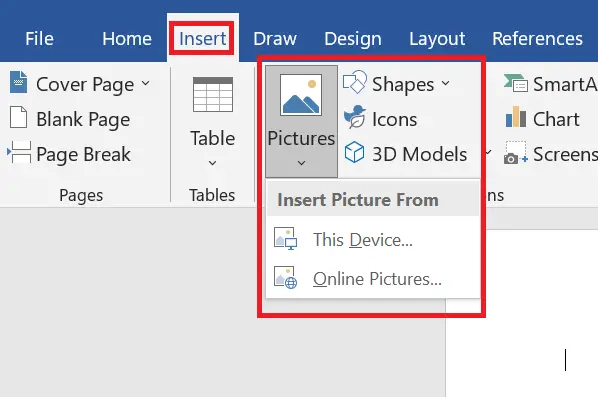
- Go to Insert → Pictures and choose your image.
- By default, Microsoft Word inserts images In Line with Text. While this works if you simply want the graphic to sit where your cursor was, it will not display the Microsoft Word anchor icon or allow floating behavior just yet.
Step 2: Choose a Wrap Text Style
To activate the anchoring feature, you must switch the image from an inline object to a floating object.
- Click the picture to select it.
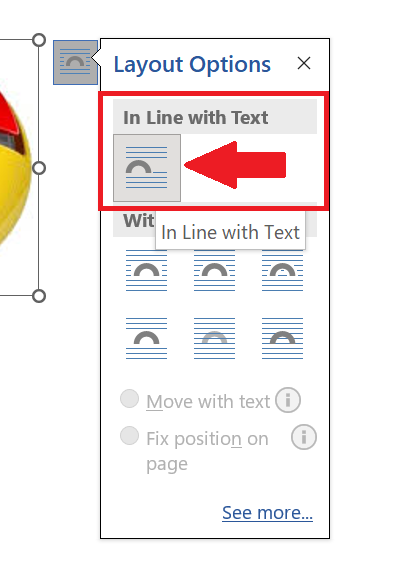
- Click the Layout Options icon that appears next to the top-right corner of the image (or right-click the image and select Wrap Text).
- Choose any option other than “In Line with Text” — Square, Tight, Through, Top and Bottom, Behind Text, or In Front of Text.
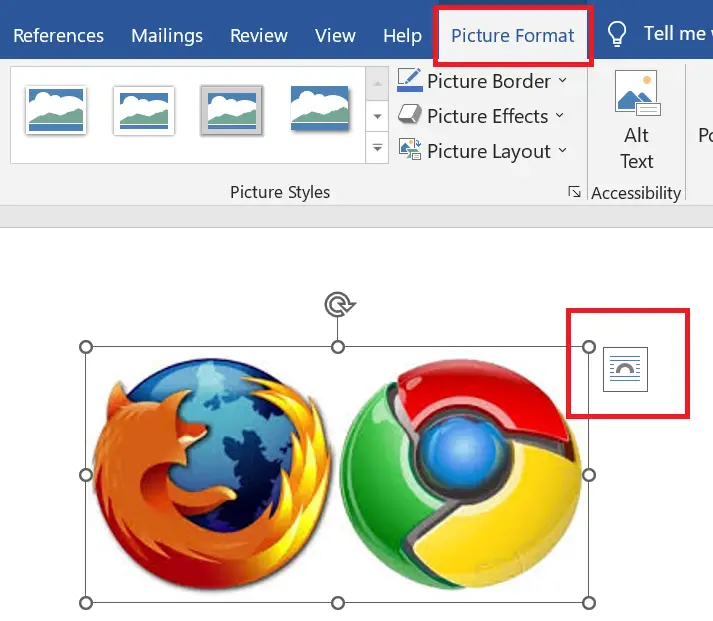
The moment you pick a floating style, a small anchor icon will appear next to the paragraph the image is now tied to.
Step 3: Configure How the Anchor Behaves
To decide exactly what your anchor should do, open the detailed layout menu:
- Right-click the picture and select Size and Position, then switch to the Position tab (or click Layout Options → See more).
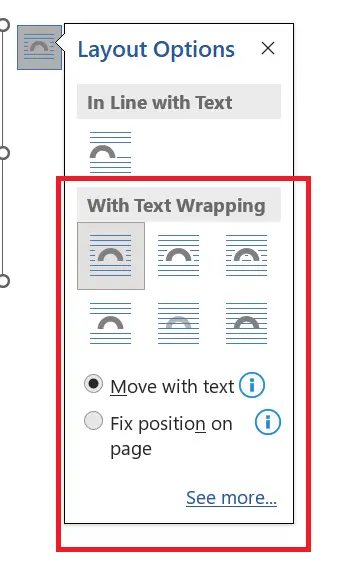
- At the bottom of the window, choose between two primary behaviors:
- Move with text: The picture automatically shifts up or down the page as you add or remove text above it, staying perfectly tied to its paragraph. This is the default setting and is usually what you want.
- Fix position on page: The picture locks to an exact physical spot on the page layout, completely independent of text movement. Even if its anchored paragraph shifts to a completely different page, the image stays put.
Step 4: How to Lock the Anchor in Word (Pro Tip)
If you want to ensure your image stays permanently bound to its specific paragraph—preventing it from accidentally jumping to a different paragraph when you drag it around—you can choose to lock the anchor in Word.
- Right-click the image, select Size and Position, and go to the Position tab.
- In the options section at the bottom, check the box next to Lock anchor.
- Click OK. A small padlock symbol will now appear next to your anchor icon, ensuring your layout remains locked in place.
Troubleshooting: How to See the Anchor Icon
If you don’t see the anchor icon after switching your text wrap style, you likely have formatting marks turned off. To reveal the anchor:
- Go to the Home tab and click the ¶ (Show/Hide) button in the Paragraph section.
- Alternatively, go to File → Options → Display and check the box for Object anchors.
The anchor icon only shows up when a floating image is actively selected. Click on the picture to make it appear.
FAQ About Anchoring Pictures in Word
What is an anchor in Word?
An anchor ties a floating picture to a specific paragraph, causing the image to move dynamically with that text as you edit the document. Anchors only apply to floating images.
Does “In Line with Text” anchor the picture?
No. An inline image is treated as a text character and has no anchor at all. To generate an anchor, you must choose a text wrapping style like Square, Tight, or Through.
Why can’t I see the anchor icon?
The Microsoft Word anchor icon only displays when a floating image is selected. If it is missing, turn on formatting marks (Home > ¶) or enable Object anchors via File > Options > Display.
What is the difference between “Move with text” and “Fix position on page”?
Move with text keeps the picture tied to its paragraph so it shifts up or down as you edit. Fix position on page locks the picture to a permanent physical coordinate on the page, completely independent of text movement.