How to Underline in Google Docs (3 Quick & Easy Methods)
Need to underline text in Google Docs but not sure which method is fastest? Whether you are using a Windows PC, a Mac, a Chromebook, or your phone, learning how to underline in Google Docs takes just a few seconds once you know where to look.
In this guide, you will learn every method to underline text in Google Docs — from the quickest keyboard shortcut to the Format menu — plus how to remove underlines, add a blank underline line, and fix common issues when underlining stops working..
What Does Underlining Do in Google Docs?
Underlining is a text formatting option that draws a horizontal line beneath selected text. In Google Docs, it is commonly used to:
- Emphasize important words or phrases
- Format headings or subheadings
- Indicate hyperlinks (Google Docs automatically underlines linked text)
- Create fill-in-the-blank lines for forms and worksheets
- Meet formatting requirements for academic or legal documents
Unlike bold or italic, underlining draws the reader’s eye in a very direct way. It works best when used sparingly — overusing it can make a document harder to read and may confuse readers who associate underlined text with clickable links.
How to Underline in Google Docs (3 Methods)
There are three ways to underline text in Google Docs on a desktop browser or the desktop app. All three produce the same result — choose the one that fits your workflow.
Method 1: Keyboard Shortcut (Fastest)
The keyboard shortcut is the quickest way to underline text in Google Docs:
- Select the text you want to underline by clicking and dragging over it.
- Press Ctrl + U on Windows or Chromebook, or Cmd + U on Mac.
- The selected text will instantly become underlined.
To remove the underline, select the underlined text and press the same shortcut again. The shortcut works as a toggle.
Pro Tip: You can also press Ctrl + U (or Cmd + U) before you start typing. Everything you type after that will be underlined until you press the shortcut again to turn it off.
Method 2: Underline Button in the Toolbar
If you prefer using your mouse, the underline button is available directly in the Google Docs toolbar:
- Select the text you want to underline.
- Look for the U button in the toolbar at the top of the page (it sits next to the Bold B and Italic I buttons).
- Click the U button to apply the underline.
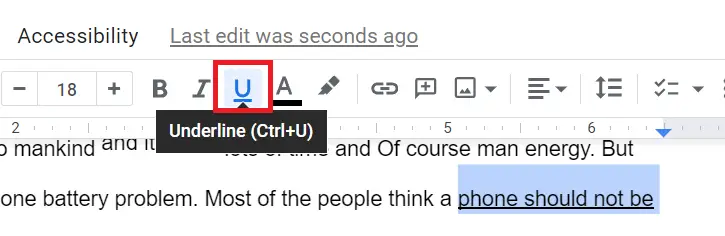
If you do not see the toolbar, go to View in the top menu and make sure Show Ruler and toolbar options are enabled. Alternatively, your browser window may be too narrow — try expanding it.
Method 3: Format Menu
You can also apply underline formatting through the Format menu:
- Select the text you want to underline.
- Click Format in the top menu bar.
- Hover over Text in the dropdown.
- Click Underline from the submenu.
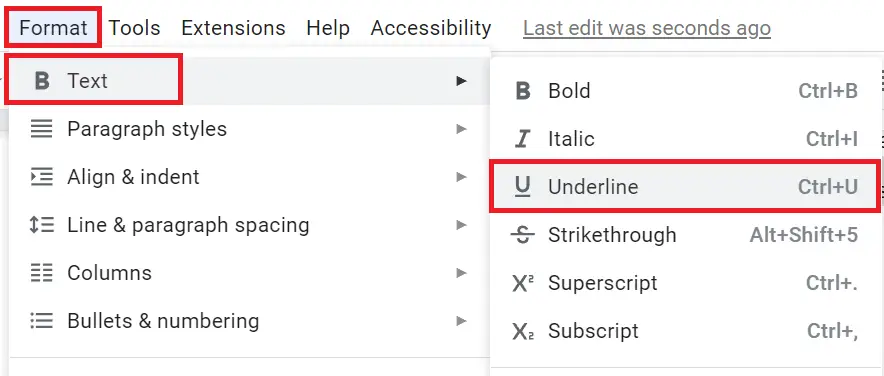
This method is slower than the shortcut but is useful if you are exploring formatting options and want to see everything available in one place.
Google Docs Underline Keyboard Shortcut
Here is a quick reference for the underline keyboard shortcut on every device:
| Device / OS | Underline Shortcut |
|---|---|
| Windows PC | Ctrl + U |
| Mac | Cmd + U |
| Chromebook | Ctrl + U |
| Linux | Ctrl + U |
| iPhone / iPad | Use the Format toolbar (no keyboard shortcut) |
| Android | Use the Format toolbar (no keyboard shortcut) |
The shortcut Ctrl + U or Cmd + U works in every desktop browser (Chrome, Firefox, Safari, Edge) and in the Google Docs desktop application. There is no equivalent single keyboard shortcut on mobile — see the next section for mobile instructions.
How to Underline in Google Docs on Mobile
The Google Docs mobile app (available for iPhone, iPad, and Android) supports underline formatting through its formatting toolbar. Here is how to use it on each device.
How to Underline in Google Docs on iPhone or iPad
- Open your document in the Google Docs app.
- Tap and hold on the word or phrase you want to underline, then drag the selection handles to cover all the text you need.
- Tap the Format icon (the letter A with lines) in the top-right corner of the screen.
- Under the Text tab, tap the U (underline) button.
- Tap anywhere outside the menu to close it.
How to Underline in Google Docs on Android
- Open your document in the Google Docs app.
- Tap and hold on the text you want to underline to select it.
- A formatting bar will appear above the selected text. Tap the U button in that bar.
- If you do not see the U button, tap the three dots or the arrow to expand the formatting options.
Note: If you are using a Bluetooth keyboard connected to your iPad or Android device, the Cmd + U or Ctrl + U shortcut may also work depending on your keyboard model.
How to Remove Underline in Google Docs
Removing an underline in Google Docs is just as easy as adding one. Here are all the ways to do it.
Remove Underline from Regular Text
- Select the underlined text you want to change.
- Press Ctrl + U (Windows) or Cmd + U (Mac) to toggle the underline off.
- Alternatively, click the U button in the toolbar, or go to Format → Text → Underline.
Remove Underline from a Hyperlink
Google Docs automatically underlines hyperlinks. If you want to remove the underline from a link:
- Select the linked text.
- Press Ctrl + U or Cmd + U.
- Note: This removes the visual underline but keeps the link active. The link will still work when clicked.
Remove All Underlines in the Entire Document
- Press Ctrl + A (Windows) or Cmd + A (Mac) to select all text in the document.
- Press Ctrl + U or Cmd + U to remove all underline formatting at once.
Stop Automatic Underlining (Spell Check Underlines)
Google Docs uses red and blue underlines to flag spelling and grammar issues. These are not formatting underlines — they are suggestions from the spell checker. To turn them off:
- Go to Tools in the top menu.
- Click Spelling and grammar.
- Uncheck Show spelling suggestions and Show grammar suggestions.
How to Insert a Blank Underline in Google Docs
A blank underline — also called a blank line or fill-in-the-blank line — is used in forms, worksheets, contracts, and signature areas. Here are the three most reliable ways to create one.
Method 1: Underscore Key (Quickest)
Hold Shift and press the hyphen/minus key repeatedly to type a line of underscores:
____________________________
This is the fastest method but produces a slightly uneven look depending on the font. It works well for informal documents.
Method 2: Table with Bottom Border (Most Professional)
- Go to Insert → Table and insert a 1×1 table.
- Click the table border options and remove all borders except the bottom one.
- Resize the cell to the desired width.
- Leave the cell empty — it now looks like a clean underline.
This method creates a clean, professional-looking line that is consistent in thickness and alignment.
Method 3: Insert a Drawing (Best for Precision)
- Go to Insert → Drawing → New.
- Use the line tool to draw a horizontal line.
- Click Save and Close.
- Drag and resize the line in your document as needed.
This method gives you the most control over line length, thickness, and position. It is ideal for signature lines or formal documents.
Advanced Underline Formatting in Google Docs
How to Bold and Underline at the Same Time
You can apply both bold and underline formatting simultaneously:
- Select your text.
- Press Ctrl + B (or Cmd + B) for bold.
- Press Ctrl + U (or Cmd + U) for underline.
- Both formats will be applied at the same time.
How to Change Underline Color in Google Docs
Google Docs does not have a dedicated underline color option, but here is a workaround:
- Select the underlined text.
- Go to Format → Text → Text color.
- Choose a color.
- The underline will change to match the text color.
This is not a perfect solution since it changes both the text and underline color together, but it is the only native option available in Google Docs.
How to Underline Only Words (Not Spaces)
Google Docs does not have a built-in option to underline only words and skip the spaces between them (like Microsoft Word does). A manual workaround is to select and underline each word individually, skipping the spaces — though this is time-consuming for long passages.
Underline in Headers and Titles
- Click on the heading text you want to underline.
- Press Ctrl + U or Cmd + U.
- The heading will be underlined while keeping its heading style (font size, weight, etc.).
Note: If you want all Heading 1 text to always be underlined, you can update the heading style. After underlining a heading, click Heading 1 in the styles dropdown and choose Update ‘Heading 1’ to match.
Troubleshooting: Underline Not Working in Google Docs
Problem 1: The Underline Button is Greyed Out
Cause: You are in a part of the document that cannot be edited, or the document is in View-only mode.
Fix: Check the top-right corner for a “View” or “Suggesting” indicator. Click it and switch to Editing mode. If the document is shared with you as view-only, you will need to ask the owner for edit access.
Problem 2: Ctrl + U Shortcut is Not Working
Cause: Another application or browser extension may be intercepting the shortcut.
Fix: Try using the toolbar button or the Format menu instead. Also check if any browser extensions (like Grammarly or LastPass) are overriding keyboard shortcuts.
Problem 3: Underline is Missing from the Toolbar
Cause: The toolbar may be collapsed or the browser window is too narrow to display all icons.
Fix: Expand your browser window or zoom out slightly (Ctrl + minus). You can also go to View → Show toolbar to make sure it is enabled.
Problem 4: Text Stays Underlined After Pressing Ctrl + U
Cause: You may not have selected the text properly before pressing the shortcut, or the underline is coming from a paragraph style.
Fix: Select the text carefully, then press Ctrl + U twice — once to ensure it is on, and once to turn it off. If it persists, try Format → Clear formatting to remove all formatting and start fresh.
Can I double underline text in Google Docs?
Google Docs does not have a built-in double underline feature. However, you can simulate it using a table border trick, a Google Docs add-on, or by copying double-underlined text from Microsoft Word. See our full guide: How to Double Underline in Google Docs.
Conclusion
Underlining text in Google Docs is simple once you know the right method for your device and situation. Here is a quick recap:
- Fastest method: Keyboard shortcut — Ctrl + U (Windows) or Cmd + U (Mac)
- Mouse method: Click the U button in the toolbar
- Menu method: Format → Text → Underline
- On mobile: Select text → tap Format icon → tap U
- Remove underline: Select text and press the shortcut again
- Blank underline: Use underscores, a table, or a drawing
Now that you have mastered basic underlining, check out these related guides to level up your Google Docs formatting:
- How to Double Underline in Google Docs — Step-by-step workarounds for adding a double underline
- How to Add and Remove Dotted Line in Google Docs