Winver Command: How to Check Windows Version (Windows 10 & 11)
When you buy a PC, you probably check its storage, RAM, graphics, and processor. But here’s a question: Do you know which version of Windows you’re actually running?
Microsoft updates Windows regularly, and each new version or build brings security fixes, performance tweaks, and fresh features. To keep your device secure and compatible, it’s important to know your Windows edition, version, and build number.
The quickest way? The built-in Winver command.
The Winver command is the quickest way for checking windows version details, edition, and build number. Whether you’re on Windows 10 or Windows 11, knowing this information helps you troubleshoot problems, install updates, and verify compatibility with apps.
What Is Winver?
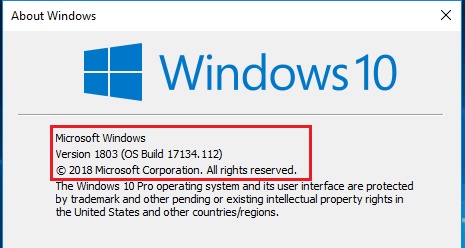
Winver is a built-in Windows command that opens the “About Windows” window, showing your exact Windows edition, version, and build number. It’s the fastest way to check which version of Windows you’re running, and it works the same way on Windows 10 and Windows 11.
Winver (short for Windows Version) is a command built into all modern Windows operating systems — you don’t need to install anything to use it. When you run it, a compact pop-up window appears showing:
- Your major Windows version (e.g., Windows 10, Windows 11).
- The edition (e.g., Pro, Home, Enterprise, Ultimate).
- The OS build number (the update you’re currently on).
- Copyright and licensing information tied to your installation.
How to Check Windows Version with Winver (Windows 10 & 11)
Using Run Dialog
- Open the “Run” dialog box by pressing “Windows key + R”.
- Type “winver” (without quotes) in the Run dialog box and press Enter or click OK.
- The About Windows dialog box will show the current Windows version and build you’re running, whether it’s Windows 10 or Windows 11.
Using Start Menu Search
- Click the Start Menu (or press the Windows key).
- Type winver in the search box.
- Select the result.
Via Command Prompt or PowerShell
You can also run Winver directly inside the Command Prompt or PowerShell, which is especially useful if you already have a terminal window open.
- Press Windows + R to open the Run dialog box.
- Type cmd and press Enter to launch Command Prompt (or type powershell to use Windows PowerShell instead).
- In the terminal window, type the command below and press Enter.
winverThe About Windows window will open exactly as it does when launched from the Run dialog.
What Does Winver Show?
| Example Output | Meaning |
|---|---|
| Windows 10 Pro | Edition of your OS |
| Version 22H2 | Major update release |
| OS Build 19045.3448 | Detailed build number |
| © Microsoft Corporation | Licensing info |
The OS build number is especially useful when troubleshooting problems or checking whether a specific feature or update has reached your PC.
Am I on Windows 10 or Windows 11?
The fastest way to tell them apart is the OS Build number Winver shows you:
| Windows Version | Build Number Starts With | Example Version Label |
|---|---|---|
| Windows 10 | 19xxx | 22H2 |
| Windows 11 | 22xxx or 26xxx | 23H2 / 24H2 |
If you’d rather not run a command, a quick visual check works too: Windows 11 centers the Start button and taskbar icons by default, while Windows 10 keeps them aligned to the left.
How to Run Winver on Windows 11
Winver works on Windows 11 without any additional installation. Use the same shortcut: Windows + R → type winver → Enter. Windows will open the About Windows dialog and display information about your Windows 11 installation. You can also check version details through Settings → System → About.
How to Run Winver on Windows 10
The command is identical on Windows 10: Windows + R → type winver → Enter. The About Windows window will show your edition, version, and OS build. Alternatively, open Settings → System → About and look under the Windows specifications section.
Check Windows Version in Settings (Alternative to Winver)
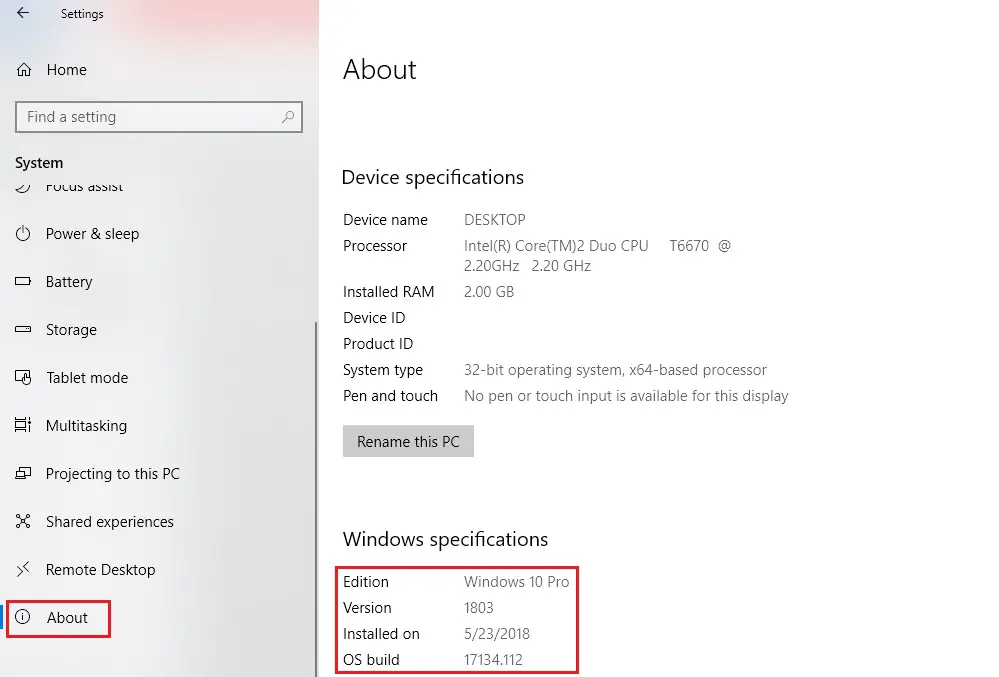
Through Windows Settings (works on Windows 10 and Windows 11), you can check the latest specifications, like OS build number, Windows edition, processor information, and system type (32-bit or 64-bit).
- Open the “Settings” app from the Start Menu, or press WIN + I to open it directly.
- Click on the “System” icon and then select the “About” tab.
- In the “Device Specifications” and “Windows Specifications” sections, you’ll find the OS build number, Windows edition, processor details, and system type.
Check Windows Version with System Information (msinfo32)
Windows also includes a System Information tool called msinfo32, which provides more detailed information than Winver.
- Press Windows + R.
- Type
msinfo32and press Enter. - Look for the operating system information in the System Information window.
msinfo32This tool is useful when you need more than just your Windows version — system manufacturer, processor, BIOS, and other hardware and software details all show up here.
Get Windows Version with Systeminfo Command
- Press “Windows key + R” from the keyboard for opening “Run”
- Type cmd in the box then press Ok button to open Windows Command Line.
- In Windows Command Line type systeminfo then press enter to execute the command.
- You will see complete detailed information about your Windows current version i.e. OS Name, OS model, System type, BIOS version.
What Is Winver.exe?
Winver.exe is the executable behind the About Windows dialog, located in C:\Windows\System32. When you type winver in the Run dialog, Command Prompt, or PowerShell, this is the program Windows launches. For most users, there’s no reason to run the executable manually — simply typing winver is enough.
Quick Reference: How to Check Windows Version
| Method | How to Open It | Best For |
|---|---|---|
| Winver | Win + R → winver | Fastest version check |
| Settings | Settings → System → About | Detailed device & Windows specs |
| System Information | Win + R → msinfo32 | Deep hardware/software details |
| Command Prompt | CMD → ver or systeminfo | Command-line details, scripting |
By running Winver, checking Windows Settings, or using the command line, you can easily determine the current version and build number of your Windows installation — whichever method fits how you like to work.
Frequently Asked Questions About Winver
What does Winver mean?
Winver is short for “Windows Version.” It’s a built-in Windows command that shows the edition, version number, and build of your operating system.
What does Winver do?
Winver opens a small dialog box that displays your Windows edition, version, build number, and copyright information.
Am I on Windows 10 or Windows 11?
Run Winver and check the OS build number. Builds starting with 19 mean you’re on Windows 10; builds starting with 22 or 26 mean you’re on Windows 11.
How to run Winver in Windows 11?
Same as Windows 10—press Windows + R, type winver, and press Enter. It works on all modern Windows versions.
Where is Winver.exe located?
The Winver executable is located in the C:\Windows\System32 folder.
How can I check my Windows version without Winver?
Open Settings, go to System, and select About. Under Windows specifications, you can find information about your Windows edition, version, and OS build.
What is the difference between Winver and Systeminfo?
Winver provides a quick overview of your Windows edition, version, and OS build, while systeminfo provides more detailed operating system and computer information in Command Prompt.
Now it’s your turn: open Winver (Win + R →
winver) and check which version you’re running. If this guide helped, bookmark it for future reference and share it with a friend who’s troubleshooting Windows.
- See our guide on how to disable Windows 11 updates
- Windows Shortcut Keys that can be useful for you.
- Advanced Keyboard Settings in Windows